Help: SQL Server

Sharing my knowlege about SQL Server Troubleshooting Skills

  • Blog Stats

    • 2,153,633 hits
  • Select GETDATE()

    May 2014
    M T W T F S S
     1234
    567891011
    12131415161718
    19202122232425
    262728293031  

Archive for May, 2014

SSMS Tip: What happened to my keyboard shortcuts? Ctrl+R (Show/Hide Result) and Ctrl+E (Execute) not working!

Posted by blakhani on May 8, 2014


Long back I installed SQL Server 2014 to learn new features and of course share the knowledge. I started from CTP1, CTP2 and finally came to RTM. Earlier I was installing them on Virtual Machines and recently I installed SQL 2014 on my laptop which already has SQL Server 2012 installed.

While using SSMS of SQL Server 2014, I noticed that earlier keyboard shortcuts were not working as they used to work earlier (in SQL 2012 SSMS). Few examples are as below:

  • Ctrl + R should show/hide result pane.
  • Ctrl + E should execute the query.

If I use above, I was getting below message in the left bottom of SSMS. “(Ctrl+R) was pressed. Waiting for second key of chord…

image

Pressing Ctrl+R again I get message as “The key combination (Ctrl+R, Ctrl+R) is not a command

Same was the case with Ctrl+E command. “(Ctrl+E) was pressed. Waiting for second key of chord…” . If I take my mouse to “Execute” button, it guided me that shortcut to execute command is Ctrl+Shift+E. And it works as well.

image

But I always preferred to go back to earlier settings. There are multiple ways to achieve it.

Short Route

If you have not done any customization in SSMS and you are OK to reset all the settings then you can use this. In Management Studio menu, go to Tools –> Options –> Environment –> Keyboard –> Keyboard –> Apply the following additional keyboard mapping scheme” and choose “Reset”. You would get a confirmation pop-up, click OK there.

image

Long Route

This route would be preferred if you have done some customization with the settings and want to retain those setting. you can provide shortcuts to any action. Go to Management Studio Tools menu and Tools –> Options –> Environment –> Keyboard –> Keyboard Over there, you can choose the command and assign the “shortcuts for selected command”. The list of command can be searched. For example, I have entered “Window.ShowResultsPane” and assigned Ctrl+R to it as below. Make sure to click on “Assign” button before hitting OK.

image

In Same way , Ctrl+E can be assigned to “Query.Execute

Documentation: http://technet.microsoft.com/en-us/library/ms174205(v=sql.120).aspx (SQL Server Management Studio Keyboard Shortcuts)

More reading: http://blogs.msdn.com/b/managingsql/archive/2011/07/13/enhanced-keyboard-shortcuts-in-ssms-in-denali.aspx

Hope this helps! Please write comment and let me know your feedback.

Cheers,
Balmukund

Posted in SQL Server Management Studio, SSMS | Tagged: , , , , , , | 15 Comments »

Coverage Report – Another successful weekend spent with #SQLBangUG

Posted by blakhani on May 6, 2014


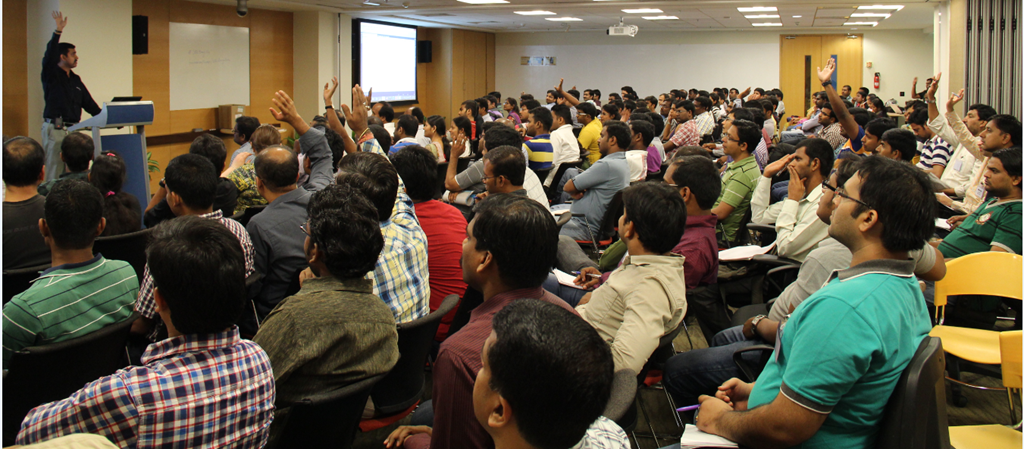
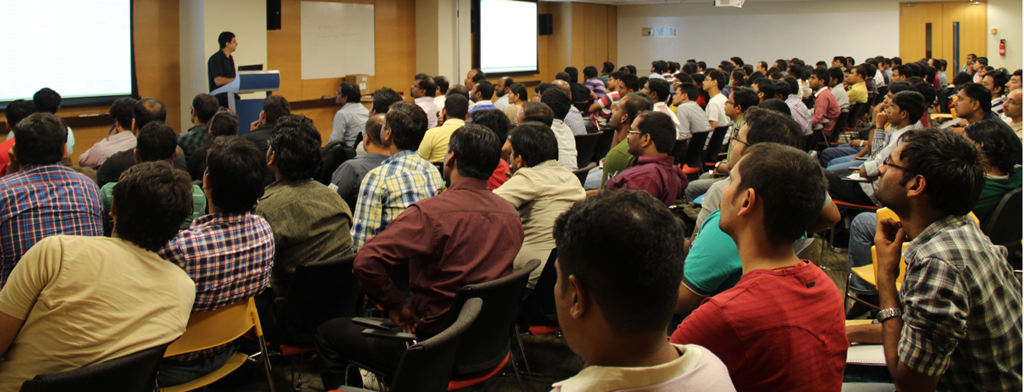
Last weekend, 3rd May 2014, was another remarkable day in history of SQL Bangalore User Group Meetings chapter. For those who are in Bangalore and have not attended the user group meeting has missed something. The meeting announcement was made on 18th April and I was one of the speaker along Sourabh, Amit, Pinal, Vinod and Kane (In order of the sessions). Amit has already given a summary and information about the sessions here (A full house–We could not have asked for more)

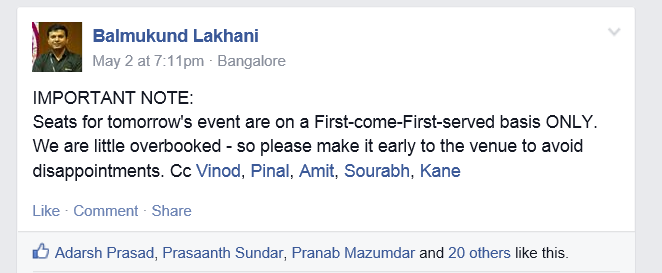
The theme of the meeting was “SQL Server 2014 – Community Launch” because this was the first UG after release of SQL Server 2014 to public. The response was overwhelming and till 2 May people were registering. We were sold out on eventbrite

image 

It was full day event with session lined up on SQL Server 2014 new features. We have booked a room with 150 capacity and had a clue that we are overbooked so food was ordered for higher quantity

image 

We have given enough warning to the folks who have registered about the timings.

image

At around 9:45, we were forced to close the registration because few non-registered used were allowed as they came much before 9:00 AM to make sure they don’t miss the event. Apologies to those who were sent back from reception.

image

While registrations were going on, I stated the event with some housekeeping announcement and people were still coming in

image

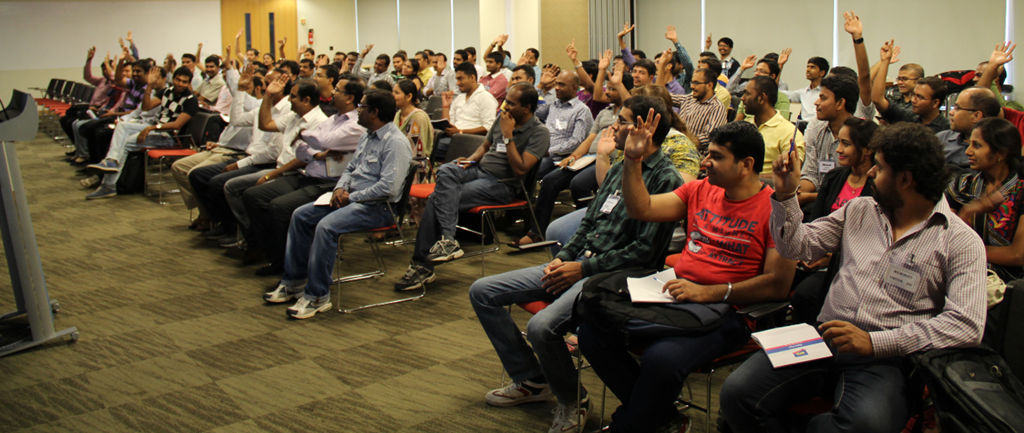
When I asked about repeat participants.. here was the response..

image

In less than 10 min, the room was FULL and people were standing.

image

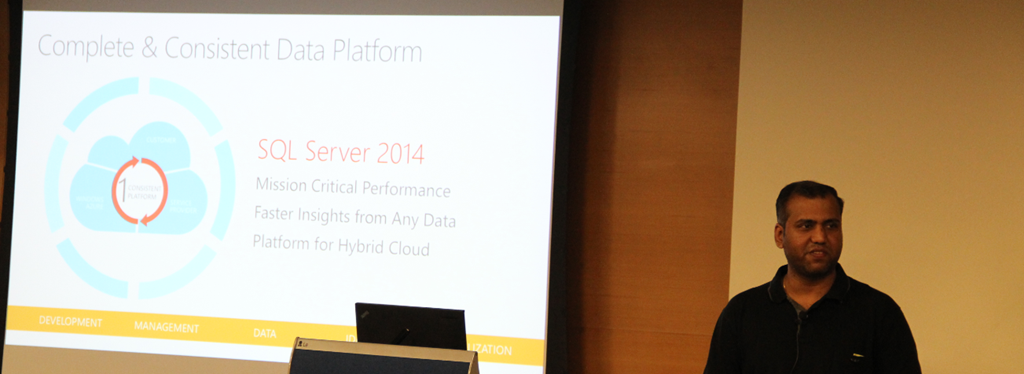
More chairs were arrange and then once all were comfortable, Anupam started his keynote.

image

Followed by Sourabh

image

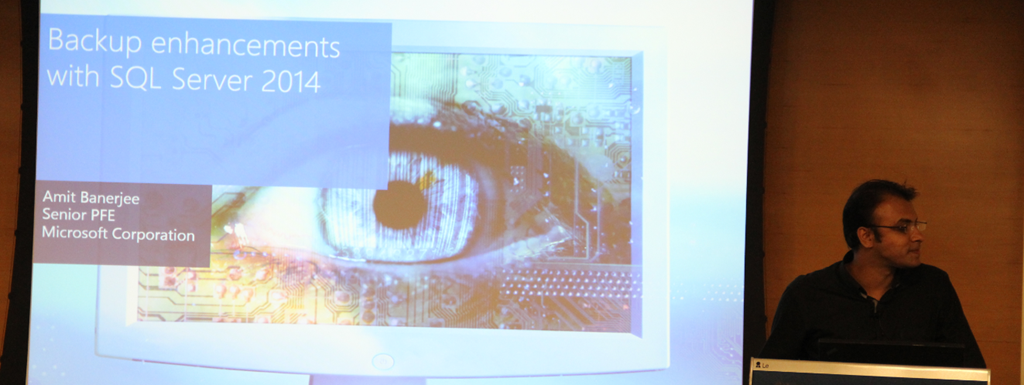
and then Amit..

image

Post lunch, we had Pinal come on stage

image

Followed by me..

image

Vinod

image

and Kane

image

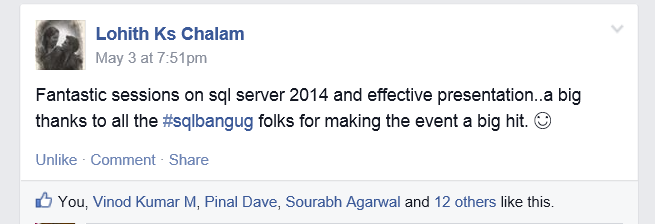
These are few ripples on Facebook as feedback of the event

imageimage

imageimage

In case you missed this time, stay tuned. We would do another next month..

Cheers,
Balmukund

Posted in SQL Server User Group, SQLBangUG | Tagged: | Leave a Comment »

SQL 2014 Learning Series # 7–New Feature – Delayed Durability (Part 1)

Posted by blakhani on May 1, 2014


SQL Server 2014 is having a lot of useful feature and some are hidden as well. I was able to learn about “delayed durability” feature while preparing my session at GIDS. Since the session is over now, it’s right time to write about this feature. First, let’s understand durability.

In general, every transaction in relational database should follow ACID properties. Atomicity, Consistency, Isolation and Durability.

image

In SQL Server, durability is maintained by writing log record of modification to transaction log “synchronously”. If write to the disk is slow (or huge data to be written) the total time of transaction would become longer and we would see WRITELOG wait for the SPID. Once log record is hardened to transaction log, client would get commit confirmation.

image

SQL Server 2014 gives DBA and Application team to achieve durability with a delay. Delayed durability may give you some performance gain at the cost of durability factor of a transaction. It is achieved by writing the log record asynchronously. Log record is still generated and kept in memory area called “Log Cache”. Only difference is that it’s written to disk with the delay. So, even if application has received confirmation from SQL about the commit, it’s not actually hardened to disk. This is what is called as “delayed” durability.  If there is a unexpected failure of SQL before the data is written to disk, the data is essentially lost.

image

I must emphasize the fact that if your application can’t afford any data loss, don’t use this feature. (I don’t have option to put red flashing light otherwise I would have done that to stress on the data loss factor). Does this mean that you have no control about the flush of the log records from log cache to disk? No, product team has thought of this and provided a extended stored procedure called sp_flush_log. I would talk more about this later.

Now since you know the fundamentals of delayed durability, let’s see how to implement it. This can be controlled at various level. We can set delayed durability at Database Level, Transaction Level and in-memory stored procedure.

Database Level

We can change the setting using SSMS as below

image

Same options are provided in T-SQL as well.

ALTER DATABASE [AdventureWorks2014]
SET DELAYED_DURABILITY = DISABLED

ALTER DATABASE [AdventureWorks2014]
SET DELAYED_DURABILITY = ALLOWED

ALTER DATABASE [AdventureWorks2014]
SET DELAYED_DURABILITY = FORCED

If we set the value to disabled at database level, it would take highest priority. This means that transaction level setting would not be honored.

Transaction Commit Level

During commit of a transaction we can specify delayed durability option as ON or OFF

COMMIT TRAN [ transaction name | @transaction name variable ] [ WITH ( DELAYED_DURABILITY = { OFF | ON })]

Natively Compiled Stored Procedure Level

To know more about natively compiled procedure, I would like you to read here. While creating natively compiled procedure, we can specify delayed durability as below.

CREATE PROCEDURE SQLServerHelp
WITH NATIVE_COMPILATION, SCHEMABINDING, EXECUTE AS OWNER
AS BEGIN ATOMIC WITH 
(
    DELAYED_DURABILITY = ON,
    TRANSACTION ISOLATION LEVEL = SNAPSHOT,
    LANGUAGE = N'English'
    …
)
END

Here is the quick chart which explains effect of settings done at database level and transaction level.

image

In next part, we would see delayed durability in action.

  • Cheers,
  • Balmukund Lakhani
  • Twitter @blakhani
  • Author: SQL Server 2012 AlwaysOnPaperback, Kindle
  • Posted in SQL 2014 Learning Series, SQL Server 2014 | Tagged: , , | 4 Comments »