Help: SQL Server

Sharing my knowlege about SQL Server Troubleshooting Skills

  • Blog Stats

    • 2,158,235 hits
  • Select GETDATE()

    April 2026
    M T W T F S S
     12345
    6789101112
    13141516171819
    20212223242526
    27282930  

Archive for 2014

SQL 2014 Learning Series # 9 – New Feature – Resource Governor to control I/O (Part 1)

Posted by blakhani on May 15, 2014


Have you ever come across a situation where you want to re-index complete database and other queries are facing slowness because of IO bottleneck? In earlier version of SQL Server, resource governor was available for CPU and memory. In SQL Server 2014, resource governor for IO was also introduced. This would enable DBA to manage and control the allocation of resources. To read more about earlier version, you can refer books online. As per documentation, below are the goals which were thought while designing RG:

  • Minimize impact run-away queries:- Run-away queries are the queries which would consume resources for long time. Think of a reporting query which consumes 100% as soon as it runs. If such query is executed, other queries would suffer from resource bottleneck.
  • Improve predictability of query executions:- During maintenance tasks (rebuild index, update stats) or ETL, there might be a heavy use of resource by those processes. This would cause unpredictable time of query executions. This is generally not a desirable situation.

Let’s first understand the basic functionality and various terms used in resource governor. Below picture shows various components of resource governor.

image

As soon as request comes from any source it is assigned to a particular resource group via user defined function known as “classifier function”. Classifier function can use various connection attributes and provide the bucket in which request should fall into. These buckets are called Resource Group. Those request which are not classified, would go to default group (orange color). Default group would use remaining resources. We should also remember that there is a internal pool (green color) which can’t be controlled via resource governor. The maximum number of pools which can be configured in SQL Server is 64.

Someone may still ask, why I/O needs to be governed? Think of a situation when you are database services provider. There are many customers who are hosting database on your server. What if one of your naughty customer runs read/write heavy workload? Someone else would be impacted. Right?

Let’s see what’s new in resource governor. Highlighted is the additional which is available in SQL 2014. This means that now we have ability to set/get/alter minimum and maximum I/O operations per second (IOPS) per volume to resource pool.

CREATE RESOURCE POOL pool_name
[ WITH
    (
        [ MIN_CPU_PERCENT = value ]
        [ [ , ] MAX_CPU_PERCENT = value ] 
        [ [ , ] CAP_CPU_PERCENT = value ] 
        [ [ , ] AFFINITY {SCHEDULER =
                  AUTO | ( <scheduler_range_spec> ) 
                | NUMANODE = ( <NUMA_node_range_spec> )} ] 
        [ [ , ] MIN_MEMORY_PERCENT = value ]
        [ [ , ] MAX_MEMORY_PERCENT = value ]
        [ [ , ] MIN_IOPS_PER_VOLUME = value ]
        [ [ , ] MAX_IOPS_PER_VOLUME = value ]
    ) 
]
[;]


There are various changes introduced in DMVs to monitor resource governor for IO and new DMVs are also added.

Below are existing DMVs having new columns about

  • sys.resource_governor_configuration
    • max_outstanding_io_per_volume
  • sys.dm_resource_governor_resource_pools:
    • min_iops_per_volume
    • max_iops_per_volume
    • read_io_queued_total
    • read_io_issued_total
    • read_io_completed_total
    • read_io_throttled_total
    • read_bytes_total
    • read_io_stall_total_ms
    • read_io_stall_queued_ms
    • write_io_queued_total
    • write_io_issued_total
    • write_io_completed_total
    • write_io_throttled_total
    • write_bytes_total
    • write_io_stall_total_ms
    • write_io_stall_queued_ms
    • io_issue_violations_total
    • io_issue_delay_total_ms

New DMV:

  • sys.dm_resource_governor_resource_pool_volumes
    • pool_id
    • volume_name
    • read_io_queued_total
    • read_io_issued_total
    • read_io_completed_total
    • read_io_throttled_total
    • read_bytes_total
    • read_io_stall_total_ms
    • read_io_stall_queued_ms
    • write_io_queued_total
    • write_io_issued_total
    • write_io_completed_total
    • write_io_throttled_total
    • write_bytes_total
    • write_io_stall_total_ms
    • write_io_stall_queued_ms
    • io_issue_violations_total
    • io_issue_delay_total_ms

Other than DMVs there are XEvents and Performance counters added to monitor and troubleshoot resource governor related to IO. Since my instance name is SQL2014, the counter name is MSSQL$SQL2014:Resource Pool Stats. I have highlighted 8 new counters (4 for read and 4 for write) which are newly added in SQL 2014. Note that these counters are “per pool” basis. Here is the query to get list of counters.

Select distinct object_name, 
counter_name from sys.dm_os_performance_counters 
where object_name like '%Pool%'

MSSQL$SQL2014:Resource Pool Stats  Active memory grant amount (KB) 
MSSQL$SQL2014:Resource Pool Stats  Active memory grants count
MSSQL$SQL2014:Resource Pool Stats  Avg Disk Read IO (ms) 
MSSQL$SQL2014:Resource Pool Stats  Avg Disk Write IO (ms) 
MSSQL$SQL2014:Resource Pool Stats  Cache memory target (KB) 
MSSQL$SQL2014:Resource Pool Stats  Compile memory target (KB)
MSSQL$SQL2014:Resource Pool Stats  CPU control effect %
MSSQL$SQL2014:Resource Pool Stats  CPU usage %
MSSQL$SQL2014:Resource Pool Stats  CPU usage % base 
MSSQL$SQL2014:Resource Pool Stats  CPU usage target % 
MSSQL$SQL2014:Resource Pool Stats  Disk Read Bytes/sec 
MSSQL$SQL2014:Resource Pool Stats  Disk Read IO Throttled/sec
MSSQL$SQL2014:Resource Pool Stats  Disk Read IO/sec 
MSSQL$SQL2014:Resource Pool Stats  Disk Write Bytes/sec
MSSQL$SQL2014:Resource Pool Stats  Disk Write IO Throttled/sec 
MSSQL$SQL2014:Resource Pool Stats  Disk Write IO/sec
MSSQL$SQL2014:Resource Pool Stats  Max memory (KB) 
MSSQL$SQL2014:Resource Pool Stats  Memory grant timeouts/sec 
MSSQL$SQL2014:Resource Pool Stats  Memory grants/sec
MSSQL$SQL2014:Resource Pool Stats  Pending memory grants count 
MSSQL$SQL2014:Resource Pool Stats  Query exec memory target (KB)
MSSQL$SQL2014:Resource Pool Stats  Target memory (KB) 
MSSQL$SQL2014:Resource Pool Stats  Used memory (KB) 

In Next part of this post, we would see IO resource governor in action.
  • Cheers,
  • Balmukund Lakhani
  • Twitter
  • @blakhani

  • Author: SQL Server 2012 AlwaysOnPaperback, Kindle
  • Posted in SQL 2014 Learning Series, SQL Server 2014 | Tagged: , , , | Leave a Comment »

    SQL 2014 Learning Series # 8 – New Feature – Delayed Durability (Part 2)

    Posted by blakhani on May 13, 2014


    In part 1 of the post about delayed durability, we have learned the basics of delayed durability. In this part, lets see it in action. I must point out that this feature is also called “Lazy Commit”. Hope you remember that we can set durability as delayed at two levels, database level and transaction level (commit statement). The idea of this demo is to show difference in writing of transaction log record. I have used free tool called process monitor (free download here) which is very useful to profile file/registry/network related activity by processes.

    Here is the script to create database and table.

    USE master
    go
    IF DB_ID('MyDemoDB') IS NOT NULL
    begin
    ALTER DATABASE [MyDemoDB] SET SINGLE_USER WITH ROLLBACK IMMEDIATE
    DROP DATABASE [MyDemoDB]
    end
    GO
    -- Create New Database, set recovery to full and take full backup
    CREATE DATABASE [MyDemoDB]
    GO
    ALTER DATABASE [MyDemoDB] SET RECOVERY FULL WITH NO_WAIT
    GO
    ALTER DATABASE [MyDemoDB] MODIFY FILE ( NAME = N'MyDemoDB', SIZE = 500MB )
    GO
    ALTER DATABASE [MyDemoDB] MODIFY FILE ( NAME = N'MyDemoDB_log', SIZE = 500MB )
    GO
    BACKUP DATABASE [MyDemoDB] to DISK = 'MyDemoDB.bak'
    GO
    
    -- create a table. 
    Use [MyDemoDB]
    GO
    create table DemoTable 
    (col1 int identity primary key clustered, 
    col2 varchar(100)) GO

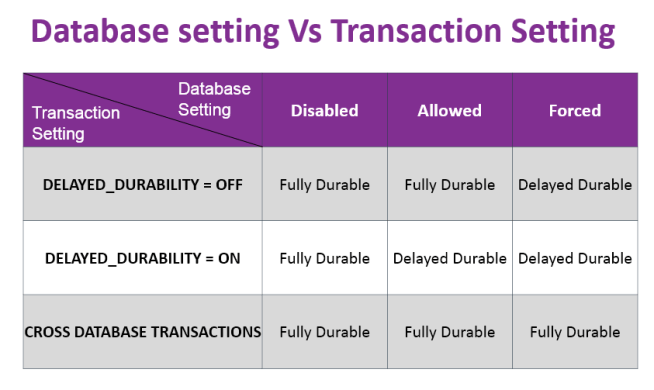
    We can use the combination specified below to do specific delayed durable or fully durable transaction

    For demo purpose, I have selected database Setting = Allowed and transaction setting delayed_durability = OFF to achieve fully durable transaction. Below is the script to change and view the settings for database.

    USE [master]
    GO
    ALTER DATABASE [MyDemoDB] SET DELAYED_DURABILITY = ALLOWED WITH NO_WAIT
    GO
    -- Verify setting
    select [name], [database_id], [delayed_durability], [delayed_durability_desc]
    from sys.databases where name = 'MyDemoDB'
    GO

    Here is the stored procedure where I am setting transaction level delayed durability to OFF = Fully Durable.

    Use MyDemoDB
    go
    Create Procedure Insert_DemoTable
    as
    begin
    SET NOCOUNT ON
     
    DECLARE @counter AS INT = 0
    DECLARE @start datetime
    Select @start = getdate()
     
        WHILE (@counter < 100)
            BEGIN
                begin tran
                 INSERT INTO DemoTable VALUES( @counter)
                 SET @counter = @counter + 1
                 commit with (delayed_durability = OFF)
             END
    Select datediff(second, @start, getdate() )
    end
    go

    Since our database setting is set to allowed, we will create another procedure to set delayed durability as ON on transaction level.

    Use MyDemoDB
    go
    Create Procedure Insert_DemoTable_Delayed
    as
    begin
    SET NOCOUNT ON
     
    DECLARE @counter AS INT = 0
    DECLARE @start datetime
    Select @start = getdate()
     
        WHILE (@counter < 1000)
            BEGIN
                begin tran
                 INSERT INTO DemoTable VALUES( @counter)
                 SET @counter = @counter + 1
                 commit with (delayed_durability = ON)
             END
    Select datediff(second, @start, getdate() )
    end
    go


    Now we are ready to perform some test to see effect on log record writing in fully durable and delayed durable transaction. I have started ProcMon and added filter (Ctrl+L) for “Path” as “E:\Program Files\Microsoft SQL Server\MSSQL12.SQL2014\MSSQL\DATA\MyDemoDB_log.ldf” which is the transaction log file path for MyDemoDB database. You may want to change as per your environment. Here are the two pictures which can explain a lot by themselves.

    image

    Image 1: Parallel capture – SSMS and ProcMon showing the activity done by sqlservr.exe during fully durable transaction

    image

    Image 2: Parallel capture – SSMS and ProcMon showing the activity done by sqlservr.exe during delayed durable transaction

    Here are the important points to note:

    • In case of fully durable transaction, we are seeing 100 WriteFile calls to ldf file. This is due to the fact that in stored procedure, we are doing 100 transactions.
    • When delayed durable transaction is performed, SQL Server didn’t write synchronously to transaction log file for each transaction.
    • In delayed durable test, 100 transactions were clubbed together and only one writeFile is issued asynchronously.
    • Size of write for each transaction was 4096 byte and there were 100 calls in fully durable transaction but in delayed durable, the size of write is 36864 and just one call.
    • If we use undocumented command fn_dblog, we can see that the log record structure is same.

    To test further, I have modified the procedure and increased the counter to 100000 and here is the time taken by them is shown below.

    image

    The test which I have done may not be pattern of your work load but this is just to show you performance gain for certain kind of workloads. This is available with ALL editions of SQL Server 2014 and NOT restricted to In-Memory OLTP (few people have asked me this!)

    SQL Server 2014 has in-built extended stored procedure called sp_flush_log which can be used to forcefully flush the log buffers to transaction log. You can read more here

    I have heard people explaining this feature as SQL not using Write Ahead Logging. That is totally incorrect. WAL is not about synchronous writing of transaction log, it’s about Writing in log ahead of data change. If WAL is broken, crash recovery of database would be a problem. I hope that this blog gives you an understanding about this new feature called Lazy Commit or Delayed Durability.

  • Cheers
  • Balmukund Lakhani
  • Twitter @blakhani
  • Author: SQL Server 2012 AlwaysOnPaperback, Kindle
  • Posted in SQL 2014 Learning Series, SQL Server 2014 | Tagged: , , | 1 Comment »

    SSMS Tip: What happened to my keyboard shortcuts? Ctrl+R (Show/Hide Result) and Ctrl+E (Execute) not working!

    Posted by blakhani on May 8, 2014


    Long back I installed SQL Server 2014 to learn new features and of course share the knowledge. I started from CTP1, CTP2 and finally came to RTM. Earlier I was installing them on Virtual Machines and recently I installed SQL 2014 on my laptop which already has SQL Server 2012 installed.

    While using SSMS of SQL Server 2014, I noticed that earlier keyboard shortcuts were not working as they used to work earlier (in SQL 2012 SSMS). Few examples are as below:

    • Ctrl + R should show/hide result pane.
    • Ctrl + E should execute the query.

    If I use above, I was getting below message in the left bottom of SSMS. “(Ctrl+R) was pressed. Waiting for second key of chord…

    image

    Pressing Ctrl+R again I get message as “The key combination (Ctrl+R, Ctrl+R) is not a command

    Same was the case with Ctrl+E command. “(Ctrl+E) was pressed. Waiting for second key of chord…” . If I take my mouse to “Execute” button, it guided me that shortcut to execute command is Ctrl+Shift+E. And it works as well.

    image

    But I always preferred to go back to earlier settings. There are multiple ways to achieve it.

    Short Route

    If you have not done any customization in SSMS and you are OK to reset all the settings then you can use this. In Management Studio menu, go to Tools –> Options –> Environment –> Keyboard –> Keyboard –> Apply the following additional keyboard mapping scheme” and choose “Reset”. You would get a confirmation pop-up, click OK there.

    image

    Long Route

    This route would be preferred if you have done some customization with the settings and want to retain those setting. you can provide shortcuts to any action. Go to Management Studio Tools menu and Tools –> Options –> Environment –> Keyboard –> Keyboard Over there, you can choose the command and assign the “shortcuts for selected command”. The list of command can be searched. For example, I have entered “Window.ShowResultsPane” and assigned Ctrl+R to it as below. Make sure to click on “Assign” button before hitting OK.

    image

    In Same way , Ctrl+E can be assigned to “Query.Execute

    Documentation: http://technet.microsoft.com/en-us/library/ms174205(v=sql.120).aspx (SQL Server Management Studio Keyboard Shortcuts)

    More reading: http://blogs.msdn.com/b/managingsql/archive/2011/07/13/enhanced-keyboard-shortcuts-in-ssms-in-denali.aspx

    Hope this helps! Please write comment and let me know your feedback.

    Cheers,
    Balmukund

    Posted in SQL Server Management Studio, SSMS | Tagged: , , , , , , | 15 Comments »