Help: SQL Server

Sharing my knowlege about SQL Server Troubleshooting Skills

  • Blog Stats

    • 2,158,237 hits
  • Select GETDATE()

    April 2026
    M T W T F S S
     12345
    6789101112
    13141516171819
    20212223242526
    27282930  

Archive for 2014

Myths of SQL Server: Rollback Service Pack with Resource Database? (MSSQLSystemResource)

Posted by blakhani on April 10, 2014


I have been doing a lot of community activities and lately I have learnt that there is a lot of confusion about resource database. I am going to burst major myth which I mentioned in title.

First, let’s understand why there was a new “hidden” system database introduced in SQL 2005. I am not sure if you have ever seen SQL 2000 Service Pack setup screens. Here is the of the screen where system objects are modified.

image

Prior to SQL 2005, all system objects were in master database and they were open for end user to alter by changing “allow updates” configuration using sp_configure. To safe guard system objects from modification (which might cause unexpected behaviors) product modification has been made and system objects definition is moved to a new hidden databases called “resource” database. Another reason of having resource database is to avoid running script to modify system objects during patching of SQL. Rather than running ALTER commands, just replace resource database file. I must point out that running script is one of many steps during upgrade process. (Keep this in mind as I am going to come back to this point later). During patching process (service pack or major product release) SQL Server setup used to drop and create thousands of system objects. It might take around 10 minutes and during that time SQL server is unavailable for production usage. Resource database is introduced to reduce the down time because script execution is now changed to a file copy of resource database.

Here are some properties of this database.

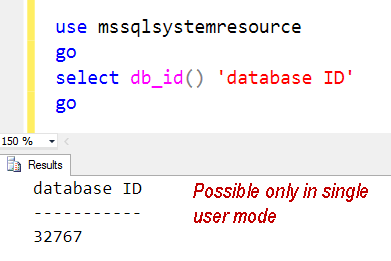
  • Database ID = 32767
  • Database name = MSSQLSystemResource
  • Data file name = mssqlsystemresource.mdf
  • Log file name = mssqlsystemresource.ldf
  • State = Read Only / Hidden
  • Contains = Pre-created system T-SQL code like Stored procedures, extended procedures, catalog views
  • Does NOT contain user data or user metadata.

Since it’s a hidden database, we can’t view the objects located in the database. There are two ways to do that (and this is strictly for learning purpose) In real time, you never have to worry about this database.

  • Start SQL in Single User Mode (Refer earlier blog)
  • Attach the MDF and LDF file as user database.
image

There has been changes done in various SQL version about the physical location of the files. Since they are MDF and LDF, initially they were kept in DATA folder, along with master database files. but then there have been problems when DBA used to move master database to new location and service pack used to fail. Customers also showed their concern about backup of this database (as the files are visible in data folder). In SQL 2008 onwards, location has been changed and it is now kept in the same location where sqlservr.exe resides.

SQL Version Location
SQL Server 2000 No Resource Database
SQL Server 2005 <drive>:\Program Files\Microsoft SQL Server\MSSQL.<ID>\MSSQL\Data\
SQL Server 2008 <drive>:\Program Files\Microsoft SQL Server\MSSQL10.<instance_id>\MSSQL\Binn\
SQL Server 2008 R2 <drive>:\Program Files\Microsoft SQL Server\MSSQL10_50.<instance_id>\MSSQL\Binn\
SQL Server 2012 <drive>:\Program Files\Microsoft SQL Server\MSSQL11.<instance_id>\MSSQL\Binn\
SQL Server 2014 <drive>:\Program Files\Microsoft SQL Server\MSSQL12.<instance_id>\MSSQL\Binn\


For all practical purposes we should treat resource database files as binaries/DLLs. Since we have MDF and LDF files, we have been calling it as database. Now, if it’s a DLL, how to get version of current resource database? There are two ways.

SELECT SERVERPROPERTY('ResourceVersion') 'Resource Version';
GO

    image

    SQL Server ERRORLOG also shows this information.

    SNAGHTML388a8a6

    Now comes the real conversation.

    DBA: Can I use the resource database to uninstall service pack?

    Balmukund: can you please explain more?

    DBA: I have taken copy of mdf and ldf files before applying 2008 service pack 1. After patching is complete, I want to rollback SP1.

    Balmukund: Okay. how would you do it?

    DBA: Stop SQL services, keep back the old files of mssqlsystemresource and start SQL services.

    Balmukund: Oh no. That’s not something you should do. Those files are just like a DLL of a huge SQL Product. By replacing file you would introduce version mismatch between SQLServr.exe and Resource database.

    DBA: But I learned that resource database can be used to rollback service pack.

    Balmukund: No, that information is not correct. During the whole upgrade process replacing file is just one of the step. Who would take care of unregistering DLLs, keeping back old version of files etc?

    DBA: So, I can’t uninstall a Service Pack?

    Balmukund: I didn’t say that. Starting with service packs (Service Pack 1) in SQL Server 2008 you can uninstall them from Add/Remove Programs like any other update. Till SQL 2005, only way was uninstall SQL completely and reinstall again (Refer KB http://support.microsoft.com/kb/314823)

    DBA: What you would be if resource database is lost?

    Balmukund: There are two possible options. First and the easiest one is to copy the resource database files from another instance that is the same version, service pack, cumulative update (patch level is very important). Second option is to rebuild system databases. http://msdn.microsoft.com/en-us/library/dd207003.aspx

    I truly hope this blog uncovers few facts about hidden database.

  • Cheers,
  • Balmukund Lakhani
  • Twitter @blakhani
  • Author: SQL Server 2012 AlwaysOnPaperback, Kindle
  • Posted in SQL Myths, SQL Server | Tagged: , , , , | 3 Comments »

    SQL 2014 Learning Series # 4 – New Feature – Buffer Pool Extension

    Posted by blakhani on April 8, 2014


    Today I am going to pick up another new feature of SQL Server 2014 called as Buffer Pool Extension (a.k.a. BPE).  As the name suggests, this feature allows DBA to extend buffer pool beyond the size of the memory allocated to SQL Server. Buffer pool is biggest chunk of memory allocated in SQL Server process. BPE can use nonvolatile storage devices (like SSD) for increasing amount of memory available for buffer pool consumers. This allows usage of SSD as an intermediate buffer pool pages which would help in getting price advantage over the memory increase on the server. Adding storage device on server is less invasive as compare to adding memory and fetching a page from SSD is faster than fetching it from data file. You can think of this as pagefile for SQL buffer pool only.

    Steps to configure:

    To enable the feature we need provide file path and the size. That’s it? Well, keep in mind that size of BPE should be more than current memory allocation, else we would get below error
    Msg 868, Level 16, State 1, Line 40
    Buffer pool extension size must be larger than the current memory allocation threshold 12784 MB. Buffer pool extension is not enabled.

    Due to above check, I have reduced max server memory on my SQL instance so that I can create the demo.

    EXEC sys.sp_configure N'show advanced options', N'1'  
    GO
    RECONFIGURE WITH OVERRIDE
    GO
    EXEC sys.sp_configure N'max server memory (MB)', N'1024'
    GO
    RECONFIGURE WITH OVERRIDE
    GO
    EXEC sys.sp_configure N'show advanced options', N'0'  
    GO
    RECONFIGURE WITH OVERRIDE
    GO
    

    using above commands, now the max server memory if 1 GB. Then I ran below command to create BPE file of 2 GB (to avoid error 868)

    ALTER SERVER CONFIGURATION 
    SET BUFFER POOL EXTENSION 
    ON ( FILENAME = 'F:\BufferPoolExtensionDemo\BPE.bpe' ,SIZE = 2 GB) 
    

    To get configuration information

    Select * from sys.dm_os_buffer_pool_extension_configuration


    image

    Read state_description carefully. It says “BUFFER POOL EXTENSION CLEAN PAGE CACHING ENABLED”. Clean page is a page in SQL memory which has no write pending. It’s generally the page which has been read from data file and no transaction has done the update of that page. Any modification to clean page would make it “dirty page”, which means there is some write on the page which is not yet written to the data file. Only clean pages can be stored in BPE file.

    As per whitepaper mentioned in blog “The dual write design is that dirty pages evicted from the buffer pool are written both to the SSD and to the database on disks; in effect, treating the SSD as a “write-through” cache for dirty pages”

    image


    Where is my page? memory or BPE file?

    To identify that, we can use DMV sys.dm_os_buffer_descriptors which has additional column introduced called is_in_bpool_extension. Here is the query to show such pages.

    Select    *
    from    sys.dm_os_buffer_descriptors
    where    is_in_bpool_extension = 1


    What if you want to change the file size of BPE? In case we want to change the configuration, the only option is to disable and enable the configuration. There is no ALTER command to modify it. Here is the command to turn it off.

    ALTER SERVER CONFIGURATION
    SET BUFFER POOL EXTENSION OFF


    If we query sys.dm_os_buffer_pool_extension_configuration again, we’ll see new information on our buffer pool extension.

     image


    To monitor. Below XEvents are available in SQL Server 2014 to monitor the functionality of BPE

    sqlserver.buffer_pool_extension_pages_written
    sqlserver.buffer_pool_extension_pages_read
    sqlserver.buffer_pool_extension_pages_evicted
    sqlserver.buffer_pool_eviction_thresholds_recalculated

    Here are various messages which contains text buffer pool extension. (taken from sys.messages catalog view)

    Buffer pool extension “%.*ls” has been initialized successfully with size is %I64d MB.
    Failed to create buffer pool extension of size %I64d MB on path “%.*ls”.
    Buffer pool extension configuration “%.*ls” is in wrong format. The format should be “<extension directory>,<size in GB>”.
    Buffer pool extension size must be larger than the physical memory size %I64d MB. Buffer pool extension is not enabled.
    Attempt to disable buffer pool extension when in state %ls is not allowed.
    Attempt to enable buffer pool extension when in state %ls is not allowed.
    Attempting to allocate %1ld BUF for buffer pool extension for a maximum of %2ld page descriptors.
    Buffer pool extension is only supported on Standard and Enterprise Editions of SQL Server.
    Buffer pool extension is not supported on the %ls architecture.
    Buffer pool extension has been disabled successfully. Deleting buffer pool extension “%.*ls”.
    Buffer pool extension size must be larger than the current memory allocation threshold %I64d MB. Buffer pool extension is not enabled.
    Buffer pool extension “%.*ls” cannot be closed because %ld asynchronous I/Os are outstanding.
    Could not change the value of the ‘BPoolExtensionPath’ property. Operating system error %ls

    Important Points:

    • Since BPE files stores only clean pages, there is no risk of data loss in event of loss of extension file or device which stores the file.
    • Available in Enterprise (developer and evaluation) and standard edition feature. Note that this is only for 64 bit SQL Server.

    I would not recommend putting BPE on spinning media. Since I don’t have SSD, I have used F drive but that should NOT be done in production.

    For more information on the buffer pool extension, please read book online topic Buffer Pool Extension.

    Hope this is helpful.

  • Cheers,
  • Balmukund Lakhani
  • Twitter @blakhani
  • Author: SQL Server 2012 AlwaysOnPaperback, Kindle
  • Posted in SQL 2014 Learning Series, SQL Server 2014 | Tagged: , , , | 6 Comments »

    SQL 2014 Learning Series # 3 – New Feature – Backup Encryption

    Posted by blakhani on April 3, 2014


    Before we jump into the new feature, lets have a look at behavior in previous version. Same simulation can be done on SQL Server 2014 as well.

    1. Create Database
    2. Create table in the database and insert some rows.
    3. Take backup of the database and check if we are able to see those rows in the backup.

    Here are the commands which we can run to achieve this.

    Create database [SQLServerHelp]
    go
    use [SQLServerHelp]
    go
    Create Table MyData (i int, j char(100));
    go
    insert into MyData values (1, 'See this data')
    go
    backup database SQLServerHelp to Disk = 'E:\Tools\SQLServerHelp.bak'
    go


    I have opened the backup file with one of the text editor and I can search for the row which I inserted. Note that opening big file in text editors may take a lot of time and file may become unusable for SQL Server. PLEASE DON’T TRY THIS ON PRODCUTION DATABASE BACKUP. I have highlighted the row which was inserted via above script. (1, ‘See this data’)

    image

    The way to avoid above situation is that encrypt the database use TDE or encrypt the column using column encryption. Please read below

    http://technet.microsoft.com/en-us/library/cc278098(v=SQL.100).aspx (Database Encryption in SQL Server 2008 Enterprise Edition)

    There are some overhead involved with above techniques and you may want to make sure that only backup is encrypted and you are OK if MDF file has data in readable format. To solve this, SQL Server 2014 has new feature called backup encryption. You can read more on books online

    Let’s look at steps involved.

    Create database master key for the master database.

    USE master;
    GO
    CREATE MASTER KEY ENCRYPTION BY PASSWORD = 'SQLServer-Help@123';
    GO

    Create a Backup Certificate

    Use Master
    GO
    CREATE CERTIFICATE BackupEncryptCert
       WITH SUBJECT = 'SQL Backup Encryption Certificate';
    GO


    Take a backup: This can be done by SSMS UI or T-SQL

    image

    T-SQL

    BACKUP DATABASE [SQLServerHelp] TO  DISK = N'E:\Tools\Encrypted_SQLServerHelp.bak' WITH NOFORMAT, NOINIT,  
    NAME = N'SQLServerHelp-Full Database Backup', SKIP, NOREWIND, NOUNLOAD,  STATS = 10, ENCRYPTION(ALGORITHM = AES_128, SERVER CERTIFICATE = [BackupEncryptCert])
    GO


    Here is the message which we can see as output in SSMS when we run T-SQL.

    image

    Here is the complete text of highlighted warning.

    “Warning: The certificate used for encrypting the database encryption key has not been backed up. You should immediately back up the certificate and the private key associated with the certificate. If the certificate ever becomes unavailable or if you must restore or attach the database on another server, you must have backups of both the certificate and the private key or you will not be able to open the database.”

    It’s clear that to restore this backup, we need to backup certificate. Going back to original problem, I tried searching for the text in new backup file but can’t find it. If you look at screenshot, it’s clear that it’s more unreadable.

    image

    As Vinod (b|t) mentioned in his blog, we can see complete message in ERRORLOG (this is also an enhancement in SQL Server 2014)

    2014-04-03 06:36:42.780 Backup       Database backed up. Database: SQLServerHelp, creation date(time): 2014/04/01(10:15:50), pages dumped: 307, first LSN: 34:24:37, last LSN: 34:56:1, number of dump devices: 1, device information: (FILE=1, TYPE=DISK: {‘E:\Tools\SQLServerHelp.bak’}). This is a

    2014-04-03 06:36:42.810 Backup       BACKUP DATABASE successfully processed 298 pages in 0.212 seconds (10.981 MB/sec).

    2014-04-03 07:25:49.220 Backup       Database backed up. Database: SQLServerHelp, creation date(time): 2014/04/01(10:15:50), pages dumped: 307, first LSN: 34:168:37, last LSN: 34:200:1, number of dump devices: 1, device information: (FILE=1, TYPE=DISK: {‘E:\Tools\Encrypted_SQLServerHelp.bak’}

    2014-04-03 07:25:49.240 Backup       BACKUP DATABASE successfully processed 298 pages in 0.228 seconds (10.211 MB/sec).

    It’s clear that second one took little more time. I am guessing this is because of encryption as all other factors are same.

    Hope you have learned something new today!

    Edit (9 April 2014) – Vinod (b|t) wrote a blog on restoring such backups. http://blogs.extremeexperts.com/2014/04/09/sql-server-2014-restoring-encrypted-backups/


  • Cheers,
  • Balmukund Lakhani
  • Twitter @blakhani
  • Author: SQL Server 2012 AlwaysOnPaperback, Kindle
  • Posted in SQL 2014 Learning Series, SQL Server 2014 | Tagged: , , , , , | 1 Comment »