Help: SQL Server

Sharing my knowlege about SQL Server Troubleshooting Skills

  • Blog Stats

    • 2,158,305 hits
  • Select GETDATE()

    April 2026
    M T W T F S S
     12345
    6789101112
    13141516171819
    20212223242526
    27282930  

Archive for 2014

UDL Test Series – Part 1 – A Basic Connectivity Check

Posted by blakhani on March 18, 2014


In most of the situations you may not have SQL Server Management Studio (SSMS), command line tools (SQLCmd, OSql, Isql) to check whether you are able to connect from given client to SQL Server or not. If you have ever called Microsoft SQL Support team for connectivity issue, “UDL Test” would be familiar to you.

UDL stands for Universal Data Link. Its “universal” means it is not just to test SQL Server connectivity test, but it works for other RDBMS as well. We can also get connection string using UDL file. Lets start with connectivity first.

To create UDL file, Right Click anywhere on desktop > New > Create a empty Text Document file.

image

Once you have text file, change the extension of the file to udl. A warning might appear, explaining that changing file extensions could cause files to become unusable, hit OK. In case you don’t see file extension: Open Windows Explorer, and on the Tools menu, click Folder Options. On the View tab, clear the Hide file extensions for known file types check box and then click OK.

As soon as you would change the extension icon would change as below.

image

Now, double click on the file and on the first tab “Provider”, choose appropriate provider. Since I am going to test connectivity to SQL, I have used “SQL Server Native Client 11.0” provider and hit “next”

image

Next tab is “Connection” which is about the login credentials. Think of the SSMS login screen and it has all the details asked. We can choose Windows/SQL Login. Everything is self-explanatory.

image

After choosing three settings, we can do a “test connection” and see whether this client is able to connect to SQL Server or not. In case of problem, correct error from native client would be thrown.

This is one of the test which every troubleshooter should know.

  • Cheers,
  • Balmukund Lakhani
  • Twitter @blakhani
  • Author: SQL Server 2012 AlwaysOnPaperback, Kindle
  • Posted in Troubleshooting | Tagged: , , , | 2 Comments »

    Troubleshooting : Msg 3201 – Cannot open backup device .. Operating system error 3(The system cannot find the path specified.)

    Posted by blakhani on March 13, 2014


    Data recovery is a time consuming and expensive process. Taking regular backups can save a lot of time as well as make sure that the data can be restored in the case of disaster. There could be many situation where backup of the database taken in SQL Server might fail with 3201 error. The text of error id as below (you can use sys.messages catalog view to get it)

    Cannot open backup device ‘%ls’. Operating system error %ls.

    Same message is applicable for restore as well, it’s all about unable to open device. If we notice %ls is placeholder which would be inserted when message is raised. Some sample errors are as below.

    Message # 1

    Msg 3201, Level 16, State 1, Line 1
    Cannot open backup device ‘E:\Backup\SQLServerHelp.bak’. Operating system error 3(The system cannot find the path specified.).

    Cause: Backup folder not created on E Drive.

    Message # 2

    Msg 3201, Level 16, State 1, Line 1
    Cannot open backup device ‘C:\SQLServerHelp.bak’. Operating system error 5(Access is denied.).

    Cause: SQL Server Service account is not having permission on root of C Drive.

    Message # 3

    Msg 3201, Level 16, State 2, Line 1
    Cannot open backup device ‘\\NetworkShare\Backup\SQLServerHelp.BAK’. Operating system error 53(error not found).

    This one is interesting because it doesn’t tell the exact message for OS error 53. Sometime this could happen with any other OS error as well. Refer my earlier post here where I showed how to get text for an operating system error number. 53 = The network path was not found.

    Cause: Network Path: \\NetworkShare\Backup was incorrect.

    OK. Let me stop here.. I didn’t plan to discuss all the possible errors but this blog is to present one interesting scenario which helped me uncovering an operating system concept.

    Let’s create a database using below script.

    Create Database [SQL Server Help ]

    Once database is created I have created maintenance plan to take full backup of the database.

    image

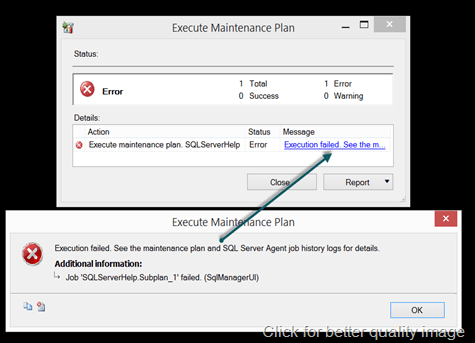
    When I executed above maintenance plan, it failed with error:
    image

    TITLE: Execute Maintenance Plan

    ——————————

    Execution failed. See the maintenance plan and SQL Server Agent job history logs for details.

    ——————————

    ADDITIONAL INFORMATION:

    Job ‘SQLServerHelp.Subplan_1’ failed. (SqlManagerUI)

    ——————————

    BUTTONS:

    OK

    ——————————

    If we look at the folder, the folder got created but backup failed. Looked into ERRORLOG and found below

    2014-03-13 06:20:31.66 spid65      Error: 18204, Severity: 16, State: 1.

    2014-03-13 06:20:31.66 spid65      BackupDiskFile::CreateMedia: Backup device ‘E:\Program Files\Microsoft SQL Server\MSSQL11.MSSQLSERVER\MSSQL\Backup\SQL Server Help \SQL Server Help _backup_2014_03_13_062031_6415729.bak’ failed to create. Operating system error 3(The system cannot find the path specified.).

    2014-03-13 06:20:31.66 Backup      Error: 3041, Severity: 16, State: 1.

    2014-03-13 06:20:31.66 Backup      BACKUP failed to complete the command BACKUP DATABASE SQL Server Help . Check the backup application log for detailed messages.

    when I looked at folder structure, I found that there is a folder “SQL Server Help” got created under “E:\Program Files\Microsoft SQL Server\MSSQL11.MSSQLSERVER\MSSQL\Backup” but still backup was failing. I ran profiler to see the command being fired.

    BACKUP DATABASE [SQL Server Help ] 
    TO  DISK = N'E:\Program Files\Microsoft SQL Server\MSSQL11.MSSQLSERVER\MSSQL\Backup\SQL Server Help \SQL Server Help _backup_2014_03_13_062920_6305771.bak' 
    WITH NOFORMAT, NOINIT,  NAME = N'SQL Server Help _backup_2014_03_13_062920_6305771', 
    SKIP, REWIND, NOUNLOAD,  STATS = 10


    When I executed the command, it failed with below error.

    Msg 3201, Level 16, State 1, Line 1

    Cannot open backup device ‘E:\Program Files\Microsoft SQL Server\MSSQL11.MSSQLSERVER\MSSQL\Backup\SQL Server Help \SQL Server Help _backup_2014_03_13_062920_6305771.bak’. Operating system error 3(The system cannot find the path specified.).

    Msg 3013, Level 16, State 1, Line 1

    BACKUP DATABASE is terminating abnormally.


    Again, something wrong with the path where I am taking backup. Do you see any problem in above message. Look closer.. there is a space at the end in the folder name where backup is attempted. “SQL Server Help “. If you try to create a folder with the whitespace at the end, operating system would trim the space at the end. This is documented here

    The root cause of my problem was name of the database where I have added an space at the end intentionally. Go back and have a look at create database statement which I have used. I also participated in this discussion where same problem was posted long back.

    Hope you have learned something new!

  • Cheers,
  • Balmukund Lakhani
  • Twitter @blakhani
  • Author: SQL Server 2012 AlwaysOnPaperback, Kindle
  • Posted in Error, SQL Server | Tagged: , , , , , , , , , | 8 Comments »

    SSMS Tip: Merging ERRORLOGs from different machines using Log File Viewer

    Posted by blakhani on March 6, 2014


    For those who don’t know what/where is SQL Server ERRORLOG, please read this

    Log File Viewer is an interesting feature of Management Studio and I have been ignoring it (you too??). This tool as saved a lot of time for me so thought of sharing some cool features of this tool. This can load various logs including system event log, application event log, DB Mail Log and SQL Agent log.

    As a part of my regular work, I need to look at SQL Server ERRORLOG to look for various information about environment like SQL version and Edition, Processors and memory etc. If you want to know where ERRORLOG is located, then read here.

    While working on a case on AlwaysOn Availability Group, customer provided us errorlog from two machines. To complete my analysis, I have to merge the file from both servers so that I can look at series of event happening across the server. Since customer was not having access to physical machine, he used management studio to “export” the errorlog.

    Here are the steps to export the log using “Log File Viewer”

    image

    Once the viewer is opened, it opens current ERRORLOG file from the server. If we want to see more we can select checkbox on the left hand tree as highlighted below.

    image

    Export button can be used to Save the content on local machine. This is useful when we don’t have access to physical server to get file.

    To demonstrate “merge”, I have exported current ERRORLOG from three servers and saved them as ERRORLOG_SQLPAPA, ERRORLOG_SRV1 and ERRORLOG_SRV2. I have kept all files in same machine and launched SSMS there. First, we need  to load the log as shown below.

    image

    One all are loaded, we can see them on left hand tree. Select the checkbox if it has to be loaded on right side grid.

    image

    I have selected all three files. Now, in the grid there is one interesting column, Log Source which shows the file which is loaded. I have dragged the column header and moved to visible location.

    image

    If we sort by date column, we can easily see the series of message in errorlog based of time. Since we have “Log Source” column, it possible to find server name as well. That’s why I have given File Name which is meaningful. In above screenshot I can see that top 3 messages are from different servers and I know the time as well.

    You can be more creative and use “Filter” to load only specific data which you are interested.

    Hope you liked this cool feature. Please provide feedback via comments.

  • Cheers,
  • Balmukund Lakhani
  • Twitter @blakhani
  • Author: SQL Server 2012 AlwaysOnPaperback, Kindle
  • Posted in SQL Server Management Studio, SSMS | Tagged: , , , | 1 Comment »