Help: SQL Server

Sharing my knowlege about SQL Server Troubleshooting Skills

  • Blog Stats

    • 2,153,615 hits
  • Select GETDATE()

    December 2025
    M T W T F S S
    1234567
    891011121314
    15161718192021
    22232425262728
    293031  

Archive for the ‘In Memory OLTP’ Category

A-Z of In-Memory OLTP : Storage structure of rows

Posted by blakhani on January 7, 2014


In our earlier posts we have learned about various concepts. In this post, we would understand how the data is actually stored in the row. This would form a foundation to understand indexes created on in-memory table. There are major difference in storage format of disk based table vs. in-memory table. Here are few of them.

  • There is no 8 KB page concept for in-memory table and so there is no concept of extent.
  • Rows belonging to same table need not be in “near” other rows.
  • The rows are linked to each other via index pointers and that’s why we need at least one index on in-memory table.
  • No concept of clustered index because there is no sorting of data rows.
  • Theoretically rows are free flowing and there is not limit on size of row BUT since we are allowed to move the data to disk-based table (using insert), there is a limit of row size to 8060 bytes.
  • Every data type is NOT allowed for columns (like varchar(max), LOB, sqlvariant etc.)

Here is the pictorial representation of a row:

image

Row Data is the actual “data” of the row, i.e. the values which we insert into table columns. On the other hand, Row Header is information about row itself. Row headed consists of many fields. Begin TimeStamp is a field which contains the transaction timestamp when row was inserted. End TimeStamp is a field which contains the transaction timestamp when row was deleted. Each Timestamp field is 8 bytes (16 total). This means that these two values are used to identify “visibility” of a row for a transaction. You might ask what would be the value of End Timestamp when a row is inserted? Well, it’s a special value which is referred at infinity. In my earlier post, we have learned that UPDATE = DELETE + INSERT. This means that if any update happens, we “close” the existing row by putting end timestamp and “open” a new row by inserting new row with new begin timestamp and end timestamp as infinity. Here is the example.

image

After the update transaction, the visibility of first row is only for those transactions which have timestamp between 100 and 200.

Another field in Row Header is Statement ID which is unique for each statement. This is 4 bytes filed. This field stores the ID of the statement which has created the row.

Next field is Index Link Count which specifies the number on indexes the row has. And final field in the row header is the pointer to the next row for the index. Since each pointer is 8 bytes so the length of this field depends on number of Index on row. If we have 4 indexes, the length of this field would be 4*8 = 32 bytes.

Once you are clear with row storage, it would be easy to understand about special indexes which are used for in-memory tables. In next blog posts we would discuss about hash indexes and range indexes.

Stay Tuned!

  • Cheers,
  • Balmukund Lakhani
  • Twitter @blakhani
  • Author: SQL Server 2012 AlwaysOnPaperback, Kindle
  • Posted in A - Z Series, In Memory OLTP, In-Memory OLTP, SQL Server 2014 | Tagged: , , , , , , , , , , , , | 3 Comments »

    A-Z of In-Memory OLTP : Troubleshooting database Startup and recovery failures

    Posted by blakhani on January 2, 2014


    As promised in my previous blog, I am going to demonstrate few failures of database startup and technique to find the cause and fix them. First trick which you should always remember is that whenever you see any “operating system error” with some number (2, 5, 32 etc.) try to find the text of that error number. The trick here is to use “Net HelpMSG” windows command to convert the number to text. Here are few quick samples.

    C:\WINDOWS\system32>net helpmsg 2
    The system cannot find the file specified.

    C:\WINDOWS\system32>net helpmsg 5
    Access is denied.

    C:\WINDOWS\system32>net helpmsg 32
    The process cannot access the file because it is being used by another process.

    image

    Now, we would first cause DLL generation failure during startup of database. As learned in earlier post, database startup (a.k.a. recovery) process would fail.

    image

    Here is what we would see in ERROLROG.

    2013-12-30 03:25:44.280 spid51       Starting up database ‘SQLSeverHelp_IMO’.
    2013-12-30 03:25:44.520 spid39s      restoreHkDatabase: DbId 8, Msg 41312, Level 16, State 4, Unable to call into the C compiler. GetLastError = 2.
    2013-12-30 03:25:44.520 spid39s      [ERROR] Database ID: [8]. Failed to load XTP checkpoint. Error code: 0x82000008. (e:\sql12_main_t\sql\ntdbms\hekaton\sqlhost\sqlmin\hkhostdb.cpp : 2558 – ‘RecoverHkDatabase’)

    Now, you would understand why I spoke about Net Helpmsg command. Error 2 = The system cannot find the file specified. Now, next task is to find out which path/file. To find any activity done by a process, one of the famous tool to use is Process Monitor (free tool by Mark Russinovich). I have run the tool and applied filter for Process Name = sqlservr.exe. Here is the filtered information from process monitor.

    image

    It means that SQLServr.exe is looking for CL.EXE under C:\Program Files\Microsoft SQL Server\MSSQL12.MSSQLSERVER\MSSQL\Binn\Xtp\VC\bin folder and unable to find the path. Indeed that is the problem. To do this failure, I have renamed bin folder to bin_xxx as shown below.

    image

    Once I renamed the folder back to “bin”, I was able to bring the database online.

    I have simulated another failure of DLL generation by making some changes on operating system level and restarted SQL Server.

    image

    Always check errorlog and here is what we would see.

    2013-12-31 20:01:35.040 spid20s      SetNamedSecurityInfoW failed for directory C:\Program Files\Microsoft SQL Server\MSSQL12.MSSQLSERVER\MSSQL\DATA\xtp for reason 5.

    2013-12-31 20:01:35.040 spid20s      Error: 41334, Severity: 16, State: 2.
    2013-12-31 20:01:35.040 spid20s      The code generation directory ‘C:\Program Files\Microsoft SQL Server\MSSQL12.MSSQLSERVER\MSSQL\DATA\xtp’ cannot be created or set up correctly.
    2013-12-31 20:01:35.060 spid20s      Error: 41334, Severity: 16, State: 2.
    2013-12-31 20:01:35.060 spid20s      The code generation directory ‘C:\Program Files\Microsoft SQL Server\MSSQL12.MSSQLSERVER\MSSQL\DATA\xtp’ cannot be created or set up correctly.
    2013-12-31 20:01:35.060 spid20s      Error: 41334, Severity: 16, State: 2.
    2013-12-31 20:01:35.060 spid20s      The code generation directory ‘C:\Program Files\Microsoft SQL Server\MSSQL12.MSSQLSERVER\MSSQL\DATA\xtp’ cannot be created or set up correctly.
    2013-12-31 20:01:35.170 spid19s      Error: 41334, Severity: 16, State: 2.
    2013-12-31 20:01:35.170 spid19s      The code generation directory ‘C:\Program Files\Microsoft SQL Server\MSSQL12.MSSQLSERVER\MSSQL\DATA\xtp’ cannot be created or set up correctly.

    Important piece of error message is reason 5. If you recall what you read above, net helpmsg 5 = Access Denied.

    How would you troubleshoot? Again same tool, process monitor. If we filter for all access denied (right click on Access Denied text and say "Include"), it’s clear that Service account is trying to generate the DLL of table but unable to do so.

    image

    Checking properties of XTP folder reveals the same. To break the things, I given “deny” on that folder to SQL Service account.

    image

    Once I removed “deny” and gave “allow”, I was able to bring database online using below command

    Alter database SQLSeverHelp_IMO set online
    go

    Another possible reason of database not able to recover would be out-of-memory errors. Since all data needs to be loaded into memory before in-memory tables can be accessed. In-memory engine needs to have all the memory available to hold the data at startup of the database. If the system is low on memory or max server memory is set to too low, we might encounter recovery failure. In such situation, you may want to stop other processes running on the server so that SQL is having enough RAM to load in-memory tables.

    I hope that this blog has given you some hints about possible failures, troubleshooting tricks and their resolutions.

  • Cheers,
  • Balmukund Lakhani
  • Twitter @blakhani
  • Author: SQL Server 2012 AlwaysOnPaperback, Kindle
  • Posted in A - Z Series, In Memory OLTP, In-Memory OLTP, SQL Server 2014 | Tagged: , , , , , , , , , , , , | 11 Comments »

    A-Z of In-Memory OLTP : Database Startup and Recovery Process

    Posted by blakhani on December 31, 2013


    “If you are a seasoned driver you have a number of parameters to check before you start your vehicle. It can range from a simple task like if all the doors are locked and there is no indicator, or if the safety seatbelt signs are off or even more critical can be activities like if the fuel tank readings are showing us values that is satisfactory keeping our destination in mind. If reaching a destination using your vehicle can be this strenuous task that we do it with such ease, the process of SQL Server startup also goes through a simple steps of readings that we can start assuming. Adding an In-Memory dimension to an already complex process is always going to be a learning by itself.”  These words are from Vinod (b|t) when I asked him to give me database startup co-relation in real life. Hats off to you Vinod!

    Yes, in this blog post. we would be discussing about database startup and recovery for in-memory tables. Database startup is also known as recovery of database. Whenever SQL Server (re)starts, all databases go though start-up subroutine. Below are the situations where database startup or recovery is performed.

    • Restart of SQL Service
    • Restore from a backup.
    • Failover to Mirror or AlwaysOn secondary.
    • ALTER DATABASE SET ONLINE
    • Failover of SQL Server in cluster.

    In traditional databases having only disk based tables, the database startup/recovery has three phases: analysis, roll-forward (redo) and rollback (undo). These three phases are well documented in many places. Ref1, Ref2. In this blog, we will talk about startup of databases which have in-memory tables.

    Since we are talking about in-memory tables, one of the step during database startup would be to load data for all in-memory tables into memory (RAM). In earlier post, we have talked about DLLs of in-memory table and learned that they are generated during database startup. We also discussed here that indexes information is not logged into transaction log and data files, hence index needs to rebuild during loading of data. So, to summarize, here are the major step of recovery of database having in-memory tables.

    • Generate DLLs of in-memory tables
    • Load data into the memory using checkpoint files (DATA & DELTA files) and transaction log file of database.
    • Create index which are defined on in-memory tables.

    If any of above steps fail, the database recovery fails and the database would not come online. Let’s verify few theoretical points via demo.

    Generate DLLs of in-memory tables

    To demonstrate this, I would go ahead and take our database offline using below command

    Use master
    go
    Alter database SQLSeverHelp_IMO set offline with rollback immediate
    go

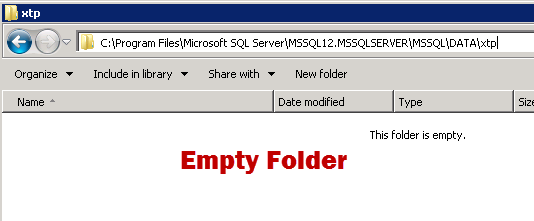
    Once database is offline, let’s look at folder which had DLLs for in-memory tables. On my this SQL Instance there is no other database having in-memory tables.
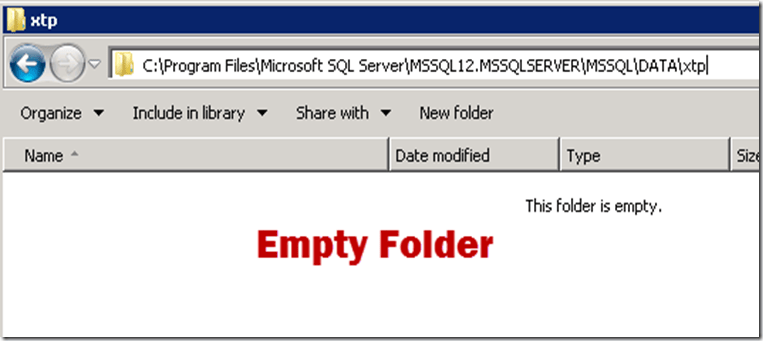
    image 

    As we learned earlier, this folder generally has folder for DatabaseID and each of those would have DLLs for the objects in respective database. On my SQL instance, at this point there is no database which is online and having in-memory object, so this folder is empty. Now, let’s bring the database online.

    Alter database SQLSeverHelp_IMO set online
    go

    The database id for SQLServerHelp_IMO is 8 for my SQL Instance, and here is what I see once I bring database online.
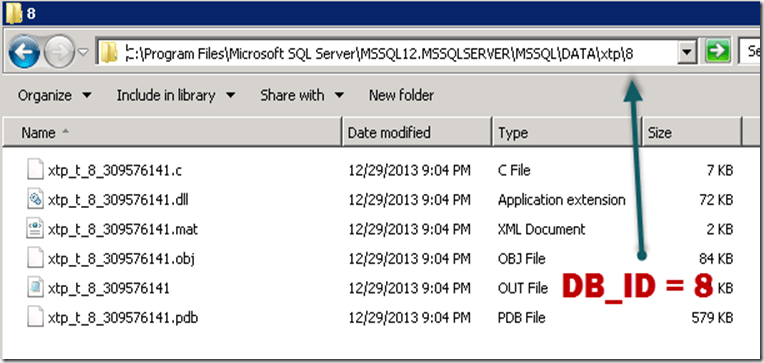
    image

    You may ask, what about the natively compiled stored procedure’s DLL. Well, they would be generated when the stored procedure would be first executed (compiled automatically)

    Load data into the memory

    As explained earlier, this is also a different step as compare to traditional disk based table. Once database is started, we need to load the data using checkpoint files and transaction log of database. In my previous blog of checkpoint (part 1 and part 2), I have explained about DATA and DELTA file. 

    Here is the pictorial representation of data loading process. Image Reference http://msdn.microsoft.com/en-us/library/dn133174(v=sql.120).aspx
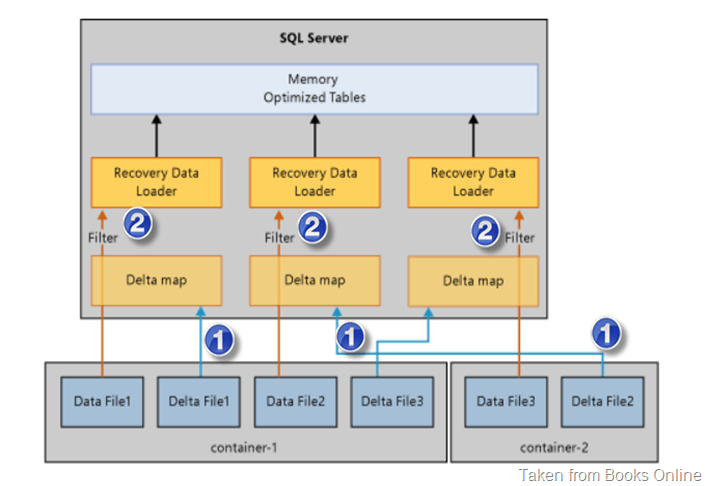
    image

    There are three phases – we can call them as analysis, data load and redo. Note that there is no undo phase because in-memory tables doesn’t log uncommitted data into the transaction log (refer here). During analysis phase, transaction log is read and last checkpoint is located. In data load phase, we first load the DELTA files into memory which contains the pointer for the rows which are deleted. This creates a “delta map” for each delta file. Then data file is loaded into memory and filter is applied. Only those rows are loaded into memory which are not deleted. The loading of data happens in parallel (that’s why there are multiple 1’s and 2’s in image). You can imagine that if we have slow disk sub-system, the time taken by database to come online would be longer.

    Create index which are defined on in-memory tables

    As we have discussed earlier, only index definition is persisted in physical files. Indexes are only available in-memory and that’s why there is no transaction information is logged in physical files. Once data is loaded and DLLs are generated, next step is to generate index on the data which is loaded into memory. We would talk about indexes in later part of this series.

    Once all three steps are completed, database would be made available. If there is any system problem and we are enable to load the data in memory or failed to generated the DLL, SQL database recovery would fail and database would go to “Recovery Pending” state. It’s worth mentioning that if our database has in-memory tables as well as disk based tables and database recovery fails, we would not be able to access disk based tables as well.

    In my next blog, I would take up scenarios of recovery failure and show you steps to troubleshoot them. Start tuned!

    By the way, this is going to be last post of year 2013 so with you a happy near year and see you next year on another blog post in A-Z of In-Memory OLTP series.

  • Cheers,
  • Balmukund Lakhani
  • Twitter @blakhani
  • Author: SQL Server 2012 AlwaysOnPaperback, Kindle
  • Posted in A - Z Series, In Memory OLTP, In-Memory OLTP, SQL Server 2014 | Tagged: , , , , , , , , , | 7 Comments »