Help: SQL Server

Sharing my knowlege about SQL Server Troubleshooting Skills

  • Blog Stats

    • 2,154,319 hits
  • Select GETDATE()

    January 2026
    M T W T F S S
     1234
    567891011
    12131415161718
    19202122232425
    262728293031  

Archive for the ‘SQL Server Management Studio’ Category

A-Z of In-Memory OLTP : SSMS Enhancements for In-Memory

Posted by blakhani on December 10, 2013


Microsoft believes that everyone in the world is not a developer there are some DBAs as well. Be it Visual Studio, SQL Server or any other programming paradigm – Microsoft makes it easy for developers and DBA alike. In my previous post, you would have read about new T-SQL constructs added to support In-Memory OLTP objects. This blog post shows the SSMS improvements and dialogs introduced with SQL Server 2014 to work with In-Memory OLTP.

CREATE DATABASE

We have learned earlier that we need a new filegroup which would contain memory_optimized_data. This is the key point to understand the flow of actions below..

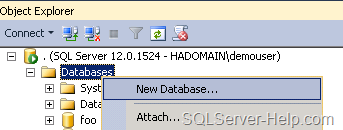
  • Right Click on database folder in SSMS and Choose “New database”. This is the same place where we create regular database.
image

  • Open “New Database” interface, go to “Filegroups” tab. Then click on “Add Filegroup” under “Memory Optimized Data” section.

image

  • I have given name as “SQLSeverHelp_IMO_FG” and then went back to “General” tab.

image

  • Here is the little explanation of numbered steps.
    1. We need to come back to “General” Tab after creating filegroup in earlier step.
    2. Provide “Database name” SQLSeverHelp_IMO
    3. Click on “Add” button and provide details in new row (third row)
    4. We have given SQLSeverHelp_IMO_dir as logical name
    5. Since it is going to contain In-Memory optimized data, we need to use “FILESTREAM Data” in “File Type”
    6. Once we choose drop down in step 5, “Filegroup” would be “SQLSeverHelp_IMO_FG” created in previous screen.
    7. Provide complete physical “Path” where the files/data needs to be stored for In-Memory tables. C:\IMO_Database\SQLSeverHelp_IMO_dir 

Follow sequence given in above image and hit OK.

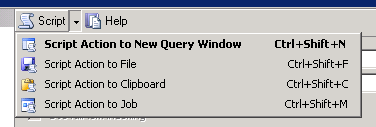
Do you know that I can remember all command by heart? I am joking! If you want to script this action, use the “Script” button (shown in below image). This would give us the same script (with little more setting) which we use in previous part.
image

The “Script” feature is available in almost every user interface of SSMS. Another option is to use predefined template. This is one of under-utilized/less known feature of SSMS. As shown below, go to “View” Menu and click on “Template Explorer” (Ctrl+Alt+T) to access a lot of predefined scripts.

image

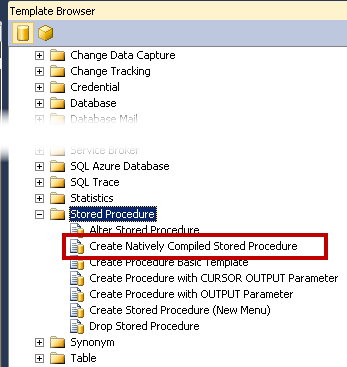
  • Once we click on “template explorer”, we would see “template browser” opened within management studio. Over there, we can see many template and one of them of our interest, as of now, is highlighted in below image.

image

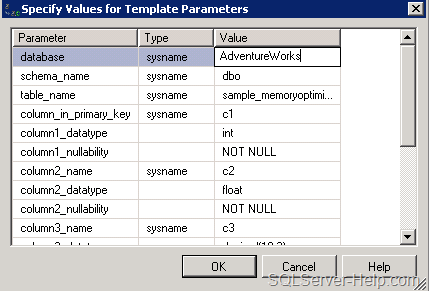
  • Double click would open the template and we need to use “Ctrl+Shift+M” to get window called “Specify Values for Template Parameters”

image

  • We can make changes here and hit OK. We can edit path, name and modify the TSQL as per our requirement.

If you have an existing database then, ALTER DATABASE would be needed. This is because the filegroup for memory_optimized_data might not have been defined. We can go to database properties and add new filegroup and follow same screen with 7 steps.

CREATE TABLE

Next step is to create an In-Memory Optimized table. Note that there is no “table designer” UI to create the In-Memory Optimized table. If you have followed earlier steps, template explorer might be open (else press Ctrl+Alt+T)

Option # 1
In situations where we have an existing database which is not having memory_optimize_data filrgroup defined, we can use template called “Add MEMORY_OPTIMIZED_DATA Filegroup and Create Memory Optimized Table” (shown below)

image

Option # 2
If we have memory optimized filegroup in the database then we can choose “Create Memory Optimized Table”

image

Option # 3
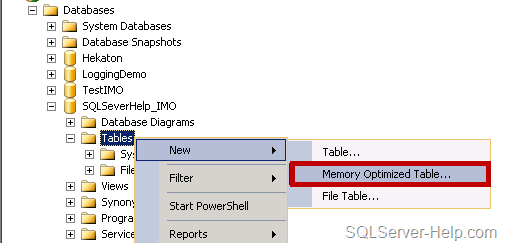
If we go with conventional way of creating table using SSMS then we can Right Click on “Tables” folder under the database SQLSeverHelp_IMO and choose New > Memory Optimized Table
image

All three options would open a query window with the template. (See, I told you earlier – no table designer)

image

In this query windows, we need to use Ctrl+Shift+M and replace the parameter as needed. We can add more columns, indexes and make modifications. As the commented section in above template says, we need to have filegroup defined for memory_optimized_data
image

In a nut-shell, in the absence of UI, you need to have T-SQL syntax knowledge.

CREATE PROCEDURE

Same as CREATE TABLE, there is no special interface available for natively compiled procedure. We can use either Right Click technique (#1) or template browser (#2) to reach to template.

Option # 1

image

Option # 2

image

Both of the options above are going to open template and then we can write the code there. Remember the shortcut Ctrl+Shift+M for filling template parameter.

image

Till now we have learned how to create objects. In next post, we would see what happens differently (than regular objects) when in-memory tables are in-memory stored procedures are created. Stay tuned!

Missed reading earlier posts? Here is the quick reference:

Stay Tuned!

Cheers,
Balmukund Lakhani
Twitter @blakhani
Author: SQL Server 2012 AlwaysOnPaperback, Kindle

Posted in A - Z Series, Hekaton Series, In Memory OLTP, In-Memory OLTP, Introduction, screen shot, Screenshot, SQL Server 2014, SQL Server Management Studio, SSMS | Tagged: , , , , , , , , | 4 Comments »

Help: Getting error “Value cannot be null” while opening management studio. Which value?

Posted by blakhani on July 23, 2012


One of my friend emailed me today to troubleshoot a problem with SQL Server Management Studio. Here is the problem statement in his own words.

Hey Balmukund,
I know you are the one you can save me now.

I have a problem with my production SQL Server. When I am trying to connect via management studio, I am getting below error

clip_image001

Once I hit OK, I can get in to management studio but can’t expand any node completely.

Using Bingoogle, I found that this can be rectified by tweaking some registry entries. I do not want to take that route, instead want to uninstall only SSMS and install it back.

One of your reply on MSDN shows that you were not able to reproduce the problem. Let me know if you want to troubleshoot this live with me.

Friend:waiting your comments,
<Name not displayed>

For better search here is the text of the message

TITLE: Microsoft SQL Server Management Studio
——————————
Value cannot be null.
Parameter name: viewInfo (Microsoft.SqlServer.Management.SqlStudio.Explorer)
——————————
BUTTONS:
OK
——————————

Once I reached office, I pinged him today and started my day! I followed my usual ways of troubleshooting with a series of question to nail down the problem. Here we go.

<<< Start of Chat Session>>>

Balmukund: Hey.. Just came to office and saw your email. Are you ready to work now?
Friend: Hey Balmukund, Thanks for pinging back. I am ready to work now.

Balmukund: Are you able to connect the same SQL instance from other machines?
Friend: Never tried, let me try right now! (1 min pause) yes, I can.

Balmukund: Could you please share your desktop and let’s see what’s going on?
Friend: Sure!

Balmukund: Okay, I can see your desktop now. Show me the error again.
Friend: There you go! As you can see, I am unable to expand any node completely. It ends up in same error.

Balmukund: Could you please open “New Query” window?
Friend: Let me try as I never did that after seeing this error. (5 second pause). Ouch, another error!

clip_image002

Balmukund: Hmm.. Please highlight the windows and hit Ctrl + C on your keyboard and then paste in chat windows.
Friend: What that would do? Copy image?

Balmukund: No, copy the text of the message.
Friend: Wow. that’s interesting. Here it is

—————————
Microsoft SQL Server Management Studio
—————————
The filename, directory name, or volume label syntax is incorrect. (Exception from HRESULT: 0x8007007B)
—————————
OK
—————————

Balmukund: Thanks. This sounds interesting.
Friend: Really! What’s next?

Balmukund: Since you confirmed that the issue is happening with the specific machine and you are able to connect to same SQL instance via SSMS on other machine then the error is specific to this machine settings. Agree?
Friend: Absolutely.

Balmukund: Now, lets download process monitor and run that tool. Here is the link http://technet.microsoft.com/en-us/sysinternals/bb896645.aspx or you can go to http://live.sysinternals.com and search for procmon to download exe directly.
Friend: Done. Let me run the tool now.

Balmukund: Yes please. Start the data capture, reproduce the error and stop data capture.
Friend: Okay. Done. The is a lot of information. How would you find problem with this?

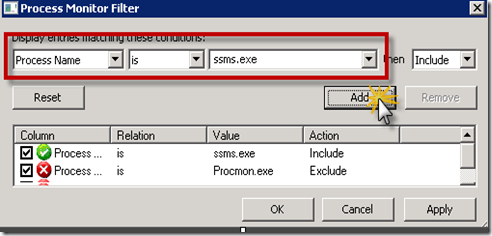
Balmukund: Lets apply the filter for process name = ssms.exe using Filter in menu bar

clip_image003

Friend: Okay. that has bought down the information captured to only ssms.exe.

Balmukund: Do you see any access to path which is not valid? Do you see “Name Invalid” in Results column?
Friend: Nope.

Balmukund: Okay. Click on New query windows and get other error. Do you see it now?
Friend: Yes. Its trying to access the path “C:\Users\demouser\AppData\Local\Temp;x:\SQL”

Balmukund: Okay. Let me take a screenshot.
Friend: Sure. I am sure you are going to write a blog.

Balmukund: Yes, of course. I have found earlier that few have hit the same null error.

 
ProcMon_NameInvalid

Balmukund: It says temp in the path and also X drive. Do you have that drive?
Friend: No, its not there.

Balmukund: Okay. Could you please open command prompt and type “Set T” and show me the output?
Friend: Sure.

image

Balmukund: I think that explains the issue. TEMP path of your environment variable is incorrect. Can you please correct it?
Friend: Can you tell me steps to change?

Balmukund: Sure.  My Computer > Right Click > Properties. And then choose “Advanced”. Then click on “Environment Variables”

image

Balmukund: Now, change TMP and TEMP to valid location. On my machines its “%USERPROFILE%\AppData\Local\Temp”
Friend: Done.

Balmukund: Now, logoff and log back in.
Friend: Sure. Let me Try…

After 2 min….

Friend: You are the man!
Balmukund: I know <smiley>  Is that working now?

Friend: Of course, Yes!!!! Thanks a ton! You saved me from uninstalling SQL Management Studio.
Balmukund: Anytime! Glad I could help.

<<< End of Chat Session>>>

Later, I search on internet and found various peoples getting same error after installing few softwares. Hopefully this blog will help someone in the world! Here are the few items:
http://connect.microsoft.com/SQLServer/feedback/details/573771/value-cannot-be-null
http://social.msdn.microsoft.com/Forums/en/sqltools/thread/7e0287b3-cd37-408e-8145-4b9dba8c7811 
http://connect.microsoft.com/SQLServer/feedback/details/742857/ssms-studio-reports-value-cannot-be-null-when-attempting-to-copy-headers-with-no-rows

Hopefully this would help someone in the world.

Cheers,
Balmukund Lakhani
Twitter @blakhani

Posted in Screenshot, SQL Server, SQL Server Management Studio, SSMS | 32 Comments »

Help: SQL Server Management Studio is allowing me to connect only to Database Engine! What’s wrong?

Posted by blakhani on May 10, 2012


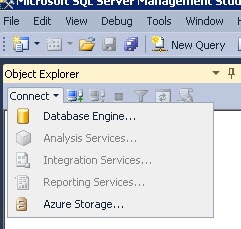
This blog is an outcome of one of internal email thread where SQL Server Management Studio was allowing to connect only “Database Services” and “SQL Azure”. A picture is worth a thousand words, so here it is:

01_Disabled

Analysis Services, Integration Services, Reporting Services are grayed out/disabled. I thought that this might be due to SSMS Express but looking at “Help” > “about” in Management Studio showed that it was full version.

05_HelpAbout

“Copy Info” gives you this information.

Microsoft SQL Server Management Studio                        11.0.2100.60
Microsoft Analysis Services Client Tools                        11.0.2100.60
Microsoft Data Access Components (MDAC)                        6.1.7601.17514
Microsoft MSXML                        3.0 6.0
Microsoft Internet Explorer                        8.0.7601.17514
Microsoft .NET Framework                        4.0.30319.237
Operating System                        6.1.7601


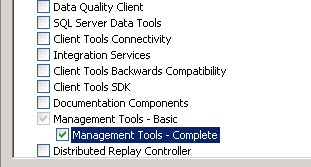
While doing some more research, I remember setup screen had option for Management Tools – Basic and Complete. here is the screenshot of setup screen with both features highlighted.

02_Basic

03_Complete

I guess the feature description explains the behavior. If you want to find what was the option you selected, then SQL setup logs are your friend! [One more trick at the end of the blog]

C:\Program Files\Microsoft SQL Server\110\Setup Bootstrap\Log\DateTimeStamp\ConfigurationFile.ini

To repro the issue, I selected only Basic and this is what you would see in ConfigurationFile

FEATURES=SQLENGINE,REPLICATION,SSMS

Once setup completes, you would see same behavior which for which I am writing the blog. Now, to fix the issue we need to add “Management Tools – Complete”. Launch “SQL Server Installation Center” > Installation > “New SQL Server stand-alone installation or add features to an existing installation” . Go through the Wizard and choose as below:

06_AddFeature

and then

07_ChooseComplete

Now you should see FEATURES=ADV_SSMS in ConfigurationFile.ini and once you finish the setup, you should be able to select any option.

04_Enabled

If you are not comfortable looking at Setup Logs, you can also use “Installed SQL Server features discovery Report” from “SQL Server Installation Center” > “Tools” Menu

Once you click on hyperlink and launch the report, it would show something like below.

08_Discovery Report

So after Adding Management Tools Complete, I could see that in report.

Hope this would help someone in the world!

Cheers,
Balmukund Lakhani
Twitter @blakhani

Posted in Denali, disabled, grayed out, Images, Management Tools Basic, Management Tools Complete, Screenshot, SQL Server 2012, SQL Server Management Studio, SSMS | 9 Comments »