Help: SQL Server

Sharing my knowlege about SQL Server Troubleshooting Skills

  • Blog Stats

    • 2,158,235 hits
  • Select GETDATE()

    April 2026
    M T W T F S S
     12345
    6789101112
    13141516171819
    20212223242526
    27282930  

Archive for 2014

Solution: The file "MDF" is compressed but does not reside in a read-only database or filegroup. The file must be decompressed.

Posted by blakhani on May 22, 2014


Recently I was trying to create a database on my SQL Instance using below command

CREATE DATABASE [MyDatabase]
ON   
( NAME = N'MyDatabase', FILENAME = N'E:\BlogContent\DatabaseFiles\MyDatabase.mdf')
LOG ON 
( NAME = N'MyDatabase_log', FILENAME = N'E:\BlogContent\DatabaseFiles\MyDatabase_log.ldf')
GO

But encountered below error

Msg 5118, Level 16, State 1, Line 1
The file "E:\BlogContent\DatabaseFiles\MyDatabase.mdf" is compressed but does not reside in a read-only database or filegroup. The file must be decompressed.
Msg 1802, Level 16, State 4, Line 1
CREATE DATABASE failed. Some file names listed could not be created. Check related errors.

Error giving hint about some kind of compression. So if we look at the folder which is specified E:\BlogContent\DatabaseFiles it was in blue color.

image

Blue color actually indicates that folder is compressed. Right Click on folder, go to “Properties” and click on “Advanced…”

image

The checkbox “Compress contents to save disk space” is checked which means compression is enabled. Once we uncheck the box, we should be able to create database.

Here is official stand about compression http://support.microsoft.com/kb/231347/en-us (SQL Server databases are not supported on compressed volumes). There is a great blog by Ken Henderson on this topic detailing the ramifications and I would encourage you to read it http://blogs.msdn.com/khen1234/archive/2005/04/25/411852.aspx 

If we try to restore a database and keep files on compressed folder, same error is raised (in SQL 2014 Management Studio)

TITLE: Microsoft SQL Server Management Studio
------------------------------
Restore of database 'MyDatabase' failed. (Microsoft.SqlServer.Management.RelationalEngineTasks)
------------------------------
ADDITIONAL INFORMATION:
System.Data.SqlClient.SqlError: The file "E:\BlogContent\DatabaseFiles\MyDatabase.mdf" is compressed but does not reside in a read-only database or filegroup. 
The file must be decompressed. (Microsoft.SqlServer.SmoExtended)
For help, click: http://go.microsoft.com/fwlink?ProdName=Microsoft+SQL+Server&ProdVer=12.0.2000.8+((SQL14_RTM).140220-1752)&LinkId=20476 ------------------------------ BUTTONS: OK ------------------------------

Hope this helps!


  • Cheers,
  • Balmukund Lakhani
  • Twitter @blakhani
  • Author: SQL Server 2012 AlwaysOnPaperback, Kindle
  • Posted in Error | Tagged: , , | 33 Comments »

    SQL 2014 Learning Series # 10 – New Feature – Resource Governor to control I/O (Part 2)

    Posted by blakhani on May 20, 2014


    Reading theory is important but doing practical in real life helps remembering a concept for longer time. In last post about resource governor, we have learned the basics. In this blog, we would see resource governor in action. If you have SQL Server 2014 installed then you can easily follow the steps and copy/paste the scripts. As a demo, we would create two resource groups and pools which different settings.

    Step 1: Create Resource Pools

    As a first step, we would create resource pool for limiting IO done by a specific pool. ThousandIOPs sets the maximum I/Os per second (IOPS) to 1000 and TenIOPs sets maximum IOPS to 10. This is done via parameter MAX_IOPS_PER_VOLUME.

    CREATE RESOURCE POOL [ThousandIOPs] WITH
    (
        MAX_IOPS_PER_VOLUME = 1000
    )
    GO
    CREATE RESOURCE POOL [TenIOPs]
    WITH ( MAX_IOPS_PER_VOLUME = 10 ) GO

    Step 2: Create Workload Groups tied to resource pool

    In below code I created Resource Groups named “FastIO” and “SlowIO” and associated them with my Resource Pool named “ThousandIOPs” and “TenIOPs” respectively.

    -- Create a  Workload Group for FastIO 
    CREATE WORKLOAD GROUP [FastIO]
    USING [ThousandIOPs]
    GO
    -- Create a new Workload Group for throttled IO
    CREATE WORKLOAD GROUP [SlowIO]
    USING [TenIOPs]
    GO


    Step 3: Define a classifier function to bind request to workgroup

    In Step 3, I need to define a classifier function that will identify the resource group to which request should be categorized. You can notice that I have used SUSER_NAME() function to get resource group name as output parameter. In other words, if use SlowIO logs in, he would be bound to group SlowIO and hence tied to TenIOPs.

    -- Create a Classifier Function for Resource Governor
    Use Master
    GO
    CREATE FUNCTION dbo.MyClassifierFunction()
    RETURNS SYSNAME WITH SCHEMABINDING
    AS
    BEGIN
        DECLARE @GroupName SYSNAME
        
        IF SUSER_NAME() = 'SlowIO'
        BEGIN
            SET @GroupName = 'SlowIO'
            RETURN @GroupName;
        END
        ELSE IF SUSER_NAME() = 'FastIO'
        BEGIN
            SET @GroupName = 'FastIO'
            RETURN @GroupName;
        END
        ELSE 
        BEGIN
            SET @GroupName = 'Default'
        END    
        RETURN @GroupName;
    END
    GO

    Step 4: Register classifier_function to resource governor

    So far we have setup Resource Governor to control I/O. We need to do one last thing.  We need to alter Resource Governor to use classifier function, defined in step3, and then reconfigure it to use all my new settings.  This can be done by running the following code:

    -- Register the Classifier Function within Resource Governor
    ALTER RESOURCE GOVERNOR WITH
    (
        CLASSIFIER_FUNCTION = dbo.MyClassifierFunction
    )
    GO
    -- Reconfigure resource governor
    ALTER RESOURCE GOVERNOR RECONFIGURE
    GO


    Testing IO Resource Governor

    To test resource governor, we will create two logins SlowIO and FastIO and they would be falling into different pools TenIOPs and ThousandIOPs respectively. I have given sysadmin rights for simplicity of demo.

    Create login SlowIO with password = 'pass@word1'
    GO
    Create login FastIO with password = 'pass@word1'
    GO
    ALTER SERVER ROLE [sysadmin] ADD MEMBER [SlowIO]
    GO
    ALTER SERVER ROLE [sysadmin] ADD MEMBER [FastIO]
    GO


    Create database, table and populate data using below script.

    CREATE DATABASE rgiotest 
    go 
    USE rgiotest; 
    go 
    CREATE TABLE iotest 
      ( 
         id             INT IDENTITY  CONSTRAINT [PK_IOTest_ID] PRIMARY KEY CLUSTERED (id ASC), 
         iintegercolumn INT, 
         ccharcolumn    CHAR(50) 
      ); 
    go 
    SET nocount ON; 
    INSERT INTO iotest 
                (iintegercolumn, 
                 ccharcolumn) 
    SELECT TOP (20000) Row_number() 
                         OVER( 
                           ORDER BY a.object_id), 
                       'X'
    FROM   sys.all_columns AS a 
           CROSS JOIN sys.all_columns AS b
    go 100 -- this would run above insert 100 times

    Above script took around 30 seconds on my laptop. Now, I would run the script to do a lots of read using two different logins.

    CHECKPOINT
    DBCC DROPCLEANBUFFERS
    
    USE RGIOTEST;
    GO
    IF OBJECT_ID ('tempdb..#IOTest') is not null
       DROP TABLE #IOTest;
    GO
    SELECT top 2000000 * INTO #IOTest FROM IOTest;
    GO

    I have used DROPCLEANBUFFERS in above script because I don’t want SQL to read data from memory but do a physical IO.

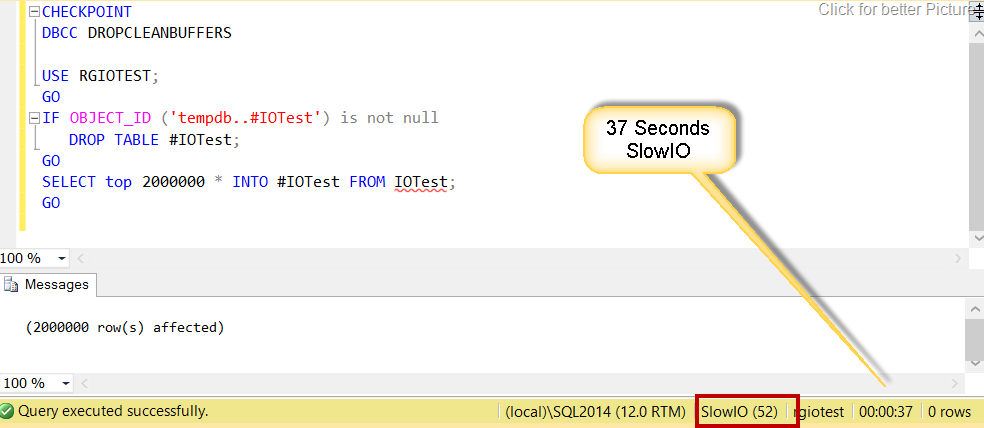
    Logged in using SlowIO account

    image

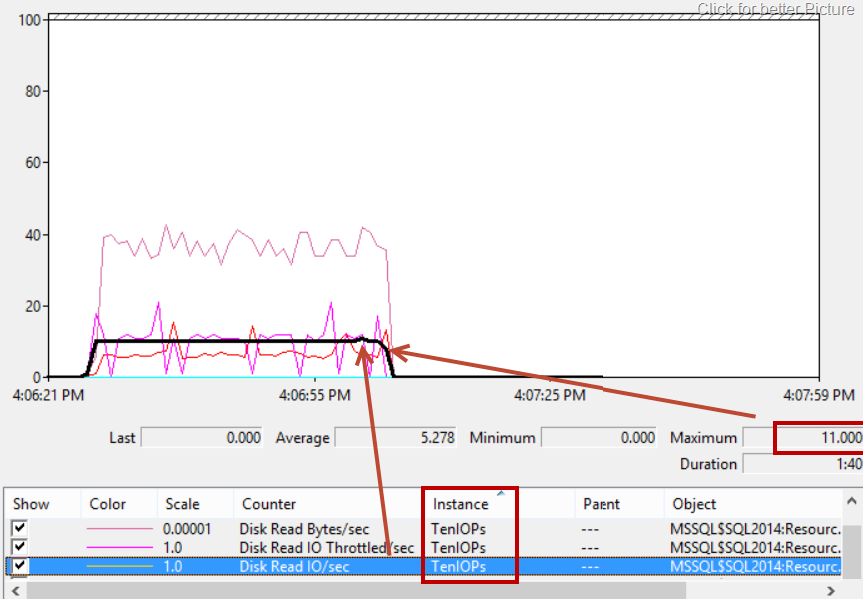
    Script has taken 37 seconds and below is the perfmon counters which I have spoken in last blog.

    image

    The value is throttled to around 10 which is what we have capped (MAX_IOPS_PER_VOLUME = 10)

    Logged into using FastIO account

    image

    Here the same query executed in 4 seconds.

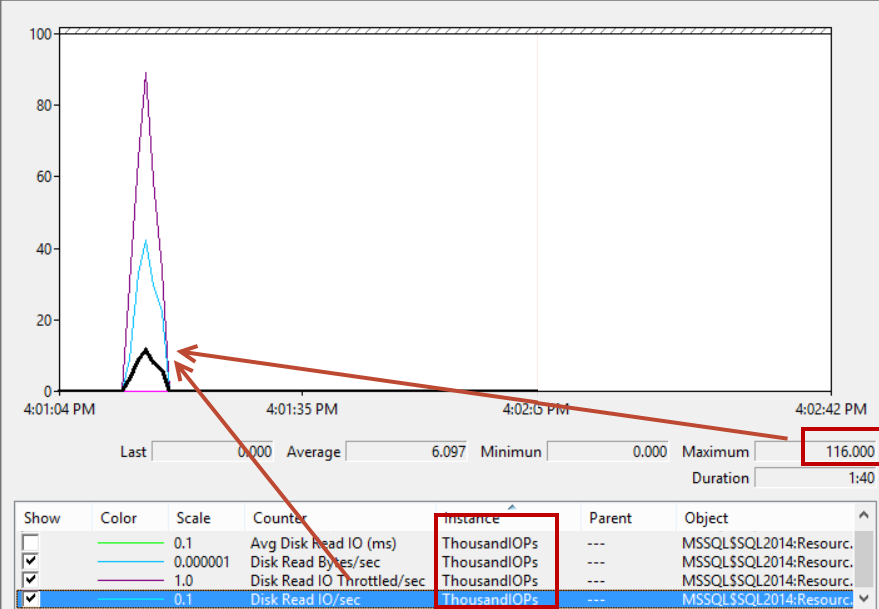
    image

    The value is much under control. We have capped to 1000 and we are much under limits.

    I must say that the demo shown here is extremely simple, but you can must have got an understanding about you how to setup and use the Resource Governor to throttle IO in SQL Server 2014.

    Hope you are learning something new about SQL Server 2014 from this series.

  • Cheers,
  • Balmukund Lakhani
  • Twitter @blakhani
  • Author: SQL Server 2012 AlwaysOnPaperback, Kindle
  • Posted in SQL 2014 Learning Series, SQL Server 2014 | Tagged: , , , | 3 Comments »