Help: SQL Server

Sharing my knowlege about SQL Server Troubleshooting Skills

  • Blog Stats

    • 2,156,102 hits
  • Select GETDATE()

    February 2026
    M T W T F S S
     1
    2345678
    9101112131415
    16171819202122
    232425262728  

Archive for the ‘A – Z Series’ Category

A-Z of In-Memory OLTP : Behind the scenes

Posted by blakhani on December 12, 2013


If you have a kid in your life, you probably get inundated every day with questions starting with word “why” and “what”. Why do kids ask why? One of the answers is, that children are naturally curious about the world around them. After all, there’s much to learn, and much to know. We all have a kid inside us who is very curious, that’s why I thought of writing this blog post.

In A-Z Series, we have discussed about T-SQL constructs and SSMS enhancements to create In-Memory objects. In this part, we would discuss “behind the scene” of those commands.

CREATE DATABASE

Once database is created and one (and only one) filegroup with CONTAINS MEMORY_OPTIMIZED_DATA clause, SQL Server would create a folder which is specified in filename parameter for that filegroup. In our sample database SQLSeverHelp_IMO we have added filename = “C:\IMO_Database\SQLSeverHelp_IMO_dir” which would create a folder behind the scene as shown below.

image

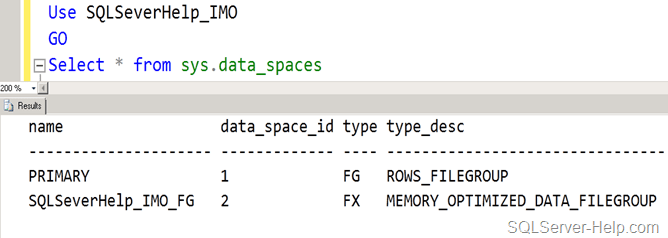
If we look inside the folders, the would be empty because there is no in-memory table created so far. We also have MDF and LDF file which are same as earlier version of SQL, nothing new there. We can use catalog view to get details about Memory optimized filegroup

Use SQLSeverHelp_IMO
GO
Select * from sys.data_spaces
Here is the query in SSMS and the output:
image 

CREATE TABLE

Next logical step is to create a In-Memory table in the database. In our last post, we have created table called MyFirstMemporyOptimizedTable. As soon as table is created, SQL Server is going to create few files into the folder which were created during previous step of database creation.

image

Above files are created as soon as I created one table. Don’t worry by seeing so many files as we would discuss about these file later part of the series. All you need to remember that per file is 131072 KB = 128 MB by default. There are files having zero KB size as we have not inserted/updated/deleted any data in the table. In contrast to disk-based tables having 8K size pages in buffer pool, the In-memory tables don’t have pages in buffer pool. Think of this as rows in the memory linked to each other because we have index on table. In-memory data is not stored on data files at all. Instead, its stored as blob data using filestream files, which are shown in picture above. At this point just remember that they are called CheckPoint files which combination is DATA files and DELTA files. We would go deeper into those files once we go into blog about checkpoint for in-memory tables.

Another thing which has happened behind the scene is to generate the DLL for the table definition and load into SQL Server Memory. Why? Well, In-Memory engine doesn’t have any knowledge about format of data record. It doesn’t know how to access the data which is part of in-memory table. Whenever we create table, a C file is generated which would have all callback functions used by In-Memory Engine. The C file, it’s compiled by C complier and DLL is generated. If you are a developer in C/C++, you can open the file and check the content to get a feeling.

Here is the query

use SQLSeverHelp_IMO
go
SELECT name, 
       description 
FROM   sys.dm_os_loaded_modules 
WHERE  description = 'XTP Native DLL' 
       AND name LIKE '%xtp_t_' + Cast(Db_id() AS VARCHAR(10)) + '_' 
+ Cast(Object_id('dbo.MyFirstMemporyOptimizedTable') AS VARCHAR(10)) + '.dll'
Here is the query in SSMS and the output:

image

Let’s look at windows explorer and see what we have in that folder. If we look at xtp folder, we would see numbered folders. These are databases IDs which have in-memory objects. Default directory of XTP folder is DATA directory (C:\Program Files\Microsoft SQL Server\MSSQL12.MSSQLSERVER\MSSQL\DATA\). Do you remember what XTP stands for? Go back and read first post.

image

For database SQLSeverHelp_IMO the database_id is 8 (you may have different ID) so let’s go inside the folder 8 and check what we have got there.

image

If you go back and look at the query, which we executed earlier, its easy to understand that DLL (and other files) have name as xtp_t_<DB_ID>_<Object_ID> where t stands for table and rest is self explanatory. Each in-memory table will have one corresponding DLL generated which would be loaded in the memory at all times.The end goal of converting table definition to machine level instruction (using DLL) is to avoid compilation during execution phase. There is no need for a DBA to worry about backup of those files. They would be re-generated as soon as database is opened and recovered. Once SQL Server restarts, it performs recovery of database and table would be loaded into memory again.

CREATE PROCEDURE

Before moving any forward, remember that here we are talking about procedure which are natively compiled. In earlier post, we created stored procedure [InsertName]. During creation time of stored procedure, compiler will convert interpreted T-SQL, query plans and expressions into native code.

Here is the query

use SQLSeverHelp_IMO
go
SELECT name, 
       description 
FROM   sys.dm_os_loaded_modules 
WHERE  name LIKE '%xtp_p_' + Cast(Db_id() AS VARCHAR(10)) + '_'        
       + Cast(Object_id('dbo.InsertName') AS VARCHAR(10)) + '.dll' 
Here is the query in SSMS and the output:
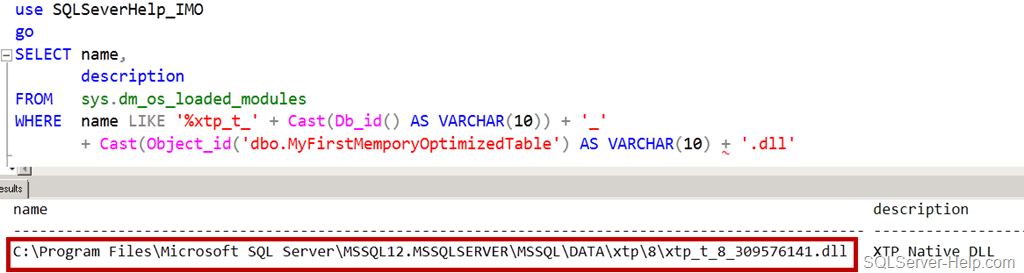
image

Now, lets open the same XTP folder and look at content.
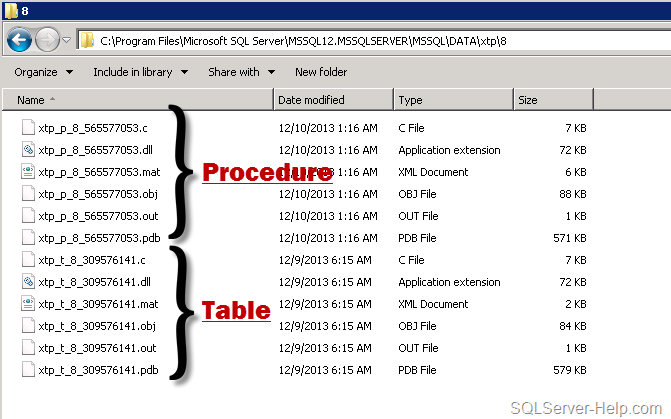
image

As we can see above, now we have new files having “p” in it and they are for stored procedure. The naming standard of those files is is xtp_p_<DB_ID>_<Object_ID>. Native Compilation of stored procedure takes an abstract tree representation of a stored procedure including queries, table and index metadata, and compiles them into native code designed to execute against tables and indexes managed by In-memory engine.

What are the other files (.c, .mat, .obj, .pdb) ? Well, they are intermediate files created by complier. They are used for troubleshooting compilation issues. Here is the quick summary table


File Extension

Usage

.c

C source file generated by In-Memory engine

.dll

Natively compiled DLL to be loaded into SQL Server process

.mat.xml

MAT export file

.obj

Object file generated by C compiler

.out

Compiler output file

.pdb

Symbol file for the dll. Used for debugging code issues.


If you are C++ developer, you can understand those files easily. Since they are not cause of worry for DBAs and Developers, I would not go deeper into explanation.

With this, I would conclude this blog post and hopefully this has given you some insights about inner working of In-Memory object.

Stay tuned for more..

Cheers,

Balmukund Lakhani

Twitter @blakhani
Author: SQL Server 2012 AlwaysOnPaperback, Kindle

Posted in A - Z Series, Hekaton Series, In Memory OLTP, In-Memory OLTP, Internals, SQL Server 2014, SSMS | Tagged: , , , , , , | 7 Comments »

A-Z of In-Memory OLTP : SSMS Enhancements for In-Memory

Posted by blakhani on December 10, 2013


Microsoft believes that everyone in the world is not a developer there are some DBAs as well. Be it Visual Studio, SQL Server or any other programming paradigm – Microsoft makes it easy for developers and DBA alike. In my previous post, you would have read about new T-SQL constructs added to support In-Memory OLTP objects. This blog post shows the SSMS improvements and dialogs introduced with SQL Server 2014 to work with In-Memory OLTP.

CREATE DATABASE

We have learned earlier that we need a new filegroup which would contain memory_optimized_data. This is the key point to understand the flow of actions below..

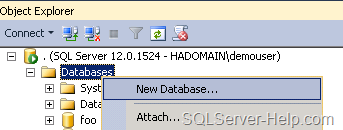
  • Right Click on database folder in SSMS and Choose “New database”. This is the same place where we create regular database.

image

  • Open “New Database” interface, go to “Filegroups” tab. Then click on “Add Filegroup” under “Memory Optimized Data” section.

image

  • I have given name as “SQLSeverHelp_IMO_FG” and then went back to “General” tab.

image

  • Here is the little explanation of numbered steps.
    1. We need to come back to “General” Tab after creating filegroup in earlier step.
    2. Provide “Database name” SQLSeverHelp_IMO
    3. Click on “Add” button and provide details in new row (third row)
    4. We have given SQLSeverHelp_IMO_dir as logical name
    5. Since it is going to contain In-Memory optimized data, we need to use “FILESTREAM Data” in “File Type”
    6. Once we choose drop down in step 5, “Filegroup” would be “SQLSeverHelp_IMO_FG” created in previous screen.
    7. Provide complete physical “Path” where the files/data needs to be stored for In-Memory tables. C:\IMO_Database\SQLSeverHelp_IMO_dir 

Follow sequence given in above image and hit OK.

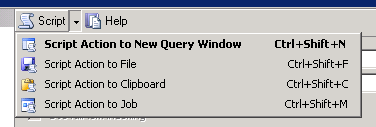
Do you know that I can remember all command by heart? I am joking! If you want to script this action, use the “Script” button (shown in below image). This would give us the same script (with little more setting) which we use in previous part.

image

The “Script” feature is available in almost every user interface of SSMS. Another option is to use predefined template. This is one of under-utilized/less known feature of SSMS. As shown below, go to “View” Menu and click on “Template Explorer” (Ctrl+Alt+T) to access a lot of predefined scripts.

image

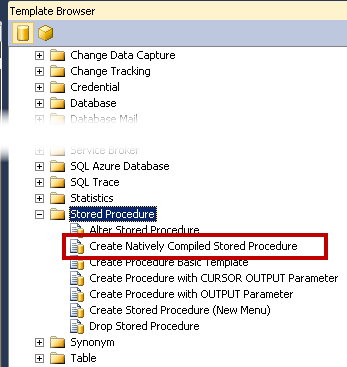
  • Once we click on “template explorer”, we would see “template browser” opened within management studio. Over there, we can see many template and one of them of our interest, as of now, is highlighted in below image.

image

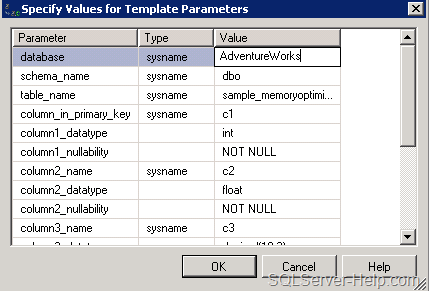
  • Double click would open the template and we need to use “Ctrl+Shift+M” to get window called “Specify Values for Template Parameters”

image

  • We can make changes here and hit OK. We can edit path, name and modify the TSQL as per our requirement.

If you have an existing database then, ALTER DATABASE would be needed. This is because the filegroup for memory_optimized_data might not have been defined. We can go to database properties and add new filegroup and follow same screen with 7 steps.

CREATE TABLE

Next step is to create an In-Memory Optimized table. Note that there is no “table designer” UI to create the In-Memory Optimized table. If you have followed earlier steps, template explorer might be open (else press Ctrl+Alt+T)

Option # 1
In situations where we have an existing database which is not having memory_optimize_data filrgroup defined, we can use template called “Add MEMORY_OPTIMIZED_DATA Filegroup and Create Memory Optimized Table” (shown below)

image

Option # 2
If we have memory optimized filegroup in the database then we can choose “Create Memory Optimized Table”

image

Option # 3
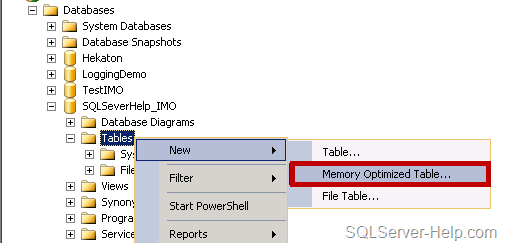
If we go with conventional way of creating table using SSMS then we can Right Click on “Tables” folder under the database SQLSeverHelp_IMO and choose New > Memory Optimized Table

image

All three options would open a query window with the template. (See, I told you earlier – no table designer)

image

In this query windows, we need to use Ctrl+Shift+M and replace the parameter as needed. We can add more columns, indexes and make modifications. As the commented section in above template says, we need to have filegroup defined for memory_optimized_data

image

In a nut-shell, in the absence of UI, you need to have T-SQL syntax knowledge.

CREATE PROCEDURE

Same as CREATE TABLE, there is no special interface available for natively compiled procedure. We can use either Right Click technique (#1) or template browser (#2) to reach to template.

Option # 1

image

Option # 2

image

Both of the options above are going to open template and then we can write the code there. Remember the shortcut Ctrl+Shift+M for filling template parameter.

image

Till now we have learned how to create objects. In next post, we would see what happens differently (than regular objects) when in-memory tables are in-memory stored procedures are created. Stay tuned!

Missed reading earlier posts? Here is the quick reference:

Stay Tuned!

Cheers,
Balmukund Lakhani
Twitter @blakhani
Author: SQL Server 2012 AlwaysOnPaperback, Kindle

Posted in A - Z Series, Hekaton Series, In Memory OLTP, In-Memory OLTP, Introduction, screen shot, Screenshot, SQL Server 2014, SQL Server Management Studio, SSMS | Tagged: , , , , , , , , | 4 Comments »

A-Z of In-Memory OLTP : TSQL Constructs for In-Memory

Posted by blakhani on December 5, 2013


To build a mega-structure, we need strong foundation. To start such tasks, we need to have knowledge of right tools available. Similarly, in SQL world, you would not be using SQL Server Management Studio UI all the time to do small tasks. All deployments are done by scripts. Once I had chat with my friend Vinod (b|t) and I asked him – Why do you think T-SQL is important. As always, he thought, smiled and said “For a rail to get from one location to another one needs to have a strong rail. These rails not only link the two destination end points but guide the trail with all its carts to this destination. In a similar way, to get started with any programming inside SQL Server, one needs to know TSQL code.”

In-Memory OLTP has a number of changes/improvements that get introduced with TSQL. This blog post of “A-Z of In-Memory OLTP” series, will bring some of these changes that you need to know when working with In-memory OLTP. What would happen under the hood, when these T-SQL codes are executed, would be explained in later posts of this series. There are T-SQL extensions added in existing CREATE DATABASE, CREATE TABLE and CREATE PROCEDURE commands. Let’s begin…

Create In-Memory OLTP database

CREATE DATABASE command has new extension called MEMORY_OPTIMIZED_DATA. It is also available in ALTER DATABASE as well. Below is the quick sample:

CREATE DATABASE SQLSeverHelp_IMO ON PRIMARY (
    NAME = [SQLSeverHelp_IMO_data]
    ,FILENAME = 'C:\IMO_Database\SQLSeverHelp_IMO.mdf'
    )
    ,FILEGROUP [SQLSeverHelp_IMO_FG] CONTAINS MEMORY_OPTIMIZED_DATA (
    NAME = [SQLSeverHelp_IMO_dir]
    ,FILENAME = 'C:\IMO_Database\SQLSeverHelp_IMO_dir'
    ) LOG ON (
    NAME = [SQLSeverHelp_IMO_log]
    ,Filename = 'C:\IMO_Database\SQLSeverHelp_IMO_log.ldf'
    )
GO

I have highlighted the syntax used to create storage for In-Memory Optimized objects, a filegroup which is container for MEMORY_OPTIMIZED_DATA. Once we run this command, SQL Server is going to create folder given in FILENAME parameter.  Let’s say we already have a “regular” database and we want to add a new filegroup, here is the syntax.

CREATE DATABASE SQLSeverHelp_IMO ON PRIMARY (
    NAME = [SQLSeverHelp_IMO_data]
    ,FILENAME = 'C:\IMO_Database\SQLSeverHelp_IMO.mdf'
    ) LOG ON (
    NAME = [SQLSeverHelp_IMO_log]
    ,Filename = 'C:\IMO_Database\SQLSeverHelp_IMO_log.ldf'
    )
GO

-- Adding MEMORY_OPTIMIZED_DATA filegroup 
USE [master]
GO

ALTER DATABASE [SQLSeverHelp_IMO] ADD FILEGROUP [SQLSeverHelp_IMO_FG] CONTAINS MEMORY_OPTIMIZED_DATA
GO

ALTER DATABASE [SQLSeverHelp_IMO] ADD FILE (
    NAME = N'SQLSeverHelp_IMO_dir'
    ,FILENAME = N'C:\IMO_Database\SQLSeverHelp_IMO_dir'
    ) TO FILEGROUP [SQLSeverHelp_IMO_FG]
GO

Behind the scene, SQL Server uses FIleStream technology. Note that only one filegroup is allowed. Here is the error in case we try to add more filegroup contains MEMORY_OPTIMIZED_DATA

Msg 10797, Level 15, State 2, Line 3
Only one MEMORY_OPTIMIZED_DATA filegroup is allowed per database.

Above does not mean that we can’t have multiple files/folders. That’s just a limitation to number of filegroups having MEMORY_OPTIMIZED_DATA. If we want to add more files to the filegroup, we can do that as below. (I am adding new folder SQLSeverHelp_IMO_dir_1)

ALTER DATABASE [SQLSeverHelp_IMO] ADD FILE (
    NAME = N'SQLSeverHelp_IMO_dir_1'
    ,FILENAME = N'C:\IMO_Database\SQLSeverHelp_IMO_dir_1'
    ) TO FILEGROUP [SQLSeverHelp_IMO_FG]
GO


Create In-Memory Table

Once we have created database, next step is to create objects in the database. As I mentioned in first post this is a “hybrid” database which can contain In-Memory table(s) as well as disk-based tables. Let me go ahead and create a regular table and in-memory table.

-- Normal table, Old Syntax 
CREATE TABLE DiskBasedTable (
    iID INT NOT NULL PRIMARY KEY NONCLUSTERED
    ,vFName VARCHAR(20) NOT NULL
    ,vLName VARCHAR(20) NOT NULL
    )
GO

-- In-Memory table, New Syntax highlighted 
CREATE TABLE MyFirstMemporyOptimizedTable (
    iID INT NOT NULL PRIMARY KEY NONCLUSTERED HASH WITH (BUCKET_COUNT = 100000)
    ,vFName VARCHAR(20) NOT NULL
    ,vLName VARCHAR(20) NOT NULL
    )
    WITH (
            MEMORY_OPTIMIZED = ON
            ,DURABILITY = SCHEMA_AND_DATA
            )
GO

There are three important extension in earlier syntax of CREATE TABLE

  1. MEMORY_OPTIMIZED: This is to tell SQL Server that, we need to put this table into memory and optimization should be ON. In case we try to create the table without filegroup then we would be welcomed with below message

    Msg 41337, Level 16, State 0, Line 12
    The MEMORY_OPTIMIZED_DATA filegroup does not exist or is empty. Memory optimized tables cannot be created for a database until it has one MEMORY_OPTIMIZED_DATA filegroup that is not empty.

  2. DURABILITY: This indicates whether we want data in the table to be persisted when database is restarted (via offline/online, SQL Service restart or SQL crash). If we just need schema then SCHEMA_ONLY can be specified. Default option is SCHEMA_AND_DATA which means data would not be lost during database restart.
  3. Inline Index Creation: Since In-Memory tables doesn’t allow creating or dropping the new index separately, we have option to define the index during table creation itself. They are two kind of Index supported – Hash and Range Index. We would be covering more about those in future post. It’s worth noting that we can’t create clustered index on In-Memory tables.If we attempt any ALTER TABLE on such tables, here is the error message.

Msg 10794, Level 16, State 15, Line 11
The operation ‘ALTER TABLE’ is not supported with memory optimized tables.

Create Natively Compiled Stored Procedure

Don’t get scared of new term – natively compiled. This is essentially a stored procedure which can also be used to access in-memory table other than regular ad-hoc queries. Here is the basic syntax of creating natively compiled stored procedure. What happens behind the scene? We would uncover that in one of the later blog.

 CREATE PROCEDURE [dbo].[InsertName] @iID INT
    ,@vFName VARCHAR(20)
    ,@vLName VARCHAR(20)
    WITH NATIVE_COMPILATION
        ,SCHEMABINDING
        ,EXECUTE AS OWNER
AS
BEGIN ATOMIC
    WITH (
            TRANSACTION ISOLATION LEVEL = SNAPSHOT ,LANGUAGE = 'us_english'
            )

    INSERT INTO dbo.MyFirstMemporyOptimizedTable
    VALUES (@iID,@vFName,@vLName)
END

I have highlighted the new terms which you are seeing as compared to regular stored procedure also known as Interpreted T-SQL. It is important to note that with all those option specified, query plan is generated during creation time itself. Permission check are also performed during creation time and that’s one of the reason they are faster. It is important to note that we can’t access disk-based table in a natively compiled stored procedure. Here is the error when I changed MyFirstMemporyOptimizedTable to DiskBasedTable.

Msg 10775, Level 16, State 1, Procedure InsertName, Line 13
Object ‘DiskBasedTable’ is not a memory optimized table and cannot be accessed from a natively compiled stored procedure.

Let me quickly comment upon the highlighted pieces for clarity.

  • NATIVE_COMPILATION:  This tells SQL Engine to compile this store procedure during creation time and indicates that we want the procedure optimized for in-memory tables access.
  • SCHEMABINDING: This is not a new parameter. It tells SQL Server to disallow the drop of tables referred inside the procedure. If I try to drop table MyFirstMemporyOptimizedTable, here is the error message. Alter is anyways not permitted on

Msg 3729, Level 16, State 1, Line 24
Cannot DROP TABLE ‘MyFirstMemporyOptimizedTable’ because it is being referenced by object ‘InsertName’.

If we don’t specify SCHEMABINDING option, here is the error

Msg 10796, Level 15, State 1, Procedure InsertName, Line 16
The SCHEMABINDING option is supported only for natively compiled stored procedures, and is required for those stored procedures.

  • EXECUTE AS OWNER: This is also a old option which specifies the context under which the procedure should be executed. Here is the error message if I don’t specify that

Msg 41320, Level 16, State 1, Procedure InsertName, Line 6
EXECUTE AS clause is required, and EXECUTE AS CALLER is not supported, with natively compiled stored procedures.

  • BEGIN ATOMIC: If we don’t specify, here is the error message. This means that all operations in the procedure succeed or fail as a unit.

Msg 10783, Level 15, State 1, Procedure InsertName, Line 16
The body of a natively compiled stored procedure must be an ATOMIC block.

  • TRANSACTION ISOLATION LEVEL and LANGUAGE are also mandatory.

Msg 10784, Level 15, State 1, Procedure InsertName, Line 9
The WITH clause of BEGIN ATOMIC statement must specify a value for the option ‘transaction isolation level’.

Msg 10784, Level 15, State 1, Procedure InsertName, Line 9
The WITH clause of BEGIN ATOMIC statement must specify a value for the option ‘language’.

What I have demonstrated as sample in create procedure block is all “minimal” options needed to create a natively complied stored procedure. There are certain limitation of natively compiled stored procedure which are documented here. I truly hope that to go along with me you have already downloaded CTP2 and installed it.

Stay Tuned for next part of the series.

Cheers,
Balmukund Lakhani
Twitter @blakhani
Author: SQL Server 2012 AlwaysOnPaperback, Kindle

Posted in A - Z Series, Hekaton Series, In Memory OLTP, In-Memory OLTP, SQL Server 2014 | Tagged: , , , , , | 9 Comments »