
It has been close to a year since I published my first book (SQL Server 2012 AlwaysOn – Paperback, Kindle) and since then I have been contacted by many DBA to troubleshoot various issue related to AlwaysOn Availability Groups. One of the most common error which I have seen is as below.
Msg 35250, Level 16, State 7, Line 1
The connection to the primary replica is not active. The command cannot be processed.
This error mostly appears when we try to join the database to availability group. by UI, T-SQL or PowerShell.
SSMS UI:
While trying to create new Availability Group, we might received below and “join” step would fail.

Here is the message in text format.
TITLE: Microsoft SQL Server Management Studio
——————————
Joining database on secondary replica resulted in an error. (Microsoft.SqlServer.Management.HadrTasks)
——————————
ADDITIONAL INFORMATION:
Failed to join the database ‘Production’ to the availability group ‘ProductionAG’ on the availability replica ‘SRV2’. (Microsoft.SqlServer.Smo)
For help, click: http://go.microsoft.com/fwlink?ProdName=Microsoft+SQL+Server&ProdVer=11.0.2100.60+((SQL11_RTM).120210-1917+)&EvtSrc=Microsoft.SqlServer.Management.Smo.ExceptionTemplates.FailedOperationExceptionText&LinkId=20476
——————————
An exception occurred while executing a Transact-SQL statement or batch. (Microsoft.SqlServer.ConnectionInfo)
——————————
The connection to the primary replica is not active. The command cannot be processed. (Microsoft SQL Server, Error: 35250)
For help, click: http://go.microsoft.com/fwlink?ProdName=Microsoft%20SQL%20Server&ProdVer=11.00.2100&EvtSrc=MSSQLServer&EvtID=35250&LinkId=20476
——————————
BUTTONS:
OK
——————————
T-SQL:

Msg 35250, Level 16, State 7, Line 1
The connection to the primary replica is not active. The command cannot be processed.
PowerShell:
Add-SqlAvailabilityDatabase -Path "SQLSERVER:\SQL\SRV2\DEFAULT\AvailabilityGroups\ProductionAG" -Database "Production"
**********************************
Add-SqlAvailabilityDatabase : The connection to the primary replica is not active. The command cannot be processed.
At line:1 char:28
+ Add-SqlAvailabilityDatabase <<<< -Path "SQLSERVER:\SQL\SRV2\DEFAULT\AvailabilityGroups\ProductionAG" -Database "Production"
+ CategoryInfo : InvalidOperation: (:) [Add-SqlAvailabilityDatabase], SqlException
+ FullyQualifiedErrorId : ExecutionFailed,Microsoft.SqlServer.Management.PowerShell.Hadr.AddSqlAvailabilityGroupDatabaseCommand
**********************************
Solution
I have always suggested them to start looking at errorlog and check what is the error which most of the DBA have reported.
2014-06-30 17:29:33.500 Logon Database Mirroring login attempt by user ‘HADOMAIN\SRV1$.’ failed with error: ‘Connection handshake failed. The login ‘HADOMAIN\SRV1$’ does not have CONNECT permission on the endpoint. State 84.’. [CLIENT: 192.168.1.11]
In above message, HADOMAIN is my domain name and SRV1 is the host name of SQL Server hosting primary replica.
Here is what have solved the issue for them.
- Change SQL Server service account to a domain account and grant connect permission to the instances. If we are using different domain accounts on each replica then we need to add service accounts of all secondary replicas to primary replica logins.
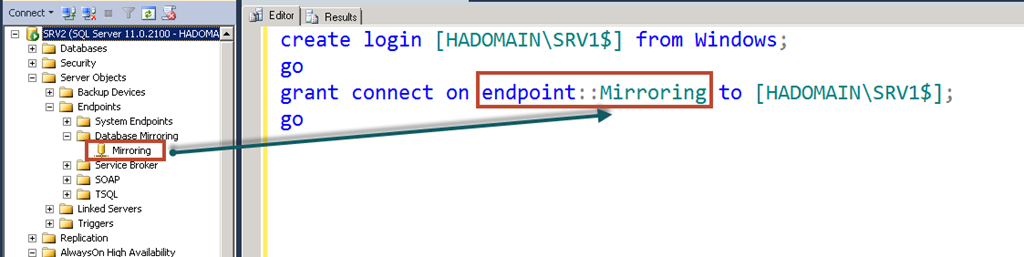
- If we are using non domain account (like LocalSystem or NT Service\MSSQLServer account) as service account and we can’t change it to domain account then we need to create machine accounts as login and grant connect permission. In our case machine name is SRV1 so machine account is HADOMAIN\SRV1$ (notice that $ at the end is a computer account)
create login [HADOMAIN\SRV1$] from windows;
go
grant connect on endpoint::Mirroring to [HADOMAIN\SRV1$];
go
Note: Endpoint Name might be different. We need to pick as per below image: If you have configured via UI earlier, it should be Hadr_endpoint
If you are running firewall, please make sure that port used by availability group is not blocked. We can easily find port using below command:
SELECT
te.port AS [ListenerPort],
te.is_dynamic_port AS [IsDynamicPort],
ISNULL(te.ip_address,'''') AS [ListenerIPAddress],
CAST(case when te.endpoint_id < 65536 then 1 else 0 end AS bit) AS [IsSystemObject]
FROM
sys.endpoints AS e
INNER JOIN sys.tcp_endpoints AS te ON te.endpoint_id=e.endpoint_id
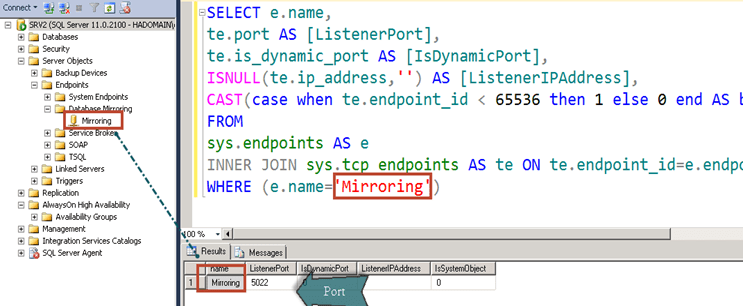

Make sure that you have added exception for the port in firewall.
This is already documented in books online
{
If any server instances that are hosting the availability replicas for an availability group run as different accounts, the login each account must be created in master on the other server instance. Then, that login must be granted CONNECT permissions to connect to the database mirroring endpoint of that server instance.
}
Hope this would help you.



 Help: SQL Server