Help: SQL Server

Sharing my knowlege about SQL Server Troubleshooting Skills

  • Blog Stats

    • 2,157,005 hits
  • Select GETDATE()

    March 2026
    M T W T F S S
     1
    2345678
    9101112131415
    16171819202122
    23242526272829
    3031  

SQL 2014 Learning Series # 8 – New Feature – Delayed Durability (Part 2)

Posted by blakhani on May 13, 2014


In part 1 of the post about delayed durability, we have learned the basics of delayed durability. In this part, lets see it in action. I must point out that this feature is also called “Lazy Commit”. Hope you remember that we can set durability as delayed at two levels, database level and transaction level (commit statement). The idea of this demo is to show difference in writing of transaction log record. I have used free tool called process monitor (free download here) which is very useful to profile file/registry/network related activity by processes.

Here is the script to create database and table.

USE master
go
IF DB_ID('MyDemoDB') IS NOT NULL
begin
ALTER DATABASE [MyDemoDB] SET SINGLE_USER WITH ROLLBACK IMMEDIATE
DROP DATABASE [MyDemoDB]
end
GO
-- Create New Database, set recovery to full and take full backup
CREATE DATABASE [MyDemoDB]
GO
ALTER DATABASE [MyDemoDB] SET RECOVERY FULL WITH NO_WAIT
GO
ALTER DATABASE [MyDemoDB] MODIFY FILE ( NAME = N'MyDemoDB', SIZE = 500MB )
GO
ALTER DATABASE [MyDemoDB] MODIFY FILE ( NAME = N'MyDemoDB_log', SIZE = 500MB )
GO
BACKUP DATABASE [MyDemoDB] to DISK = 'MyDemoDB.bak'
GO

-- create a table. 
Use [MyDemoDB]
GO
create table DemoTable 
(col1 int identity primary key clustered, 
col2 varchar(100)) GO

We can use the combination specified below to do specific delayed durable or fully durable transaction
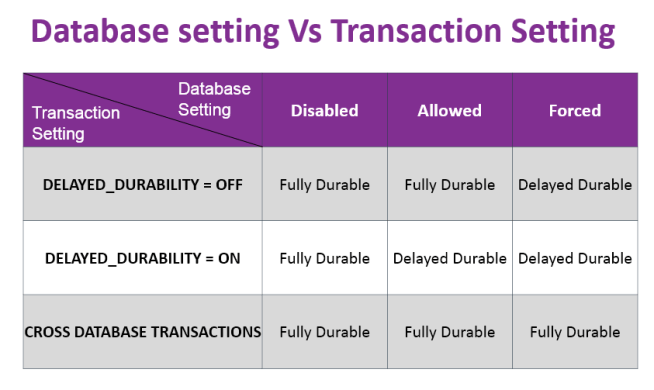
For demo purpose, I have selected database Setting = Allowed and transaction setting delayed_durability = OFF to achieve fully durable transaction. Below is the script to change and view the settings for database.

USE [master]
GO
ALTER DATABASE [MyDemoDB] SET DELAYED_DURABILITY = ALLOWED WITH NO_WAIT
GO
-- Verify setting
select [name], [database_id], [delayed_durability], [delayed_durability_desc]
from sys.databases where name = 'MyDemoDB'
GO

Here is the stored procedure where I am setting transaction level delayed durability to OFF = Fully Durable.

Use MyDemoDB
go
Create Procedure Insert_DemoTable
as
begin
SET NOCOUNT ON
 
DECLARE @counter AS INT = 0
DECLARE @start datetime
Select @start = getdate()
 
    WHILE (@counter < 100)
        BEGIN
            begin tran
             INSERT INTO DemoTable VALUES( @counter)
             SET @counter = @counter + 1
             commit with (delayed_durability = OFF)
         END
Select datediff(second, @start, getdate() )
end
go

Since our database setting is set to allowed, we will create another procedure to set delayed durability as ON on transaction level.

Use MyDemoDB
go
Create Procedure Insert_DemoTable_Delayed
as
begin
SET NOCOUNT ON
 
DECLARE @counter AS INT = 0
DECLARE @start datetime
Select @start = getdate()
 
    WHILE (@counter < 1000)
        BEGIN
            begin tran
             INSERT INTO DemoTable VALUES( @counter)
             SET @counter = @counter + 1
             commit with (delayed_durability = ON)
         END
Select datediff(second, @start, getdate() )
end
go

Now we are ready to perform some test to see effect on log record writing in fully durable and delayed durable transaction. I have started ProcMon and added filter (Ctrl+L) for “Path” as “E:\Program Files\Microsoft SQL Server\MSSQL12.SQL2014\MSSQL\DATA\MyDemoDB_log.ldf” which is the transaction log file path for MyDemoDB database. You may want to change as per your environment. Here are the two pictures which can explain a lot by themselves.

image

Image 1: Parallel capture – SSMS and ProcMon showing the activity done by sqlservr.exe during fully durable transaction

image

Image 2: Parallel capture – SSMS and ProcMon showing the activity done by sqlservr.exe during delayed durable transaction

Here are the important points to note:

  • In case of fully durable transaction, we are seeing 100 WriteFile calls to ldf file. This is due to the fact that in stored procedure, we are doing 100 transactions.
  • When delayed durable transaction is performed, SQL Server didn’t write synchronously to transaction log file for each transaction.
  • In delayed durable test, 100 transactions were clubbed together and only one writeFile is issued asynchronously.
  • Size of write for each transaction was 4096 byte and there were 100 calls in fully durable transaction but in delayed durable, the size of write is 36864 and just one call.
  • If we use undocumented command fn_dblog, we can see that the log record structure is same.

To test further, I have modified the procedure and increased the counter to 100000 and here is the time taken by them is shown below.

image

The test which I have done may not be pattern of your work load but this is just to show you performance gain for certain kind of workloads. This is available with ALL editions of SQL Server 2014 and NOT restricted to In-Memory OLTP (few people have asked me this!)

SQL Server 2014 has in-built extended stored procedure called sp_flush_log which can be used to forcefully flush the log buffers to transaction log. You can read more here

I have heard people explaining this feature as SQL not using Write Ahead Logging. That is totally incorrect. WAL is not about synchronous writing of transaction log, it’s about Writing in log ahead of data change. If WAL is broken, crash recovery of database would be a problem. I hope that this blog gives you an understanding about this new feature called Lazy Commit or Delayed Durability.

  • Cheers
  • Balmukund Lakhani
  • Twitter @blakhani
  • Author: SQL Server 2012 AlwaysOnPaperback, Kindle
  • Posted in SQL 2014 Learning Series, SQL Server 2014 | Tagged: , , | 1 Comment »

    SSMS Tip: What happened to my keyboard shortcuts? Ctrl+R (Show/Hide Result) and Ctrl+E (Execute) not working!

    Posted by blakhani on May 8, 2014


    Long back I installed SQL Server 2014 to learn new features and of course share the knowledge. I started from CTP1, CTP2 and finally came to RTM. Earlier I was installing them on Virtual Machines and recently I installed SQL 2014 on my laptop which already has SQL Server 2012 installed.

    While using SSMS of SQL Server 2014, I noticed that earlier keyboard shortcuts were not working as they used to work earlier (in SQL 2012 SSMS). Few examples are as below:

    • Ctrl + R should show/hide result pane.
    • Ctrl + E should execute the query.

    If I use above, I was getting below message in the left bottom of SSMS. “(Ctrl+R) was pressed. Waiting for second key of chord…

    image

    Pressing Ctrl+R again I get message as “The key combination (Ctrl+R, Ctrl+R) is not a command

    Same was the case with Ctrl+E command. “(Ctrl+E) was pressed. Waiting for second key of chord…” . If I take my mouse to “Execute” button, it guided me that shortcut to execute command is Ctrl+Shift+E. And it works as well.

    image

    But I always preferred to go back to earlier settings. There are multiple ways to achieve it.

    Short Route

    If you have not done any customization in SSMS and you are OK to reset all the settings then you can use this. In Management Studio menu, go to Tools –> Options –> Environment –> Keyboard –> Keyboard –> Apply the following additional keyboard mapping scheme” and choose “Reset”. You would get a confirmation pop-up, click OK there.

    image

    Long Route

    This route would be preferred if you have done some customization with the settings and want to retain those setting. you can provide shortcuts to any action. Go to Management Studio Tools menu and Tools –> Options –> Environment –> Keyboard –> Keyboard Over there, you can choose the command and assign the “shortcuts for selected command”. The list of command can be searched. For example, I have entered “Window.ShowResultsPane” and assigned Ctrl+R to it as below. Make sure to click on “Assign” button before hitting OK.

    image

    In Same way , Ctrl+E can be assigned to “Query.Execute

    Documentation: http://technet.microsoft.com/en-us/library/ms174205(v=sql.120).aspx (SQL Server Management Studio Keyboard Shortcuts)

    More reading: http://blogs.msdn.com/b/managingsql/archive/2011/07/13/enhanced-keyboard-shortcuts-in-ssms-in-denali.aspx

    Hope this helps! Please write comment and let me know your feedback.

    Cheers,
    Balmukund

    Posted in SQL Server Management Studio, SSMS | Tagged: , , , , , , | 15 Comments »

    Coverage Report – Another successful weekend spent with #SQLBangUG

    Posted by blakhani on May 6, 2014


    Last weekend, 3rd May 2014, was another remarkable day in history of SQL Bangalore User Group Meetings chapter. For those who are in Bangalore and have not attended the user group meeting has missed something. The meeting announcement was made on 18th April and I was one of the speaker along Sourabh, Amit, Pinal, Vinod and Kane (In order of the sessions). Amit has already given a summary and information about the sessions here (A full house–We could not have asked for more)

    The theme of the meeting was “SQL Server 2014 – Community Launch” because this was the first UG after release of SQL Server 2014 to public. The response was overwhelming and till 2 May people were registering. We were sold out on eventbrite

    image 

    It was full day event with session lined up on SQL Server 2014 new features. We have booked a room with 150 capacity and had a clue that we are overbooked so food was ordered for higher quantity

    image 

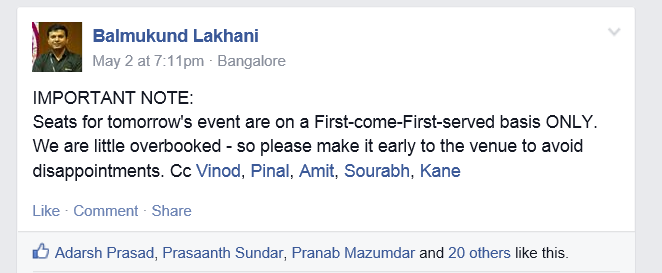
    We have given enough warning to the folks who have registered about the timings.

    image

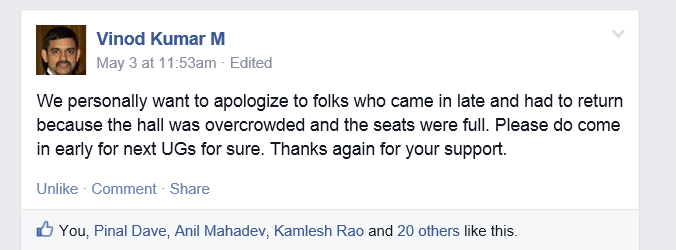
    At around 9:45, we were forced to close the registration because few non-registered used were allowed as they came much before 9:00 AM to make sure they don’t miss the event. Apologies to those who were sent back from reception.

    image

    While registrations were going on, I stated the event with some housekeeping announcement and people were still coming in

    image

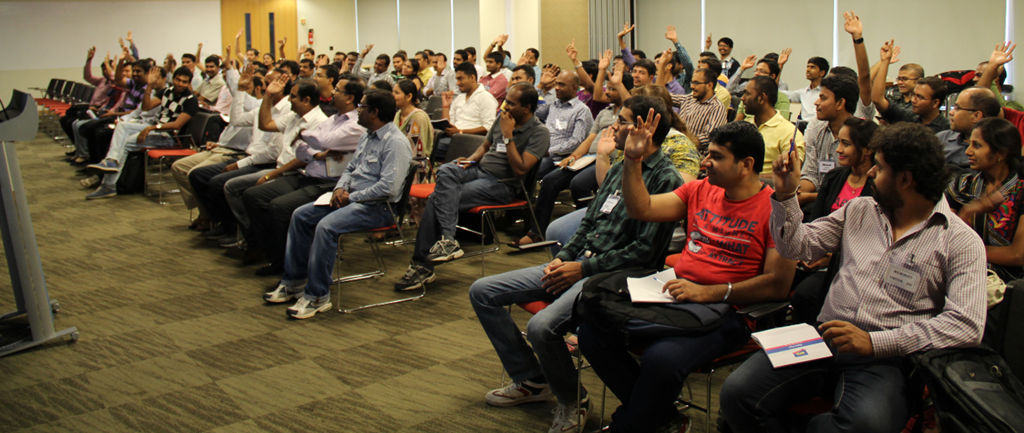
    When I asked about repeat participants.. here was the response..

    image

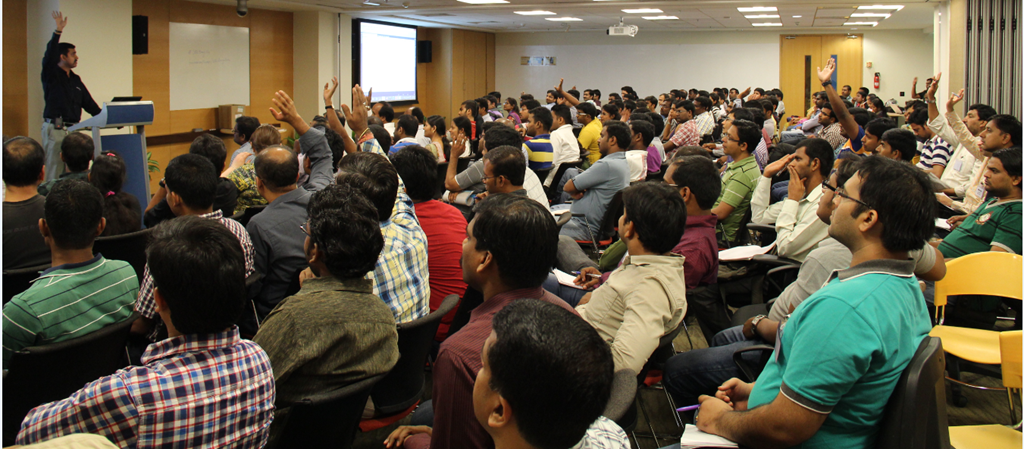
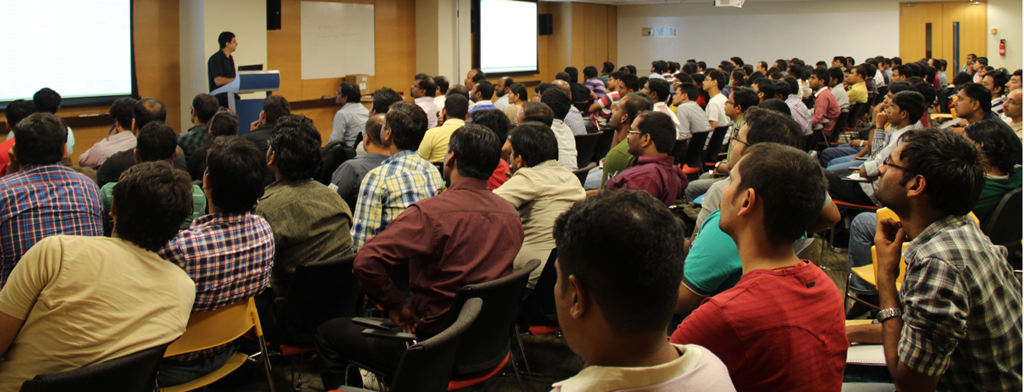
    In less than 10 min, the room was FULL and people were standing.

    image

    More chairs were arrange and then once all were comfortable, Anupam started his keynote.

    image

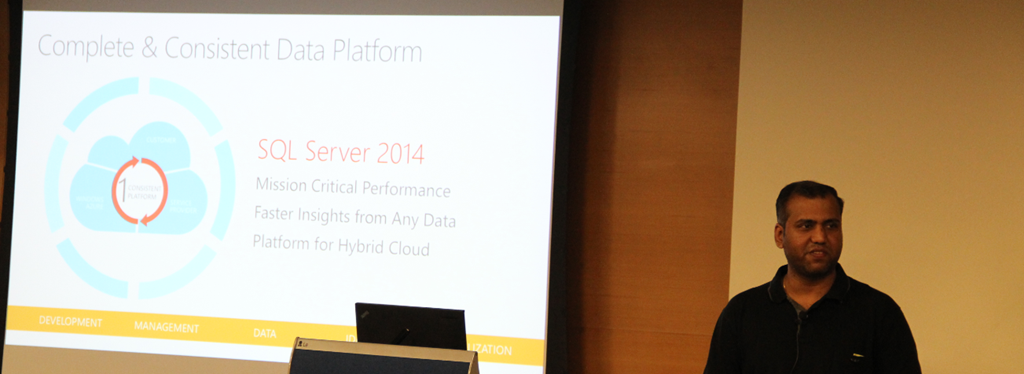
    Followed by Sourabh

    image

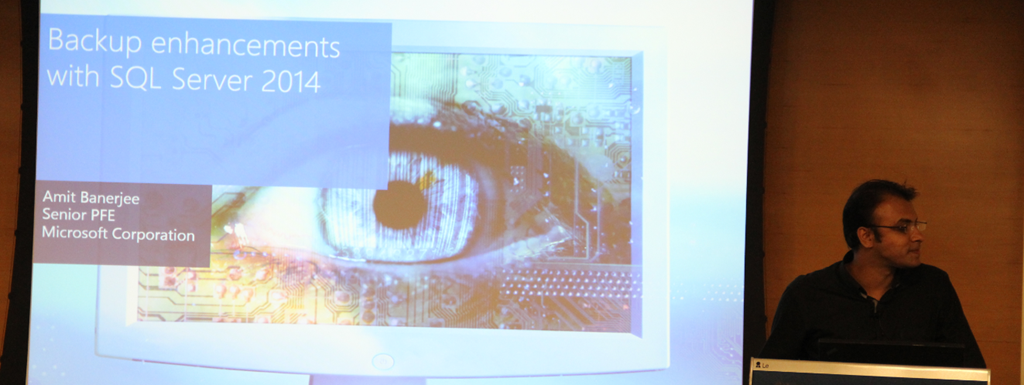
    and then Amit..

    image

    Post lunch, we had Pinal come on stage

    image

    Followed by me..

    image

    Vinod

    image

    and Kane

    image

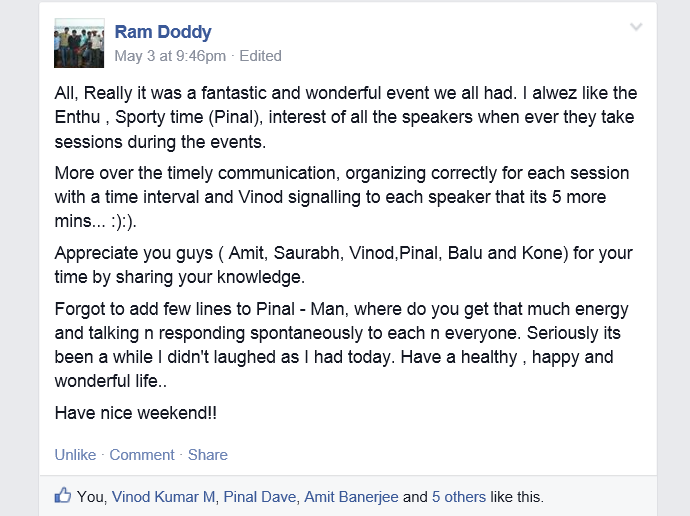
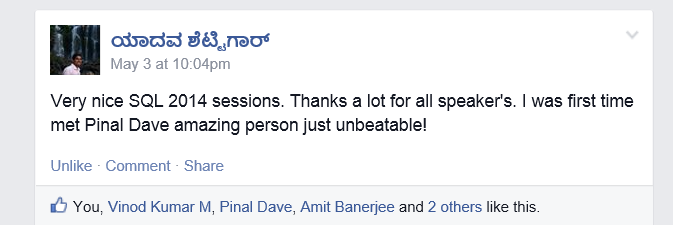
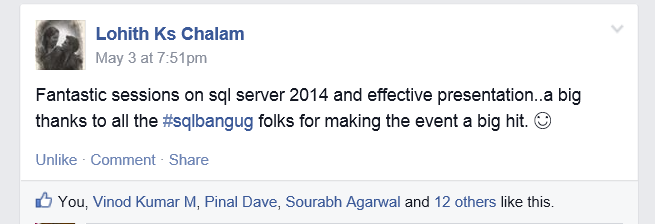
    These are few ripples on Facebook as feedback of the event

    imageimage

    imageimage

    In case you missed this time, stay tuned. We would do another next month..

    Cheers,
    Balmukund

    Posted in SQL Server User Group, SQLBangUG | Tagged: | Leave a Comment »