
Many time in forums, I have seen question about Enterprise Evaluation Edition expiration. So idea of this blog post is to avoid repetitive screenshots (which i love to put in my replies as they are more powerful). So here we go…
If you have SQL Server 2005/2008/2008 R2 Enterprise Evaluation edition and its already expired then you may see below error message when you open SQL Server Management Studio.

Here is the text of the message for better search.
Microsoft SQL Server Management Studio:
Evaluation period has expired. For information on how to upgrade your evaluation software please go to http://www.microsoft.com/sql/howtobuy
There could be two possibilities.
- SQL Server is really really expired (This is most common question in forum)
- SQL Server 2008 has been upgraded to full version but tools are not working. This is a known issue which i have blogged here
Now, if SQL 2005 is expired then you have no choice other than uninstall/reinstall SQL Server (of course you can reuse mdf and ldf files). In this blog I am not going to cover SQL 2005 upgrade (come on, its 6 years old product when I was writing this post). If SQL 2005 is not expired then you can perform edition upgrade by putting CD/DVD of new edition and choosing proper instance .
From SQL 2008 onwards, you can perform edition upgrade even if its expired. Cool! Isn’t it? Well, this feature was introduced by hearing feedback from customers. Here are the steps to do it.
- Launch the Setup.exe from the DVD/Shared Location. You would get below screen titled “SQL Server Installation Center” .
- If you have SQL already installed then you can also launch “Installation Center” by going to Start->Programs ->Microsoft SQL Server 2008[R2]->Configuration Tools-> SQL Server Installation Center[(64-bit)].
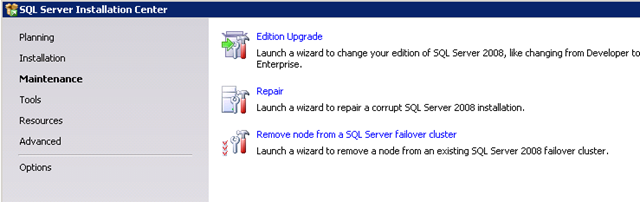
- Click on “Maintenance” and choose “Edition Upgrade”
- Go through the Wizard and choose the Instance you want to upgrade.
Simple, huh?
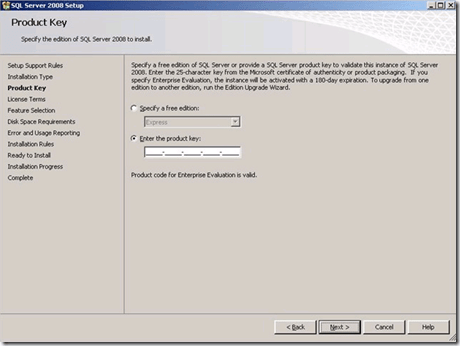
Fewer times I have been asked if I need to download mount/extract complete ISO to run edition upgrade? Well, here is the trick. Media for all the edition is same. Its the PID which decides which edition to be installed. PID is picked from a file called DefaultSetup.Ini (DVD\x86 or x64 or ia64 folder). It essentially means that you can extract that file from ISO image, run setup of Evaluation media and in below screen type the PID manually.
Hope this helped someone today!
Cheers,
Balmukund Lakhani
 Help: SQL Server