Help: SQL Server

Sharing my knowlege about SQL Server Troubleshooting Skills

  • Blog Stats

    • 2,154,409 hits
  • Select GETDATE()

    January 2026
    M T W T F S S
     1234
    567891011
    12131415161718
    19202122232425
    262728293031  

Posts Tagged ‘Hekaton Series’

A-Z of In-Memory OLTP : Troubleshooting database Startup and recovery failures

Posted by blakhani on January 2, 2014


As promised in my previous blog, I am going to demonstrate few failures of database startup and technique to find the cause and fix them. First trick which you should always remember is that whenever you see any “operating system error” with some number (2, 5, 32 etc.) try to find the text of that error number. The trick here is to use “Net HelpMSG” windows command to convert the number to text. Here are few quick samples.

C:\WINDOWS\system32>net helpmsg 2
The system cannot find the file specified.

C:\WINDOWS\system32>net helpmsg 5
Access is denied.

C:\WINDOWS\system32>net helpmsg 32
The process cannot access the file because it is being used by another process.

image

Now, we would first cause DLL generation failure during startup of database. As learned in earlier post, database startup (a.k.a. recovery) process would fail.

image

Here is what we would see in ERROLROG.

2013-12-30 03:25:44.280 spid51       Starting up database ‘SQLSeverHelp_IMO’.
2013-12-30 03:25:44.520 spid39s      restoreHkDatabase: DbId 8, Msg 41312, Level 16, State 4, Unable to call into the C compiler. GetLastError = 2.
2013-12-30 03:25:44.520 spid39s      [ERROR] Database ID: [8]. Failed to load XTP checkpoint. Error code: 0x82000008. (e:\sql12_main_t\sql\ntdbms\hekaton\sqlhost\sqlmin\hkhostdb.cpp : 2558 – ‘RecoverHkDatabase’)

Now, you would understand why I spoke about Net Helpmsg command. Error 2 = The system cannot find the file specified. Now, next task is to find out which path/file. To find any activity done by a process, one of the famous tool to use is Process Monitor (free tool by Mark Russinovich). I have run the tool and applied filter for Process Name = sqlservr.exe. Here is the filtered information from process monitor.

image

It means that SQLServr.exe is looking for CL.EXE under C:\Program Files\Microsoft SQL Server\MSSQL12.MSSQLSERVER\MSSQL\Binn\Xtp\VC\bin folder and unable to find the path. Indeed that is the problem. To do this failure, I have renamed bin folder to bin_xxx as shown below.

image

Once I renamed the folder back to “bin”, I was able to bring the database online.

I have simulated another failure of DLL generation by making some changes on operating system level and restarted SQL Server.

image

Always check errorlog and here is what we would see.

2013-12-31 20:01:35.040 spid20s      SetNamedSecurityInfoW failed for directory C:\Program Files\Microsoft SQL Server\MSSQL12.MSSQLSERVER\MSSQL\DATA\xtp for reason 5.

2013-12-31 20:01:35.040 spid20s      Error: 41334, Severity: 16, State: 2.
2013-12-31 20:01:35.040 spid20s      The code generation directory ‘C:\Program Files\Microsoft SQL Server\MSSQL12.MSSQLSERVER\MSSQL\DATA\xtp’ cannot be created or set up correctly.
2013-12-31 20:01:35.060 spid20s      Error: 41334, Severity: 16, State: 2.
2013-12-31 20:01:35.060 spid20s      The code generation directory ‘C:\Program Files\Microsoft SQL Server\MSSQL12.MSSQLSERVER\MSSQL\DATA\xtp’ cannot be created or set up correctly.
2013-12-31 20:01:35.060 spid20s      Error: 41334, Severity: 16, State: 2.
2013-12-31 20:01:35.060 spid20s      The code generation directory ‘C:\Program Files\Microsoft SQL Server\MSSQL12.MSSQLSERVER\MSSQL\DATA\xtp’ cannot be created or set up correctly.
2013-12-31 20:01:35.170 spid19s      Error: 41334, Severity: 16, State: 2.
2013-12-31 20:01:35.170 spid19s      The code generation directory ‘C:\Program Files\Microsoft SQL Server\MSSQL12.MSSQLSERVER\MSSQL\DATA\xtp’ cannot be created or set up correctly.

Important piece of error message is reason 5. If you recall what you read above, net helpmsg 5 = Access Denied.

How would you troubleshoot? Again same tool, process monitor. If we filter for all access denied (right click on Access Denied text and say "Include"), it’s clear that Service account is trying to generate the DLL of table but unable to do so.

image

Checking properties of XTP folder reveals the same. To break the things, I given “deny” on that folder to SQL Service account.

image

Once I removed “deny” and gave “allow”, I was able to bring database online using below command

Alter database SQLSeverHelp_IMO set online
go

Another possible reason of database not able to recover would be out-of-memory errors. Since all data needs to be loaded into memory before in-memory tables can be accessed. In-memory engine needs to have all the memory available to hold the data at startup of the database. If the system is low on memory or max server memory is set to too low, we might encounter recovery failure. In such situation, you may want to stop other processes running on the server so that SQL is having enough RAM to load in-memory tables.

I hope that this blog has given you some hints about possible failures, troubleshooting tricks and their resolutions.

  • Cheers,
  • Balmukund Lakhani
  • Twitter @blakhani
  • Author: SQL Server 2012 AlwaysOnPaperback, Kindle
  • Posted in A - Z Series, In Memory OLTP, In-Memory OLTP, SQL Server 2014 | Tagged: , , , , , , , , , , , , | 11 Comments »

    A-Z of In-Memory OLTP : How In-Memory Table is made durable – Transaction Logging Concepts

    Posted by blakhani on December 26, 2013


    If you ever visit a bank and do some financial transaction, you would notice that bank employee would note the information about the transaction in some format (paper based or electronic based). In the same way for SQL Server logging of transaction is needed. Hence, transaction log (also known as T-Log) file is an integral part of database. For the RDBMS to be durable, logging of transaction is done before making any modification. If an in-memory table is defined as “durable” then logging has to be done for the table. The logging of transaction is done differently for in-memory tables and that’s why I am dedicating a blog post only on this topic in A-Z Series.

    There are few major differences between transaction logging of disk based tables versus in-memory tables. I would list them out here:

    • Multiple changes in table are merged into single log record.
    • Log records are not generated for any modification of Index. The index on the table is rebuild during startup of the database.
    • Transaction log records are written only if the transaction on in-memory table is committed. This would mean that no UNDO information would be logged.

    Due to all above, the amount of information logged into transaction log is less and also efficient as compared to disk based tables. This makes in-memory OLTP scalable and high performance engine.

    Let’s understand each point by demo(s).

    Multiple changes in table are merged into single log record

    To check this behavior, we could create two identical tables – Disk based and In-Memory table. Here is the script which can be used. This is the same script which you might have seen earlier in this blog.
    -- Create database with IMO Filegroup, If exists drop it.
    Use Master
    go
    If db_id('SQLSeverHelp_IMO') is NOT NULL
    drop database SQLSeverHelp_IMO
    GO
    CREATE DATABASE SQLSeverHelp_IMO 
        ON PRIMARY (
        NAME = [SQLSeverHelp_IMO_data]
        ,FILENAME = 'C:\IMO_Database\SQLSeverHelp_IMO.mdf'
        )
        
        ,FILEGROUP [SQLSeverHelp_IMO_FG] CONTAINS MEMORY_OPTIMIZED_DATA ( 
        NAME = [SQLSeverHelp_IMO_dir]
        ,FILENAME = 'C:\IMO_Database\SQLSeverHelp_IMO_dir'
        ) 
        
        LOG ON (
        NAME = [SQLSeverHelp_IMO_log]
        ,Filename = 'C:\IMO_Database\SQLSeverHelp_IMO_log.ldf'
        ,SIZE = 102400KB 
        ) 
    GO
    
    
    -- Create table in database
    
    -- Normal (disk based) table
    Use SQLSeverHelp_IMO 
    go
    CREATE TABLE DiskBasedTable
    (
    iID INT NOT NULL PRIMARY KEY NONCLUSTERED,
    vFName CHAR(20) NOT NULL,
    vLName CHAR(20) NOT NULL
    )
    GO
    
    -- In-Memory table
    Use SQLSeverHelp_IMO
    GO
    CREATE TABLE MyFirstMemporyOptimizedTable
    (
    iID INT NOT NULL PRIMARY KEY NONCLUSTERED HASH WITH (BUCKET_COUNT = 100000),
    vFName CHAR(20) NOT NULL,
    vLName CHAR(20) NOT NULL
    ) WITH (MEMORY_OPTIMIZED = ON, DURABILITY = SCHEMA_AND_DATA)
    GO
    

    Now, I am going to insert 100 rows in Disk based table.

    -- Insert into Disk Based Table
    begin tran
    DECLARE @counter INT 
    SET @counter = 1 
    WHILE @counter <= 100
      BEGIN 
          INSERT INTO DiskBasedTable 
          VALUES      (@counter, 'SQLServer-Help.com','Balmukund Lakhani')
          SET @counter = @counter + 1 
      END
     commit tran
    

    Let’s examine the transaction log by well-known, undocumented (and unsupported command) fn_dblog

    SELECT *
    FROM sys.fn_dblog(NULL, NULL)
    WHERE PartitionId IN (
            SELECT partition_id
            FROM sys.partitions
            WHERE object_id = object_id('DiskBasedTable')
            )
    ORDER BY [Current LSN] ASC;
    GO
    

    As shown below, we can see 200 rows for our table (DiskBasedTable). LOP_INSERT_ROWS operation is logged for HEAP and INDEX. Since we have inserted 100 rows, it has caused 200 log records i.e. two per row. In Operation column – LOP stands for logical operation.

    image

    -- Total size of ALL Log Records 
    SELECT sum([Log Record Length])
    FROM sys.fn_dblog(NULL, NULL)
    WHERE PartitionId IN (
            SELECT partition_id
            FROM sys.partitions
            WHERE object_id = object_id('DiskBasedTable')
            )
    

    Above query shows output as 26000= ~25 KB. Now, we will do the same insert operation for in-memory table (MyFirstMemporyOptimizedTable) and look at log records.

    begin tran
    DECLARE @counter INT 
    SET @counter = 1
    WHILE @counter <= 100
      BEGIN 
          INSERT INTO MyFirstMemporyOptimizedTable
          VALUES      (@counter, 'SQLServer-Help.com','Balmukund Lakhani')
          SET @counter = @counter + 1 
      END
     commit tran
    
    Let’s examine log records for this operation. I am showing only top 3 records which are relevant for our discussion.
    SELECT *
    FROM sys.fn_dblog(NULL, NULL)
    ORDER BY [Current LSN] ASC
    GO
    
     
    image

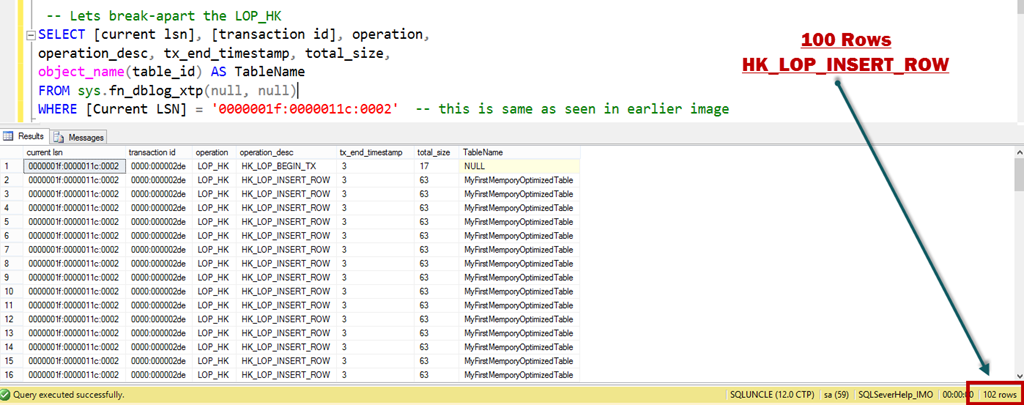
    As we can see above that we have total three log records for 100 rows inserted. Have a look at length of the LOP_HK log record, its ~6 KB. We can use another undocumented function fn_dblog_xtp to crack-open that record. HK in the operation column is the artifact of feature’s code name Hekaton.

     -- Lets break-apart the LOP_HK
    SELECT [current lsn], [transaction id], operation,
    operation_desc, tx_end_timestamp, total_size,
    object_name(table_id) AS TableName
    FROM sys.fn_dblog_xtp(null, null)
    WHERE [Current LSN] = '0000001f:0000011c:0002'  -- this is same as seen in earlier image
    

    Here is the output in SSMS:

    image

    Top and bottom (Row # 1 and Row # 102) rows are HK_LOP_BEGIN_TX and HK_LOP_COMMIT_TX. HK_LOP_INSERT_ROW is seen 100 times. Above proves the concept that amount of data logged for in-memory table is lesser as compared to disk-based tables.

    Log records are not generated for any modification of Index

    In last screenshot, we can see that we don’t have any log records which contains information about index modification as oppose to disk-based table where we saw LCK_INDEX_LEAF.

    Transaction log records are written only if the transaction on in-memory table is committed

    For In-Memory OLTP transactions, log records are generated only at commit time. As oppose to disk-based table, in-memory OLTP doesn’t follow write-ahead logging (WAL) protocol. Not using WAL protocol makes it highly efficient. To prove this point, we would create a transaction and roll it back. We would again use fn_dblog and count the number of rows.

    Select count(*) from fn_dblog(null, null)
    go
    -- 1406 Rows
    begin tran
    update DiskBasedTable 
    set vFName =
    'ExtremeExperts.com' where iID = 10 rollback tran go Select count(*) from fn_dblog(null, null) go Select * from fn_dblog(null, null) order by [Current LSN] desc

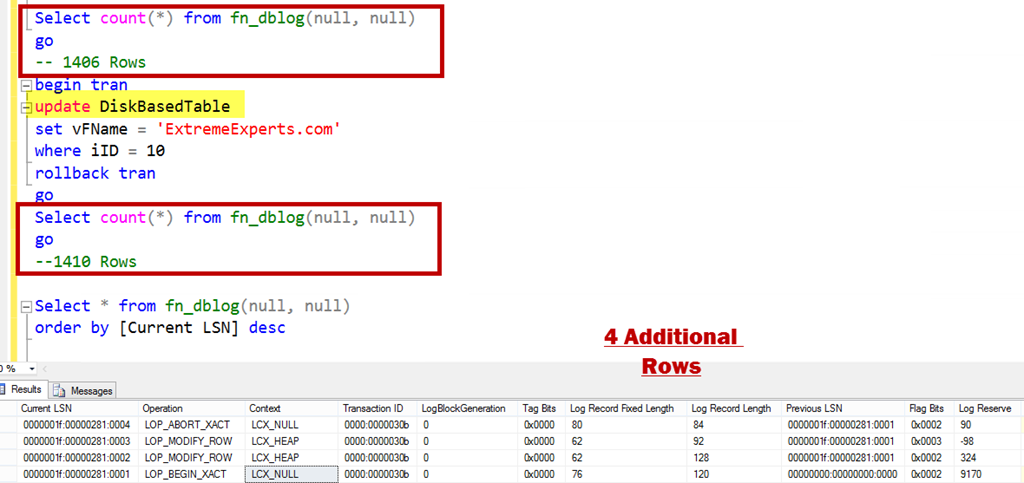
    Below is an update which was rolled back and it has generated 4 log records.

    image

    LOP_BEGIN_XACT stands for begin transaction and LOP_ABORT_XACT stands for rollback/abort of transaction. Now, let’s do the same operation for in-memory table.
    Select count(*) from fn_dblog(null, null)
    go
    -- 1410 Rows
    begin tran
    update MyFirstMemporyOptimizedTable WITH (SNAPSHOT)
    set vFName = 'ExtremeExperts.com'
    where iID = 10
    rollback tran
    go
    Select count(*) from fn_dblog(null, null)
    go
    --1410 Rows
    

    image

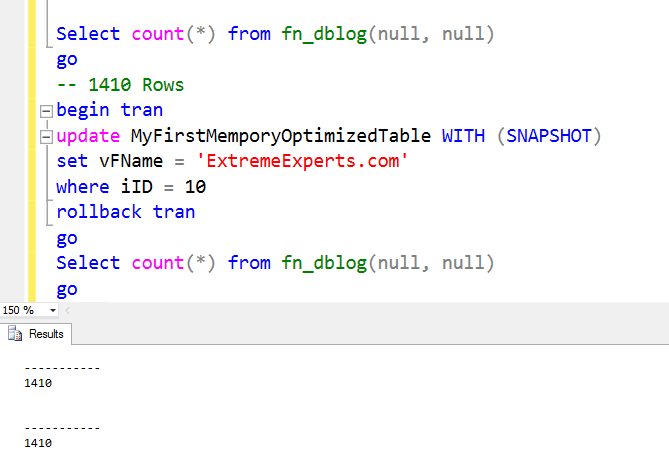
    Before and after rows in transaction log file is same (i.e. 1410) which means no additional rows are generated for a uncommitted transaction, if it’s done for in-memory table.

    I hope that now you are clear about the difference in logging. In summary, we can say that logging of transaction on in-memory table is much more efficient as compare to disk based table transactions logging. Stay tuned for more on Hekaton.

  • Cheers,
  • Balmukund Lakhani
  • Twitter @blakhani
  • Author: SQL Server 2012 AlwaysOnPaperback, Kindle
  • Posted in A - Z Series, In Memory OLTP, In-Memory OLTP, SQL Server 2014 | Tagged: , , , , , , , , | 13 Comments »

    A-Z of In-Memory OLTP : Checkpoint – Part 2

    Posted by blakhani on December 24, 2013


    If you are reading this post before part 1, I would like you to read part 1 so that you have context of what you are reading. In part 1, we have seen demo and usage of DATA files. In this blog I am going to talk about DELTA files.

    As we saw earlier each DELTA file is paired with DATA file. I must call out that DATA and DELTA files are not related to a single table but they cover a transaction range (In fact, this was a question asked by one of the reader, Manoj (Blog) in my last post). In in-memory world, when a record is deleted from the table, it’s not removed from the DATA file but a identifier is inserted in DELTA file. This would tell SQL Server that during loading of the data (startup of database), don’t load this particular row in memory as it’s deleted. Now, imagine a situation when we are doing an update to a row.

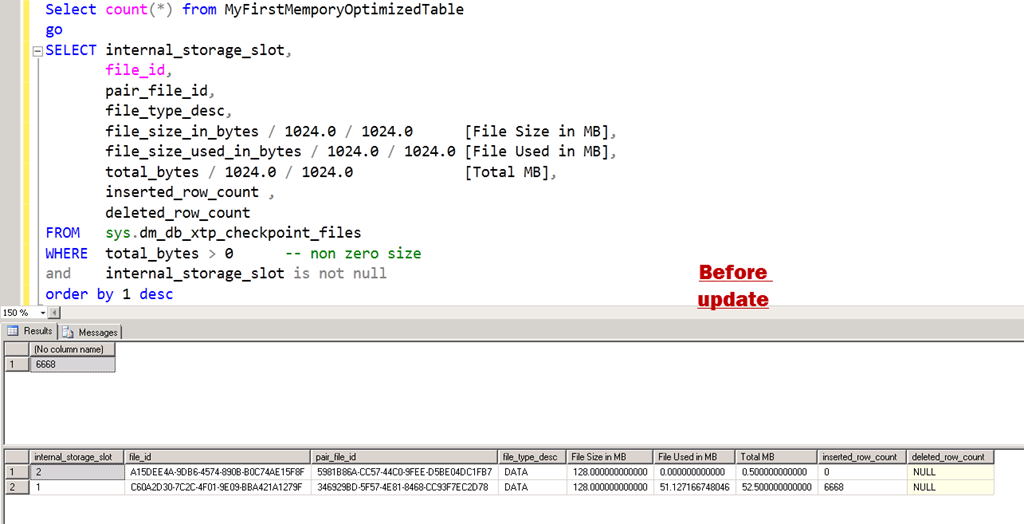
    Let’s see this theory in action. I have used same script to populate the data and here is the position where we left in last blog. Here is the query

    Select count(*) from MyFirstMemporyOptimizedTable
    go
    SELECT internal_storage_slot,
           file_id, 
           pair_file_id,    
           file_type_desc,
           file_size_in_bytes / 1024.0 / 1024.0      [File Size in MB], 
           file_size_used_in_bytes / 1024.0 / 1024.0 [File Used in MB], 
           total_bytes / 1024.0 / 1024.0             [Total MB], 
           inserted_row_count ,
           deleted_row_count
    FROM   sys.dm_db_xtp_checkpoint_files 
    WHERE  total_bytes > 0        -- non zero size
    and       internal_storage_slot is not null 
    order by 1 desc


    image

    Now, I am going to delete one third of the rows and make sure to fire a manual checkpoint.

    Delete from MyFirstMemporyOptimizedTable
    where iID%3 = 0
    go
    checkpoint
    go
    
    ----------------------
    (3334 row(s) affected)

    If we run the old query again.

    image

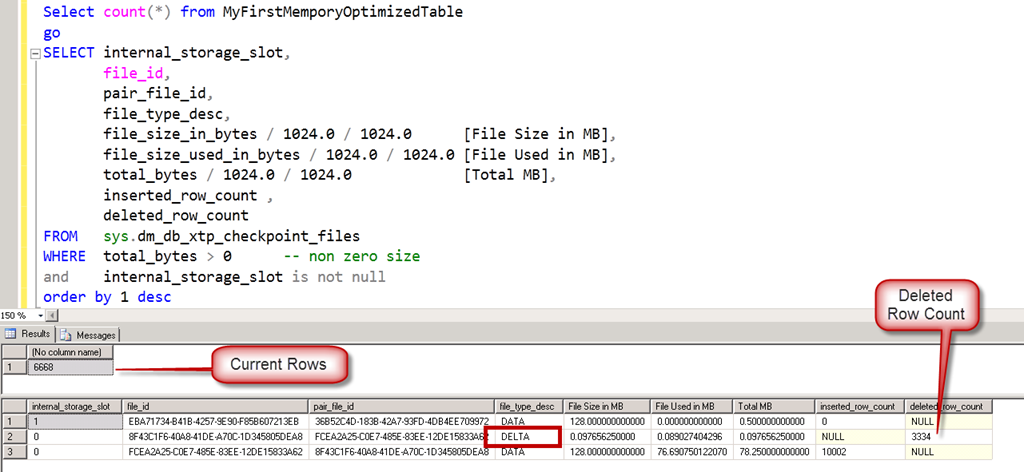
    Here comes the DELTA files. Note that the internal_slot_id is zero for one pair and one for new DATA file.  After sometime, if we run the exact same query again, we would see a different output.

    image

    If we look at the file_id, its changed from the previous screenshot. It sounds like a checkpoint has fired by itself and has removed the reference of DELTA file. Current DATA file shows 6668 rows which is exact rows in table. There is no need of DELTA file here.

    Now, I am going to fire an update statement and modify all the rows and see the effect.

    update MyFirstMemporyOptimizedTable
    set vFName = 'www.ExtremeExperts.com'
    where vFName = 'ExtremeExperts.com'
    go
    checkpoint
    go


    ——————

    (3334 row(s) affected)

    image

    image

    This matches with the theory that UPDATE is split into DELETE and INSERT. We Updated 3334 rows, which caused append of 3334 rows into DELTA file and append of 3334 rows to DATA file.

    In above, “after update” we can see three DATA files and one DELTA file. Let’s fire one more query to understand the transaction range. Here is the query

    SELECT internal_storage_slot,
           file_id, 
           pair_file_id,    
           file_type_desc,
           inserted_row_count ,
           deleted_row_count,
           transaction_id_lower_bound,
           transaction_id_upper_bound
    FROM   sys.dm_db_xtp_checkpoint_files 
    WHERE  total_bytes > 0        -- non zero size
    and       internal_storage_slot is not null 
    order by 1 desc


    image

    Each internal_storage_slot is for a range of transaction. Lower bound and upper bound are matching for consecutive slots.

    It is important to recall that writing (appending to be precise) to DELTA and DATA file is NOT done by any user transaction but background checkpoint thread. In our tests we are firing manual checkpoint to see the immediate effect to learn which would not be the case in production server. The background thread, scans the log buffers (and if needed, transaction log file) to append to those files. As per Hekaton Whitepaper by Kalen, below are the steps done by checkpoint.

    1. All buffered writes are flushed to the data and delta files.

    2. A checkpoint inventory is constructed that includes descriptors for all files from the previous checkpoint plus any files added by the current checkpoint. The inventory is hardened to the transaction log.

    3. The location of the inventory is stored in the transaction log so that it is available at recovery time.

    Till, I wrote last few lines, another system process happened and here is the final output.

    image

    We would discuss about merge process in later part of the series.

    Hope you have already downloaded SQL Server 2014 CTP2 and learning In-Memory OLTP (a.k.a. Hekaton) with me. If you haven’t yet, be sure to check out the SQL Server 2014 CTP2 so that you can follow this series and get your hands dirty.

  • Cheers,
  • Balmukund Lakhani
  • Twitter @blakhani
  • Author: SQL Server 2012 AlwaysOnPaperback, Kindle
  • Posted in A - Z Series, Hekaton Series, In Memory OLTP, In-Memory OLTP, SQL Server 2014 | Tagged: , , , , , , , , | 3 Comments »