Help: SQL Server

Sharing my knowlege about SQL Server Troubleshooting Skills

  • Blog Stats

    • 2,156,099 hits
  • Select GETDATE()

    February 2026
    M T W T F S S
     1
    2345678
    9101112131415
    16171819202122
    232425262728  

Posts Tagged ‘HekatonSeries’

A-Z of In-Memory OLTP : Checkpoint – Part 2

Posted by blakhani on December 24, 2013


If you are reading this post before part 1, I would like you to read part 1 so that you have context of what you are reading. In part 1, we have seen demo and usage of DATA files. In this blog I am going to talk about DELTA files.

As we saw earlier each DELTA file is paired with DATA file. I must call out that DATA and DELTA files are not related to a single table but they cover a transaction range (In fact, this was a question asked by one of the reader, Manoj (Blog) in my last post). In in-memory world, when a record is deleted from the table, it’s not removed from the DATA file but a identifier is inserted in DELTA file. This would tell SQL Server that during loading of the data (startup of database), don’t load this particular row in memory as it’s deleted. Now, imagine a situation when we are doing an update to a row.

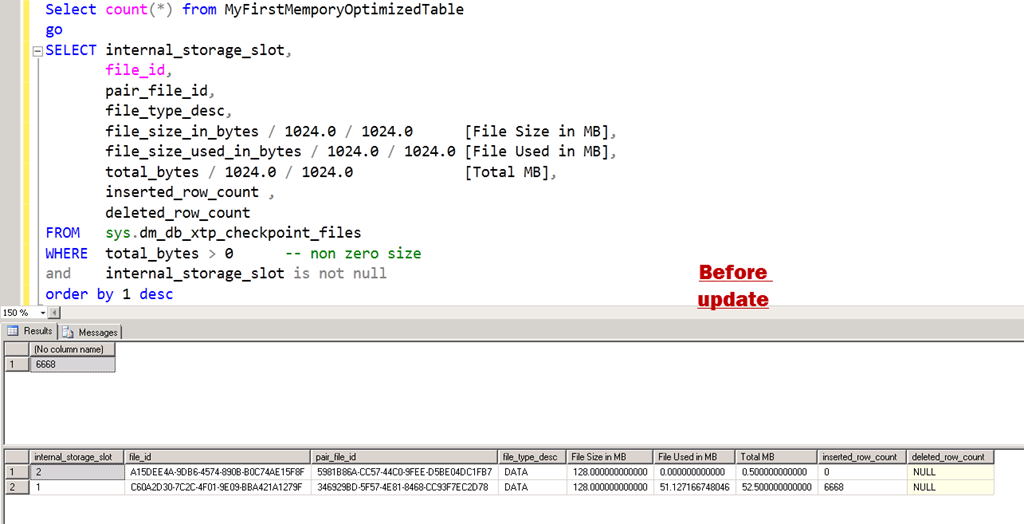
Let’s see this theory in action. I have used same script to populate the data and here is the position where we left in last blog. Here is the query

Select count(*) from MyFirstMemporyOptimizedTable
go
SELECT internal_storage_slot,
       file_id, 
       pair_file_id,    
       file_type_desc,
       file_size_in_bytes / 1024.0 / 1024.0      [File Size in MB], 
       file_size_used_in_bytes / 1024.0 / 1024.0 [File Used in MB], 
       total_bytes / 1024.0 / 1024.0             [Total MB], 
       inserted_row_count ,
       deleted_row_count
FROM   sys.dm_db_xtp_checkpoint_files 
WHERE  total_bytes > 0        -- non zero size
and       internal_storage_slot is not null 
order by 1 desc


image

Now, I am going to delete one third of the rows and make sure to fire a manual checkpoint.

Delete from MyFirstMemporyOptimizedTable
where iID%3 = 0
go
checkpoint
go
----------------------
(3334 row(s) affected)

If we run the old query again.
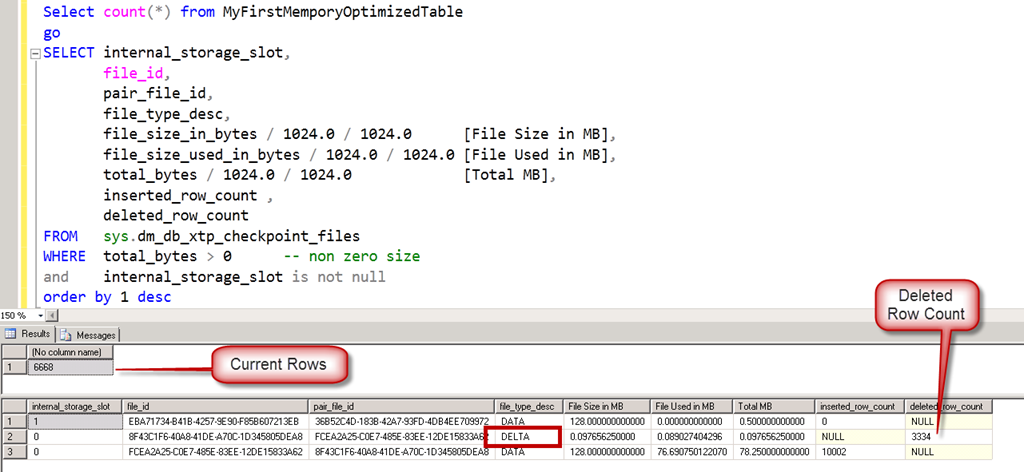
image

Here comes the DELTA files. Note that the internal_slot_id is zero for one pair and one for new DATA file.  After sometime, if we run the exact same query again, we would see a different output.

image

If we look at the file_id, its changed from the previous screenshot. It sounds like a checkpoint has fired by itself and has removed the reference of DELTA file. Current DATA file shows 6668 rows which is exact rows in table. There is no need of DELTA file here.

Now, I am going to fire an update statement and modify all the rows and see the effect.

update MyFirstMemporyOptimizedTable
set vFName = 'www.ExtremeExperts.com'
where vFName = 'ExtremeExperts.com'
go
checkpoint
go


——————

(3334 row(s) affected)

image

image

This matches with the theory that UPDATE is split into DELETE and INSERT. We Updated 3334 rows, which caused append of 3334 rows into DELTA file and append of 3334 rows to DATA file.

In above, “after update” we can see three DATA files and one DELTA file. Let’s fire one more query to understand the transaction range. Here is the query

SELECT internal_storage_slot,
       file_id, 
       pair_file_id,    
       file_type_desc,
       inserted_row_count ,
       deleted_row_count,
       transaction_id_lower_bound,
       transaction_id_upper_bound
FROM   sys.dm_db_xtp_checkpoint_files 
WHERE  total_bytes > 0        -- non zero size
and       internal_storage_slot is not null 
order by 1 desc


image

Each internal_storage_slot is for a range of transaction. Lower bound and upper bound are matching for consecutive slots.

It is important to recall that writing (appending to be precise) to DELTA and DATA file is NOT done by any user transaction but background checkpoint thread. In our tests we are firing manual checkpoint to see the immediate effect to learn which would not be the case in production server. The background thread, scans the log buffers (and if needed, transaction log file) to append to those files. As per Hekaton Whitepaper by Kalen, below are the steps done by checkpoint.

1. All buffered writes are flushed to the data and delta files.

2. A checkpoint inventory is constructed that includes descriptors for all files from the previous checkpoint plus any files added by the current checkpoint. The inventory is hardened to the transaction log.

3. The location of the inventory is stored in the transaction log so that it is available at recovery time.

Till, I wrote last few lines, another system process happened and here is the final output.

image

We would discuss about merge process in later part of the series.

Hope you have already downloaded SQL Server 2014 CTP2 and learning In-Memory OLTP (a.k.a. Hekaton) with me. If you haven’t yet, be sure to check out the SQL Server 2014 CTP2 so that you can follow this series and get your hands dirty.

  • Cheers,
  • Balmukund Lakhani
  • Twitter @blakhani
  • Author: SQL Server 2012 AlwaysOnPaperback, Kindle
  • Posted in A - Z Series, Hekaton Series, In Memory OLTP, In-Memory OLTP, SQL Server 2014 | Tagged: , , , , , , , , | 3 Comments »

    A-Z of In-Memory OLTP : Checkpoint – Part 1

    Posted by blakhani on December 19, 2013


    In today’s advance world, RAM is still volatile. Once you pull the power plug out, all the content of RAM is flushed. Since we are talking about in-memory tables, what would happen to data in tables? If we have defined a table as durable (SCHEMA_AND_DATA) in SQL Server, durability has to be maintained. During recovery of the database (also known as crash recovery), all the content should come back. To achieve this, SQL Server does logging into transaction log and writes checkpoint for in-memory tables.

    If you are a SQL Server DBA and worked with earlier versions of SQL, checkpoint is definitely known to you. You can read more about earlier version of checkpoint in books online. In short, checkpoint is a process which writes dirty pages from memory to data file. This is done to reduce the recovery time of the database during crash recovery. Checkpoint can be done by system thread based on recovery interval or triggered on demand when system is low on memory, or other operations such as log backup etc.

    “Similar” concept of checkpoint exists for In-Memory tables as well. I quoted similar because mechanism is different than the known checkpoint process for disk-based tables. To maintain durability of data for in-memory tables, SQL Server does logging of changes in transaction log (which is also different than disk based tables) and writes information during checkpoint. In this blog, we would try to understand the various things which happens during checkpoint. We should remember that transaction logging is sufficient to recover the data but if there is no checkpoint then we need to read complete transaction log during crash recovery, which would be inefficient. So, periodically checkpoint is fired and data is dumped into checkpoint files. Now, during recovery, we recover from checkpoint and replay only that portion of transaction log which is after checkpoint.

    Checkpoint files are created into filegroup MEMORY_OPTIMIZED_DATA which is container for these files. During checkpoint, we try to use log buffer in memory to write information into checkpoint files. There are chances that log buffer is not having sufficient log blocks and then we would end-up in reading transaction log file. SQL Server uses FILESTREAM as underlying storage mechanism for checkpoint files. The checkpoint information is written into the disk by checkpoint streams, which comes in two flavors:

    • DATA streams:
      • These file are approximately 128 MB in size.
      • They contain only inserted rows of the table in the given timestamp range.
    • DELTA streams:
      • These are paired (1:1) with DATA files.
      • Size of these file is not constant.
      • Store the deleted rows with IDs.

    Note that both files are “append only” files which means the IO would always be sequential. As soon as table is created, DATA files are pre-allocated with 128 MB size. DATA and DELTA files form a pair for a timestamp range. Once current DATA file becomes full, SQL Server would switch to new DATA file.

    Enough of theory? Let’s see a checkpoint in action.

    For demo purpose, I am creating table in the database which is having wide row. Here is the complete script.

    -- Create database having container C:\IMO_Database\SQLSeverHelp_IMO_dir
    CREATE DATABASE SQLSeverHelp_IMO 
        ON PRIMARY (
        NAME = [SQLSeverHelp_IMO_data]
        ,FILENAME = 'C:\IMO_Database\SQLSeverHelp_IMO.mdf'
        )
        
        ,FILEGROUP [SQLSeverHelp_IMO_FG] CONTAINS MEMORY_OPTIMIZED_DATA ( 
        NAME = [SQLSeverHelp_IMO_dir]
        ,FILENAME = 'C:\IMO_Database\SQLSeverHelp_IMO_dir'
        ) 
        
        LOG ON (
        NAME = [SQLSeverHelp_IMO_log]
        ,Filename = 'C:\IMO_Database\SQLSeverHelp_IMO_log.ldf'
        ) 
    GO
    
    
    -- Create In-Memory table
    Use SQLSeverHelp_IMO
    GO
    CREATE TABLE MyFirstMemporyOptimizedTable
    (
    iID INT NOT NULL PRIMARY KEY NONCLUSTERED HASH WITH (BUCKET_COUNT = 100000),
    vFName CHAR(4000) NOT NULL,
    vLName CHAR(4000) NOT NULL
    ) WITH (MEMORY_OPTIMIZED = ON, DURABILITY = SCHEMA_AND_DATA)
    GO

    As soon as table is created, we would see DATA and DELTA file in the container. We can use DMV sys.dm_db_xtp_checkpoint_files to see the information. Let’s first run a very basic query to understand the files.

    SELECT file_id, 
           pair_file_id, 
           file_type_desc, 
           is_active 
    FROM   sys.dm_db_xtp_checkpoint_files 
    ORDER  BY is_active DESC;   


    Here is the output with some highlights. I have put the same color for the matching file_id with pair_file_id column for clarity.

    image

    As we can see in output, DATA and DELTA files are having pair. I have highlighted only two pairs but if you look carefully, all files are paired. Note that the number of files created is a function of number of CPU cores on the system. My machine has 8 logical CPU so I am seeing 9 pairs. Is_Active column represents whether the files is currently in use or not. Another way to find out paired files is to use column called internal_storage_slot. Only those files which are having not null slot would be used by checkpoint.

    SELECT internal_storage_slot,
           file_id, 
           pair_file_id,    
           file_type_desc
    FROM   sys.dm_db_xtp_checkpoint_files 
    WHERE  internal_storage_slot is NOT NULL

    Here is the output. Two files having same slot form a pair of DATA-DELTA (slot 3 in below screenshot).

    image

    Here is how the physical files on operating system look like:

    image

    Now, you may ask – how would I associate the file in the OS with the file_id and pair_file_Id column in sys.dm_db_xtp_checkpoint_files? Let’s use other columns of DMV to explore that information.

    image

    I have tried to make the picture self-explanatory. Highlight with the same color are the matching texts.

    Now, lets try and check what happens when we insert some rows in the table. As we discussed earlier, DATA file would contain the rows which are inserted and DELTA file would have entries of deleted rows. I have used below script to load ~10K rows into the table.

    DECLARE @counter INT 
    SET @counter = 0 
    WHILE @counter <= 10000 
      BEGIN 
          INSERT INTO myfirstmemporyoptimizedtable 
          VALUES      (@counter, 
                       'SQLServer-Help.com', 
                       'Balmukund Lakhani'), 
                      (@counter + 1, 
                       'ExtremeExperts.com', 
                       'Vinod Kumar M'), 
                      (@counter + 2, 
                       'SQLAuthority.com', 
                       'Pinal Dave') 
    
          SET @counter = @counter + 3 
      END

    Now, Let’s go ahead and query the DMV again to see if we have something interesting! But Wait! We don’t know if checkpoint has automatically fired or not. So before running the query, I fired manual checkpoint via “CHECKPOINT” command in management studio.

    SELECT internal_storage_slot,
           file_id, 
           pair_file_id,    
           file_type_desc,
           file_size_in_bytes / 1024.0 / 1024.0      [File Size in MB], 
           file_size_used_in_bytes / 1024.0 / 1024.0 [File Used in MB], 
           total_bytes / 1024.0 / 1024.0             [Total MB], 
           inserted_row_count 
     FROM   sys.dm_db_xtp_checkpoint_files 
     WHERE  total_bytes > 0        -- non zero size
     and       internal_storage_slot is not null 

    As we can see that at this point only one DATA file is having non-zero size and number of rows shown are 10002, which were inserted earlier.

    image

    As we insert more and more rows, data would be accumulated in DATA file and once its full, next file would be opened used and current file becomes read-only. Please remember that 128 MB is NOT the limit of the checkpoint DATA file. A transaction can’t span across two DATA files, so a bigger transaction could cause a file to go beyond 128 MB size. For demo purposes, instead of 10K rows, I have inserted ~40K rows in one transaction.

    image 

    If you are wondering why we are not seeing any DELTA file in any of the query output then recall that DELTA file would contain the DELETEed rows identifier and so far I have been doing only INSERTs. To give you some time to grasp information in this blog, I would stop here and we would discuss other aspects of checkpoint in next blog for this A-Z series.

    In case you have any question, post them in comment section and I would be happy to answer them.

  • Cheers,
  • Balmukund Lakhani
  • Twitter @blakhani
  • Author: SQL Server 2012 AlwaysOnPaperback, Kindle
  • Posted in Hekaton Series, In Memory OLTP, In-Memory OLTP, SQL Server 2014 | Tagged: , , , , , , , , | 11 Comments »

    A-Z of In-Memory OLTP : SSMS Enhancements for In-Memory

    Posted by blakhani on December 10, 2013


    Microsoft believes that everyone in the world is not a developer there are some DBAs as well. Be it Visual Studio, SQL Server or any other programming paradigm – Microsoft makes it easy for developers and DBA alike. In my previous post, you would have read about new T-SQL constructs added to support In-Memory OLTP objects. This blog post shows the SSMS improvements and dialogs introduced with SQL Server 2014 to work with In-Memory OLTP.

    CREATE DATABASE

    We have learned earlier that we need a new filegroup which would contain memory_optimized_data. This is the key point to understand the flow of actions below..

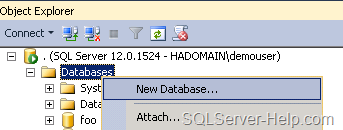
    • Right Click on database folder in SSMS and Choose “New database”. This is the same place where we create regular database.

    image

    • Open “New Database” interface, go to “Filegroups” tab. Then click on “Add Filegroup” under “Memory Optimized Data” section.

    image

    • I have given name as “SQLSeverHelp_IMO_FG” and then went back to “General” tab.

    image

    • Here is the little explanation of numbered steps.
      1. We need to come back to “General” Tab after creating filegroup in earlier step.
      2. Provide “Database name” SQLSeverHelp_IMO
      3. Click on “Add” button and provide details in new row (third row)
      4. We have given SQLSeverHelp_IMO_dir as logical name
      5. Since it is going to contain In-Memory optimized data, we need to use “FILESTREAM Data” in “File Type”
      6. Once we choose drop down in step 5, “Filegroup” would be “SQLSeverHelp_IMO_FG” created in previous screen.
      7. Provide complete physical “Path” where the files/data needs to be stored for In-Memory tables. C:\IMO_Database\SQLSeverHelp_IMO_dir 

    Follow sequence given in above image and hit OK.

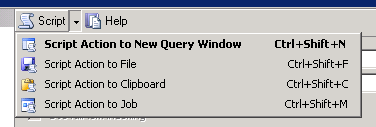
    Do you know that I can remember all command by heart? I am joking! If you want to script this action, use the “Script” button (shown in below image). This would give us the same script (with little more setting) which we use in previous part.

    image

    The “Script” feature is available in almost every user interface of SSMS. Another option is to use predefined template. This is one of under-utilized/less known feature of SSMS. As shown below, go to “View” Menu and click on “Template Explorer” (Ctrl+Alt+T) to access a lot of predefined scripts.

    image

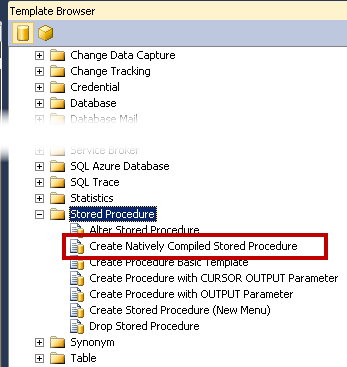
    • Once we click on “template explorer”, we would see “template browser” opened within management studio. Over there, we can see many template and one of them of our interest, as of now, is highlighted in below image.

    image

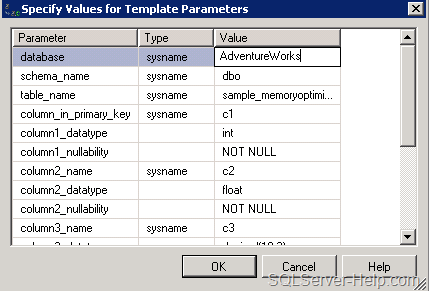
    • Double click would open the template and we need to use “Ctrl+Shift+M” to get window called “Specify Values for Template Parameters”

    image

    • We can make changes here and hit OK. We can edit path, name and modify the TSQL as per our requirement.

    If you have an existing database then, ALTER DATABASE would be needed. This is because the filegroup for memory_optimized_data might not have been defined. We can go to database properties and add new filegroup and follow same screen with 7 steps.

    CREATE TABLE

    Next step is to create an In-Memory Optimized table. Note that there is no “table designer” UI to create the In-Memory Optimized table. If you have followed earlier steps, template explorer might be open (else press Ctrl+Alt+T)

    Option # 1
    In situations where we have an existing database which is not having memory_optimize_data filrgroup defined, we can use template called “Add MEMORY_OPTIMIZED_DATA Filegroup and Create Memory Optimized Table” (shown below)

    image

    Option # 2
    If we have memory optimized filegroup in the database then we can choose “Create Memory Optimized Table”

    image

    Option # 3
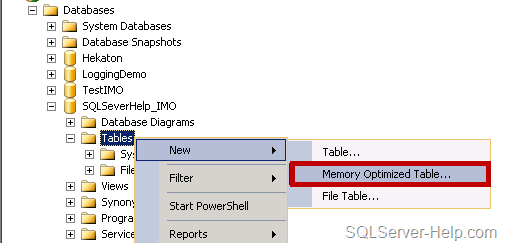
    If we go with conventional way of creating table using SSMS then we can Right Click on “Tables” folder under the database SQLSeverHelp_IMO and choose New > Memory Optimized Table

    image

    All three options would open a query window with the template. (See, I told you earlier – no table designer)

    image

    In this query windows, we need to use Ctrl+Shift+M and replace the parameter as needed. We can add more columns, indexes and make modifications. As the commented section in above template says, we need to have filegroup defined for memory_optimized_data

    image

    In a nut-shell, in the absence of UI, you need to have T-SQL syntax knowledge.

    CREATE PROCEDURE

    Same as CREATE TABLE, there is no special interface available for natively compiled procedure. We can use either Right Click technique (#1) or template browser (#2) to reach to template.

    Option # 1

    image

    Option # 2

    image

    Both of the options above are going to open template and then we can write the code there. Remember the shortcut Ctrl+Shift+M for filling template parameter.

    image

    Till now we have learned how to create objects. In next post, we would see what happens differently (than regular objects) when in-memory tables are in-memory stored procedures are created. Stay tuned!

    Missed reading earlier posts? Here is the quick reference:

    Stay Tuned!

    Cheers,
    Balmukund Lakhani
    Twitter @blakhani
    Author: SQL Server 2012 AlwaysOnPaperback, Kindle

    Posted in A - Z Series, Hekaton Series, In Memory OLTP, In-Memory OLTP, Introduction, screen shot, Screenshot, SQL Server 2014, SQL Server Management Studio, SSMS | Tagged: , , , , , , , , | 4 Comments »