Help: SQL Server

Sharing my knowlege about SQL Server Troubleshooting Skills

  • Blog Stats

    • 2,153,606 hits
  • Select GETDATE()

    December 2025
    M T W T F S S
    1234567
    891011121314
    15161718192021
    22232425262728
    293031  

Posts Tagged ‘SQL’

SSMS Tip: How to drop multiple objects?

Posted by blakhani on June 3, 2014


Have you even been into situation where you have to drop many tables in a database? Or drop multiple databases? As a developer, you might right click on each table/database and choose “delete”. If you are equipped with little T-SQL knowledge, you might write a script to do the same. Do you know that management studio can do it?

Let’s create multiple databases and learn the trick. I have used NEW_ID to get completely random name of databases.

declare @number_of_databases int, @loop int
select @number_of_databases = 10
select @loop = 1
declare @random_name varchar(40)
declare @str nvarchar(100)

while (@number_of_databases >= @loop)
begin
select @str = N'Create database [' + convert(varchar(100),NEWID())  +N']'
exec sp_executesql @str
set @loop=@loop+1
end

Once the script if executed, I have below in my management studio. Your databases would definitely be different.

image

Now, my task is – drop those databases which are created today. Without knowing the trick, one would get all databases name by query and then right click on database, choose delete. That would open a new window and we would choose “close existing connection..” and again hit OK. This has to be done 10 times. Now, here is my way of doing it.

Click F7 on keyboard when SSMS is open. This would open “Object Explorer Details”. You can also use “View” in menu bar and choose “Object Explorer Details” item there. This would open a interface which is “details” on the object selected in “Object Explorer” . I would refer this as OED in later part of the blog. (OE of left and OED on right)

image

In OED, we have capability to sort the item based on various columns available. I want to sort databases them using date created. But by default that column is not shown. Let’s Right click on column header in OED and choose the column which we are interested. I have selected “Date Created”

image

Once that’s done, I can choose the position of the column by “dragging” the column name

image

Now, we can SORT as well by clicking on column name. I have sorted them by date created and as we can see all databases which I have created by script have listed next to each other. OED has capability the select multiple objects. This can be done by:

  • Use Shift key to choose all objects next to each other.
  • Use Ctrl key to choose multiple object using mouse

Once desired objects are selected, use right click and choose delete. Simple. huh?

image

And once we choose delete, we get “Delete Objects” dialogue box which is similar to single delete.

image

We can choose the desired option and hit OK.

Same operation would work for tables as well. We just need to choose proper node on “Object Explorer” and get details under “Object Explorer Details” – OED

image

Again, choose multiple tables in OED, right click and delete.

I always felt that SQL Server Management Studio is one of “unexplored” and “underestimated” tool in SQL Server Product. Hope this blog has shown a little “hidden” gem of SSMS. If you know any such trick, please use comment section to share your knowledge.

  • Cheers,
  • Balmukund Lakhani
  • Twitter @blakhani
  • Author: SQL Server 2012 AlwaysOnPaperback, Kindle
  • Posted in SQL Server Management Studio, SSMS | Tagged: , , , , , , , | 1 Comment »

    SSMS Tip: What happened to my keyboard shortcuts? Ctrl+R (Show/Hide Result) and Ctrl+E (Execute) not working!

    Posted by blakhani on May 8, 2014


    Long back I installed SQL Server 2014 to learn new features and of course share the knowledge. I started from CTP1, CTP2 and finally came to RTM. Earlier I was installing them on Virtual Machines and recently I installed SQL 2014 on my laptop which already has SQL Server 2012 installed.

    While using SSMS of SQL Server 2014, I noticed that earlier keyboard shortcuts were not working as they used to work earlier (in SQL 2012 SSMS). Few examples are as below:

    • Ctrl + R should show/hide result pane.
    • Ctrl + E should execute the query.

    If I use above, I was getting below message in the left bottom of SSMS. “(Ctrl+R) was pressed. Waiting for second key of chord…

    image

    Pressing Ctrl+R again I get message as “The key combination (Ctrl+R, Ctrl+R) is not a command

    Same was the case with Ctrl+E command. “(Ctrl+E) was pressed. Waiting for second key of chord…” . If I take my mouse to “Execute” button, it guided me that shortcut to execute command is Ctrl+Shift+E. And it works as well.

    image

    But I always preferred to go back to earlier settings. There are multiple ways to achieve it.

    Short Route

    If you have not done any customization in SSMS and you are OK to reset all the settings then you can use this. In Management Studio menu, go to Tools –> Options –> Environment –> Keyboard –> Keyboard –> Apply the following additional keyboard mapping scheme” and choose “Reset”. You would get a confirmation pop-up, click OK there.

    image

    Long Route

    This route would be preferred if you have done some customization with the settings and want to retain those setting. you can provide shortcuts to any action. Go to Management Studio Tools menu and Tools –> Options –> Environment –> Keyboard –> Keyboard Over there, you can choose the command and assign the “shortcuts for selected command”. The list of command can be searched. For example, I have entered “Window.ShowResultsPane” and assigned Ctrl+R to it as below. Make sure to click on “Assign” button before hitting OK.

    image

    In Same way , Ctrl+E can be assigned to “Query.Execute

    Documentation: http://technet.microsoft.com/en-us/library/ms174205(v=sql.120).aspx (SQL Server Management Studio Keyboard Shortcuts)

    More reading: http://blogs.msdn.com/b/managingsql/archive/2011/07/13/enhanced-keyboard-shortcuts-in-ssms-in-denali.aspx

    Hope this helps! Please write comment and let me know your feedback.

    Cheers,
    Balmukund

    Posted in SQL Server Management Studio, SSMS | Tagged: , , , , , , | 15 Comments »

    A-Z of In-Memory OLTP : Performance Tip for Placement of Data and Delta Files (Checkpoint Files)

    Posted by blakhani on April 29, 2014


    While preparing my session about In-Memory OLTP for internal audience, I learned something new about placement of checkpoint files. In case you don’t know about checkpoint files, I would like you to read about checkpoint (part 1 and part 2).

    Data files and Delta files are created in round robin fashion. Let’s assume that we have two drives W and X and we want to distribute the IO load of In-Memory table. In general, for disk based table, what we used to do? Create the file on each drive? Yes, that would work for disk bases table but there is a little behavior which we should know before doing such thing for in-memory tables.

    For demo purpose, I am going to use two folder on same drive to mimic two drives.

    USE master
    GO
    IF EXISTS (
            SELECT *
            FROM sys.databases
            WHERE NAME = 'ObjectsDemo'
            )
        ALTER DATABASE ObjectsDemo SET  SINGLE_USER WITH ROLLBACK IMMEDIATE;
        DROP DATABASE ObjectsDemo
    GO
    
    CREATE DATABASE ObjectsDemo
    GO
    
    ALTER DATABASE ObjectsDemo 
    ADD filegroup ObjectsDemo_mod CONTAINS memory_optimized_data
    GO
    
    -- Add Files 
    ALTER DATABASE ObjectsDemo 
    ADD FILE (
        NAME = 'ObjectsDemo_mod_W'
        ,filename = 'c:\dataHK\ObjectsDemo_W'
        ) TO filegroup ObjectsDemo_mod
    GO
    
    -- Add Files 
    ALTER DATABASE ObjectsDemo 
    ADD FILE (
        NAME = 'ObjectsDemo_mod_X'
        ,filename = 'c:\dataHK\ObjectsDemo_X'
        ) TO filegroup ObjectsDemo_mod
    GO
    
    So, I have two folders “ObjectsDemo_W” and “ObjectsDemo_X” to represent W and X drives. Once we create a in-memory table, we should see checkpoint file pairs (CFP) created. 
    USE ObjectsDemo
    GO
    
    CREATE TABLE dbo.t1 (
        c1 INT NOT NULL PRIMARY KEY NONCLUSTERED
        ,c2 INT
        )
        WITH (memory_optimized = ON)
    GO


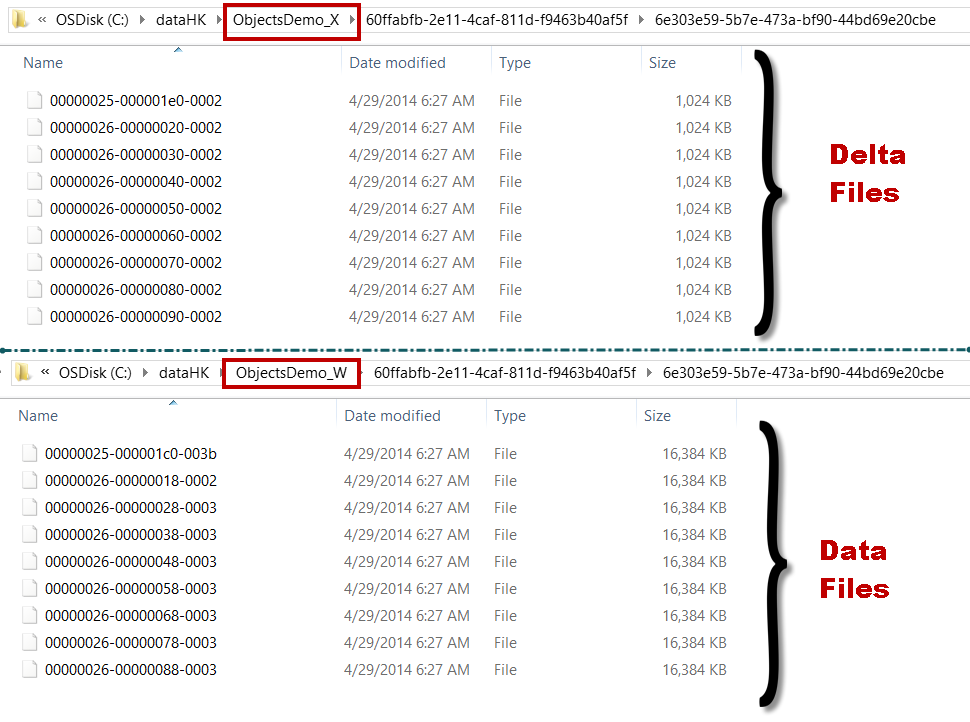
    Let’s have a look at folders now.

    image

    One folder (Drive W) contains only data files (pre-created at 16 MB each) and another folder (Drive X) contains only delta file (pre-created at 1 MB each). That would not put uniform load on the both folders. The files are placed in this fashion because data and delta files are created in container into round-robin fashion

    Here is the tip: Since we have even number of drives, we should create two folders on each drive and place files in 4 containers instead of 2 containers. We need to remember that first two containers should be from same drive.

    use master
    go
    IF EXISTS (
            SELECT *
            FROM sys.databases
            WHERE NAME = 'ObjectsDemo'
            )
        ALTER DATABASE ObjectsDemo SET  SINGLE_USER WITH ROLLBACK IMMEDIATE;
        DROP DATABASE ObjectsDemo
    GO
    
    CREATE DATABASE ObjectsDemo
    GO
    
    ALTER DATABASE ObjectsDemo 
    ADD filegroup ObjectsDemo_mod CONTAINS memory_optimized_data
    GO
    
    -- Add Files 
    ALTER DATABASE ObjectsDemo 
    ADD FILE (
        NAME = 'ObjectsDemo_mod_W1'
        ,filename = 'c:\dataHK\ObjectsDemo_W1'
        ) TO filegroup ObjectsDemo_mod
    GO
    
    -- Add Files 
    ALTER DATABASE ObjectsDemo 
    ADD FILE (
        NAME = 'ObjectsDemo_mod_W2'
        ,filename = 'c:\dataHK\ObjectsDemo_W2'
        ) TO filegroup ObjectsDemo_mod
    GO
    
    -- Add Files 
    ALTER DATABASE ObjectsDemo 
    ADD FILE (
        NAME = 'ObjectsDemo_mod_X1'
        ,filename = 'c:\dataHK\ObjectsDemo_X1'
        ) TO filegroup ObjectsDemo_mod
    GO
    
    -- Add Files 
    ALTER DATABASE ObjectsDemo 
    ADD FILE (
        NAME = 'ObjectsDemo_mod_X2'
        ,filename = 'c:\dataHK\ObjectsDemo_X2'
        ) TO filegroup ObjectsDemo_mod
    GO


    W1 and W2 are two container for mimicking two folder on W and same for X as well. Now, if we create a table, due to round robin, we should see below.

    image

    Now we have DATA file distributed and should have better usage of both driver. What you should do if you have ODD number of drives? Well, nothing because of round robin, data and delta files would be distributed automatically. 

    Bottom line: If you have plans to create file stream containers on odd number of drives, create them using trick mentioned above. If you have even number of containers then no special consideration.

    Hope you have learned something new today.

  • Cheers,
  • Balmukund Lakhani
  • Twitter @blakhani
  • Author: SQL Server 2012 AlwaysOnPaperback, Kindle
  • Posted in A - Z Series, Hekaton Series, In Memory OLTP, In-Memory OLTP, SQL Server 2014 | Tagged: , , , , , , , , , , , | 2 Comments »