Help: SQL Server

Sharing my knowlege about SQL Server Troubleshooting Skills

  • Blog Stats

    • 2,153,602 hits
  • Select GETDATE()

    December 2025
    M T W T F S S
    1234567
    891011121314
    15161718192021
    22232425262728
    293031  

Archive for the ‘SQL Server 2012’ Category

Step by Step – Configuring SQL Server 2012 AlwaysOn in Windows 7 Virtual Environment (Part 1)

Posted by blakhani on May 3, 2012


I have been demonstrating AlwaysOn feature to various audiences on various forums (TechEd, SQL Saturday, Virtual TechDays etc.). I have been using Windows Server 2008 R2 with Hyper-V to create multiple machine and demonstrate the feature. Someone asked me if he can do the same thing using his Windows 7 laptop? I tried looking at virtualization techniques available on Windows 7 and I found that it should be possible. I have tried to make it as descriptive as possible with step by step screenshots to configure whole setup.This topic would be a multipart series.

  1. Configure Windows 7 to use Virtualization and Configure three machines (One domain controller, two member servers). Also configure networking between them.
  2. Create Domain and configure the machines to make sure they are able to talk to each other.
  3. Install SQL Server 2012 on the servers.
  4. Configure AlwaysOn.

First download Windows Virtual PC on Windows 7 machine. Go to http://www.microsoft.com/windows/virtual-pc/download.aspx and choose below option. I am not going to Install Windows XP mode.
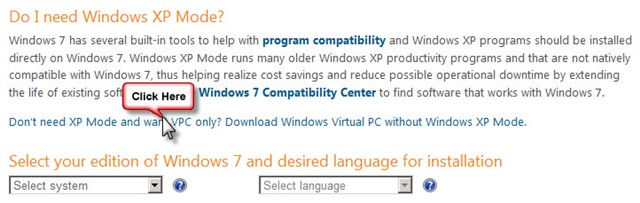
01_VPC

One clicked, choose your platform and language and click on download button.

02_VPC

This would install Windows Update to enable Virtual PC
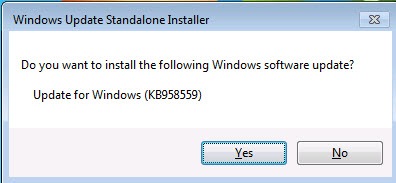
03_Windows Installer


Restart the machine and you should be able to see below under "Start” > “Programs” > “Windows Virtual PC”
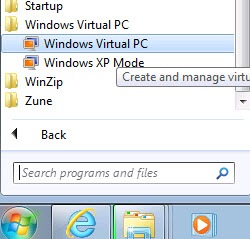
04_Windows Virual PC Shortcut

Next step would be to download the Virtual Hard Disk (a.k.a. VHD) file which I can use to configure my machine. Note that You need to use 32 bit images to make this work. Here is the link to download Windows Server 2008 images http://www.microsoft.com/en-us/download/details.aspx?id=14527 (Windows Server 2008 Enterprise Edition x86 (Full Install) VHD)

There are three parts which you need to download and then extract to user by Virtual PC. It would look like below.
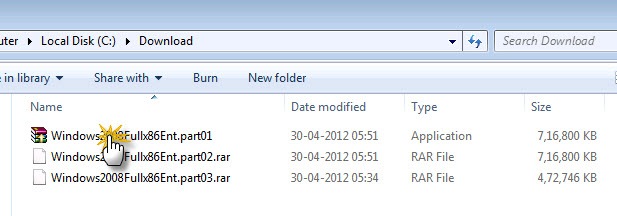
05_Downloaded VHD

Double Click on the File and Extract the data into “C:\VHDs\DC” folder as shown below:
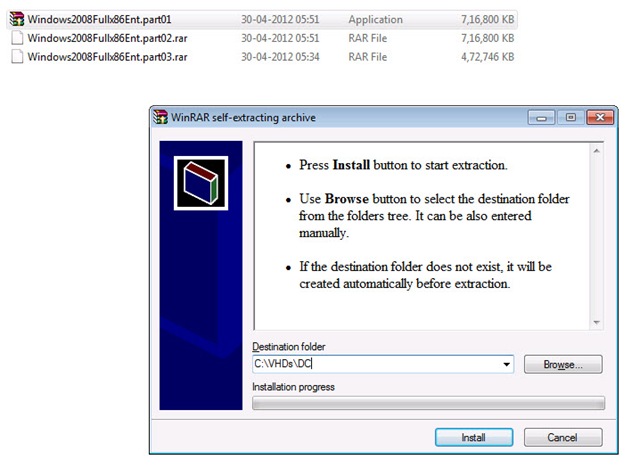
06_Extract

Once extraction is complete, make three copies of the vhd (Windows2008Fullx86Ent) file and keep them in separate folders as shown below. [I am showing only two, same exists for Srv2 also]

07_Copies

Lets add the machine to Virtual PC. Open the UI from "Start” > “Programs” > “Windows Virtual PC” > “Windows Virtual PC” and choose “Create virtual machine”

08_Create Machine 

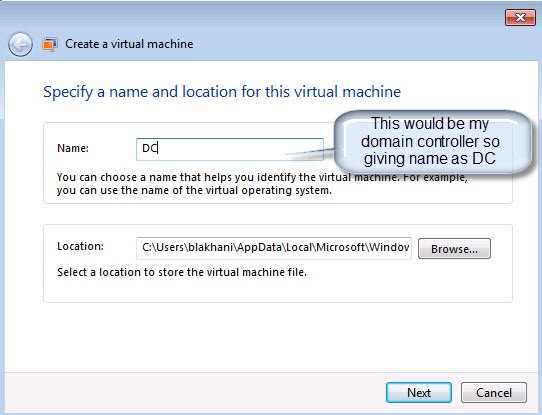
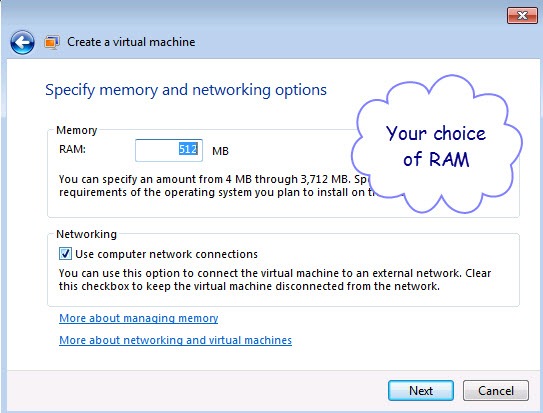
Follow the wizard and create DC

09_Create Machine1 

10_Create Machine_Mem

11_Create Machine_Disk

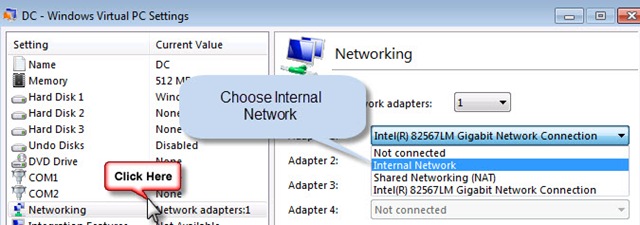
One done, lets go to network setting and choose “Internal Network” This is because I don’t want to create domain controller in my office domain network.

Right Click on DC and choose “Settings”

12_Setting

Go to Networking option and choose “Internal Network”
13_Setting_Network

Now start the first machine and make sure we are able to log in.

14_DC_Startup

You need to follow few steps which are pretty self-explanatory. It would also as you to set machine name (I have given name as DC) new password for Administrator. Once you are done with that, this is what you should see 🙂

15_DC_LoggedIn

As homework, before moving to second part, you need to do the same thing with two more machines and here is what you should see in Windows Virtual PC.

16_Three Machines

See you at next part of Series!

Hope this would help someone in the world!

Cheers,
Balmukund Lakhani
Twitter @blakhani

Posted in AlwaysOn, Denali, Images, Installation, Installation Guide, Introduction, screen shot, Screenshot, SQL Server 2012, Step by Step | 4 Comments »

Help: Getting Visual Studio Service Pack Error while installing SQL Server 2012 Release Candidate 0 (RC0)

Posted by blakhani on December 8, 2011


To make my AlwaysOn demo up-to-date with latest release, I uninstalled SQL Server 2012 (a.k.a. Denali) CTP3 from my machine(s) and and started to install SQL Server 2012 RC0.

Setup started fine and later after doing feature selection and then I received this error. Interestingly I didn’t receive error another machine both were made from same image.

01_VSErrorBlog

Here is the text of the error message for better search.

—————————
Rule Check Result
—————————
Rule "Prior Visual Studio 2010 instances requiring update." failed.

This computer has an installation of Visual Studio 2010 that requires a Service Pack 1 update that is needed for a successful installation of SQL Server based on your feature selection. To continue, install the required Visual Studio 2010 Service Pack 1 from SQL Server media or from http://go.microsoft.com/fwlink/?LinkID=220649.
—————————
OK  
—————————

one might ask, I don’t have Visual Studio product installed, why do I get this error. Well, SQL Server Tools (SSMS, BIDS) uses Visual Studio Shell. But, I thought that why setup didn’t do this check on earlier screens. Later, looking at the code I realized that we do this check if we install components which need Visual Studio Shell (like SQL Server Management Studio)

Here is the public proof of my theory from setup logs. You will also understand what all we check over here.

<Detail.txt>
(07) 2011-12-07 22:46:51 Slp: Loading rule: DEV10RTMDetected
(07) 2011-12-07 22:46:51 Slp: Creating rule target object: Microsoft.SqlServer.Configuration.SetupExtension.DetectInstalledProductsFacet
(07) 2011-12-07 22:46:51 Slp: Rule applied features  : BIDS;SSMS

(12) 2011-12-07 22:46:51 Slp: Init rule target object: Microsoft.SqlServer.Configuration.SetupExtension.DetectInstalledProductsFacet
(12) 2011-12-07 22:46:51 Slp: Package ID VSIntShellRTM_Cpu32: NotInstalled
(12) 2011-12-07 22:46:51 Slp: Package ID VSIsoShellRTM_Cpu32: Installed – Version: 10.0.30319
(12) 2011-12-07 22:46:51 Slp: Package ID VBExpress_Cpu32: NotInstalled
(12) 2011-12-07 22:46:51 Slp: Package ID VCSExpress_Cpu32: NotInstalled
(12) 2011-12-07 22:46:51 Slp: Package ID VCExpress_Cpu32: NotInstalled
(12) 2011-12-07 22:46:51 Slp: Package ID WPExpress_Cpu32: NotInstalled
(12) 2011-12-07 22:46:51 Slp: Package ID VSPremium_Cpu32: NotInstalled
(12) 2011-12-07 22:46:51 Slp: Package ID VSPro_Cpu32: NotInstalled
(12) 2011-12-07 22:46:51 Slp: Package ID VSTE_Cpu32: NotInstalled
(12) 2011-12-07 22:46:51 Slp: Package ID VSUltimate_Cpu32: NotInstalled
(12) 2011-12-07 22:46:51 Slp: Package ID VSLabAgent_Cpu32: NotInstalled
(12) 2011-12-07 22:46:51 Slp: Package ID VSTestAgent_Cpu32: NotInstalled
(12) 2011-12-07 22:46:51 Slp: Package ID VSTestController_Cpu32: NotInstalled
(12) 2011-12-07 22:46:51 Slp: Package ID VWDExpress_Cpu32: NotInstalled
(12) 2011-12-07 22:46:51 Slp: The package ‘VSIsoShellRTM_Cpu32’ is installed.
(12) 2011-12-07 22:46:51 Slp: Rule ‘DEV10RTMDetected’ detection result: AreAnyProductsInstalled= True
(12) 2011-12-07 22:46:51 Slp: Evaluating rule        : DEV10RTMDetected
(12) 2011-12-07 22:46:51 Slp: Rule running on machine: ALWAYSON-SRV4
(12) 2011-12-07 22:46:51 Slp: Rule evaluation done   : Failed
(12) 2011-12-07 22:46:51 Slp: Rule evaluation message: This computer has an installation of Visual Studio 2010 that requires a Service Pack 1 update that is needed for a successful installation of SQL Server based on your feature selection. To continue, install the required Visual Studio 2010 Service Pack 1 from SQL Server media or from http://go.microsoft.com/fwlink/?LinkID=220649.
</Detail.txt>

DEV10RTMDetected is the rule name and it would fire only if you select BIDS and/or SSMS, we would fire the rule and block installation on failure. Now why it did not come on another machine because I didn’t select tools there.

Okay, now you may ask – what I need to do now? Well, have a look at error message. It tells you the action needed. So here are the solutions.

  • Go to http://go.microsoft.com/fwlink/?LinkID=220649 and download SP1. As per note on the link

    ”This web installer downloads and installs Visual Studio 2010 Service Pack 1. An Internet connection is required during installation”

  • Other better way is to use the setup media. Yes, you read is correctly, SQL Server 2012 RC0 setup media. Below is the location of the package to install Visual Studio 2010 SP1

 
02_VSErrorBlog

Once you start installing this patch, below is what you would see.

03_VSErrorBlog

If you have not cancelled the setup after seeing the message, you can use “Re-run” button to run the check again

04_VSErrorBlog 

And you are green!!

05_VSErrorBlog

Now, go ahead with the setup and post a comment here if this helped.

Cheers,
Balmukund Lakhani
Twitter @blakhani

Posted in Denali, Error, Installation, RC0, screen shot, Screenshot, SQL Server 2012, SQL Server RC0, Visual Studio | 56 Comments »

Step by Step: Installing SQL Server 2012 RC 0

Posted by blakhani on November 30, 2011


For my upcoming internal session on contained database, I decided to install latest version of SQL Server 2012 (earlier known as SQL Server “Denali”) to show the demo. Here are the steps with screenshots to help someone who is doing the same. So, here we go!

I have done this on my Hyper-V machine so that I can always rollback. I have used SQL Server 2012 RC0 (Release Candidate 0) build. While writing this post, RC0 was the latest version available and can be downloaded from here

  • Copied the media to local machine, I prefer this to avoid any network hiccups which might cause my setup to fail. Now run Setup.exe

Choose Setup.exe

  • After clicking you should see “SQL Server Installation Center”. On left menu, click on “Installation” and then click on “New SQL Server stand-alone installation or add features to an existing installation”

02_Setup

  • Once you click, you should see “Setup Support Rules” screen.

03_Setup

  • Hit OK and you should get “Product Key” Screen. Since I launched setup from Evaluation Media, it doesn’t populate Product Key. Hit Next.

04_Setup 

  • Next would be License Terms screen. Check the box “I accept the license terms.” and Next.

05_Setup

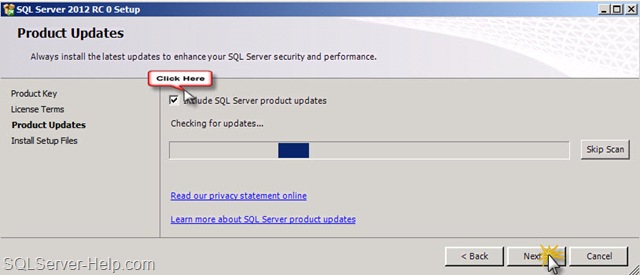
  • Next Screen is about auto patching of setup. Since I am using version which is not having any further updates, so I would uncheck the option and move forward. I would cover more about this feature later.

06_Setup

  • Hitting Next would install setup support files as shown below.

07_Setup

  • Next screen would just show the rules. Hit Next.

08_Setup

  • I have selected first option as I don’t play with SharePoint.

09_Setup

  • Normally I don’t click “Select All” but to get all screens, i have selected this. Notice the left menu getting changed based on your selection. Hit Next.

10_Setup

  • Hit Next

11_Setup 

12_Setup

  • Summary of disk space. Hit Next.

13_Setup

  • If you want to change service account, you can provide details and password. You can also specify “Startup Type”. Hit Next.

14_Setup

  • In this screen I am going with Mixed mode and given password. Also clicked on “Add Current User” to add logged on user as Sysadmin in SQL Server.

15_Setup

  • Please don’t ask question about SSAS. I have just hit next clicking on “Add Current User”.

16_Setup

  • In “Reporting Services Configuration” screen, just hit next.

17_Setup

  • Next screen should be “Distributed Replay Controller”. I have just hit next clicking on “Add Current User”. I would cover this feature in detail in some later blog.

18_Setup

  • In “Distributed Replay Client”. I have entered some name as I don’t know what to enter here. I should be able to change this later (I think so). At this point I am yet to read more about this feature.

19_Setup

  • If you want us to provide feedback about setup and some watson failures, you can check the box and in “Error Reporting” screen and then hit next. I always check this because I know this is really useful to make product better.

20_Setup

  • Next screen would do validation about installation/system and may block you if one or more rules are failed.

21_Setup

  • Finally, the summary of all options selected so far. Very important information is Configuration File Path which can be used if you want to have automation. Remember that we don’t store any password in that file so you are safe!

22_Setup

  • “Installation Progress” screen would show the actions being performed.

23_Setup

  • And here is the screen which you would all love to see.

25_Setup

That’s all for today. I would love to hear feedback from reader(s).

Hope this would help someone in the world!

Cheers,
Balmukund Lakhani
Twitter @blakhani

Posted in Denali, Images, Installation, Installation Guide, screen shot, Screenshot, SQL Server 2012, Step by Step | 14 Comments »