Help: SQL Server

Sharing my knowlege about SQL Server Troubleshooting Skills

  • Blog Stats

    • 2,157,920 hits
  • Select GETDATE()

    April 2026
    M T W T F S S
     12345
    6789101112
    13141516171819
    20212223242526
    27282930  

Archive for 2012

Step by Step – Configuring SQL Server 2012 AlwaysOn in Windows 7 Virtual Environment (Part 1)

Posted by blakhani on May 3, 2012


I have been demonstrating AlwaysOn feature to various audiences on various forums (TechEd, SQL Saturday, Virtual TechDays etc.). I have been using Windows Server 2008 R2 with Hyper-V to create multiple machine and demonstrate the feature. Someone asked me if he can do the same thing using his Windows 7 laptop? I tried looking at virtualization techniques available on Windows 7 and I found that it should be possible. I have tried to make it as descriptive as possible with step by step screenshots to configure whole setup.This topic would be a multipart series.

  1. Configure Windows 7 to use Virtualization and Configure three machines (One domain controller, two member servers). Also configure networking between them.
  2. Create Domain and configure the machines to make sure they are able to talk to each other.
  3. Install SQL Server 2012 on the servers.
  4. Configure AlwaysOn.

First download Windows Virtual PC on Windows 7 machine. Go to http://www.microsoft.com/windows/virtual-pc/download.aspx and choose below option. I am not going to Install Windows XP mode.
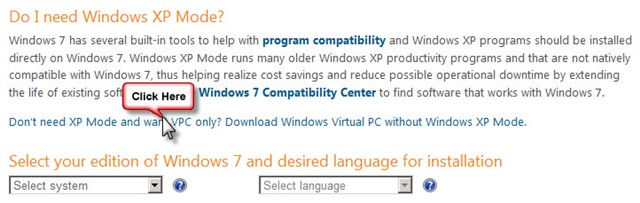
01_VPC

One clicked, choose your platform and language and click on download button.

02_VPC

This would install Windows Update to enable Virtual PC
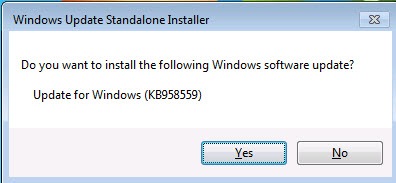
03_Windows Installer


Restart the machine and you should be able to see below under "Start” > “Programs” > “Windows Virtual PC”
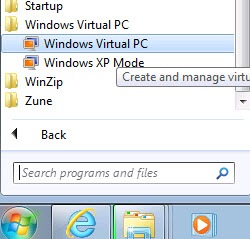
04_Windows Virual PC Shortcut

Next step would be to download the Virtual Hard Disk (a.k.a. VHD) file which I can use to configure my machine. Note that You need to use 32 bit images to make this work. Here is the link to download Windows Server 2008 images http://www.microsoft.com/en-us/download/details.aspx?id=14527 (Windows Server 2008 Enterprise Edition x86 (Full Install) VHD)

There are three parts which you need to download and then extract to user by Virtual PC. It would look like below.
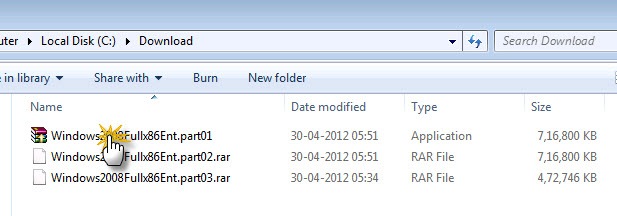
05_Downloaded VHD

Double Click on the File and Extract the data into “C:\VHDs\DC” folder as shown below:
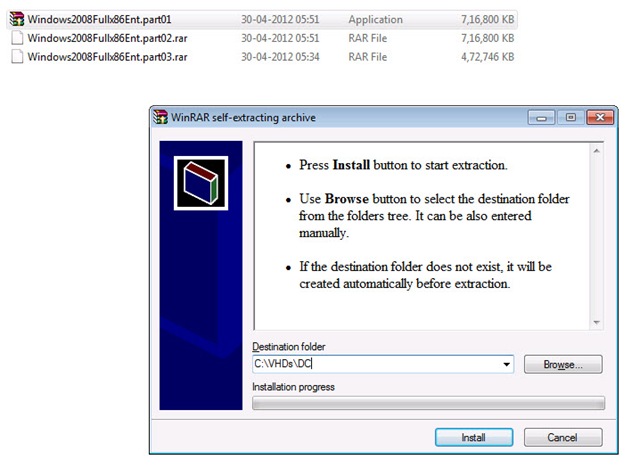
06_Extract

Once extraction is complete, make three copies of the vhd (Windows2008Fullx86Ent) file and keep them in separate folders as shown below. [I am showing only two, same exists for Srv2 also]

07_Copies

Lets add the machine to Virtual PC. Open the UI from "Start” > “Programs” > “Windows Virtual PC” > “Windows Virtual PC” and choose “Create virtual machine”

08_Create Machine 

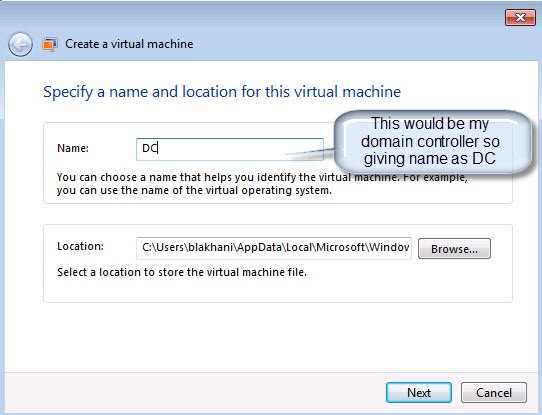
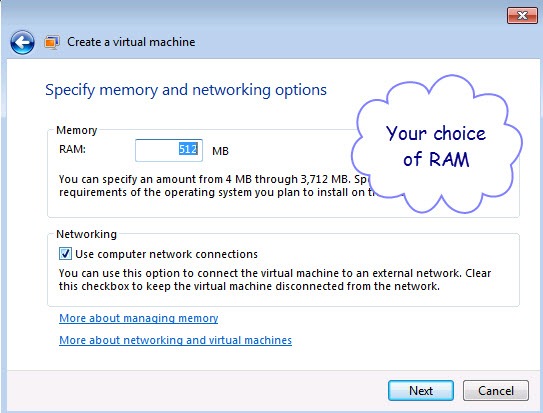
Follow the wizard and create DC

09_Create Machine1 

10_Create Machine_Mem

11_Create Machine_Disk

One done, lets go to network setting and choose “Internal Network” This is because I don’t want to create domain controller in my office domain network.

Right Click on DC and choose “Settings”

12_Setting

Go to Networking option and choose “Internal Network”
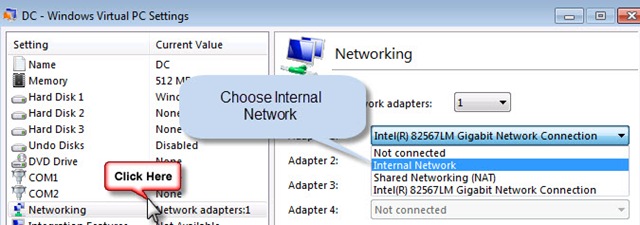
13_Setting_Network

Now start the first machine and make sure we are able to log in.

14_DC_Startup

You need to follow few steps which are pretty self-explanatory. It would also as you to set machine name (I have given name as DC) new password for Administrator. Once you are done with that, this is what you should see 🙂

15_DC_LoggedIn

As homework, before moving to second part, you need to do the same thing with two more machines and here is what you should see in Windows Virtual PC.

16_Three Machines

See you at next part of Series!

Hope this would help someone in the world!

Cheers,
Balmukund Lakhani
Twitter @blakhani

Posted in AlwaysOn, Denali, Images, Installation, Installation Guide, Introduction, screen shot, Screenshot, SQL Server 2012, Step by Step | 4 Comments »

“Keep Databases Always Available–AlwaysOn”–TechEd 2012 India

Posted by blakhani on March 20, 2012


image

Title: Keep Databases Always Available–AlwaysOn

Date and Time: 23 March 2012, 14:15 to 15:15

Track – Know Your Data – A Day in Life of a DBA

If you see someone with black & red bag with SQL Server 2012 written on it at TechEd 2012, stop him and say “Hello” because mostly it would be me (If it’s someone else, he would know me). Yes! Once again I got chance to speak at TechEd India 2012 which is being held at Bangalore from March 21-23, 2012. I am getting ready with RTM build of SQL Server 2012 to demonstrate AlwaysOn feature of SQL Server 2012. While this is not the first time I am presenting AlwaysOn but I always enhance it and keep it up-to-date with the current release of SQL Server. I am super excited to be there along with Pinal Dave [B | T], Vinod Kumar [B | T], Amit Banerjee [B | T] and Jacob Sebastian [B | T]

Abstract: This session will describe how to build practical end-to-end HA and DR solutions for mission critical applications using SQL Server 2012 AlwaysOn technology. For example, how to combine Failover Cluster Instances with Availability Groups to provide a complete HA and DR solution, how to use Availability Groups Multiple Secondaries to replace existing database mirroring + log shipping solutions. Readable Secondaries, backup on secondaries are some of the cool features which will be covered.

Location: Hotel Lalit Ashok – Kumara Krupa High Grounds, Bengaluru – 560001, Karnataka, India.

There are various other posts about TechEd 2012. Pinal and Vinod posted summary of about various sessions [here and here].  Vinod and Amit also posted about their own sessions. I liked Manas post which has link to various blogs

Since myself, Amit, Pinal and Vinod belong to different workgroups, this is a chance to meet all of us at the same place. This is the last and final call for all folks who don’t want to miss the fun and want to “Go Big”!

Come and Join us!

Regards,
Balmukund

Posted in TechEd | 4 Comments »

Help : I purchased proper media to upgrade SQL version, still setup thinks that its Evaluation. What’s wrong?

Posted by blakhani on February 12, 2012


Have you came across the scenario where you are performing a version upgrade of SQL Server as per supported path described here but still you are facing below error message during rules check?

<Error>
Error:
========
Rule "SQL Server 2008 R2 Feature" failed.

The specified edition upgrade is not supported. For information about  supported upgrade paths, see the SQL Server 2008 R2 version  and edition upgrade matrix in books online.
</Error>

If you look at Detail.txt file created by setup, search for “FeatureUpgradeMatrixCheck” and have a closer look at the log. From the highlighted you can easily understand the source and destination version+edition. So as per below log, setup is trying to upgrade from SQL 2000 Standard to Evaluation Edition (which is not in the link I provided earlier)

2011-01-27 22:53:34 Slp: Init rule target object: Microsoft.SqlServer.Configuration.SetupExtension.SkuUpgradeRule
2011-01-27 22:53:34 Slp: — SkuUpgradeRule : Rule ‘FeatureUpgradeMatrixCheck’ looking for previous version upgrade data for feature package ‘sql_as_Cpu32’.
2011-01-27 22:53:34 Slp: — SkuUpgradeRule : Rule ‘FeatureUpgradeMatrixCheck’ feature package ‘sql_as_Cpu32’ found no upgrade features.
2011-01-27 22:53:34 Slp: — SkuUpgradeRule : Rule ‘FeatureUpgradeMatrixCheck’ looking for previous version upgrade data for feature package ‘sql_engine_core_inst_Cpu32’.
2011-01-27 22:53:34 Slp: — SkuUpgradeRule : Found feature package  ‘Sql2000Ent_Cpu32’ with SkuValue=STANDARD ProductVersion=8.00.2039
2011-01-27 22:53:34 Slp: — SkuUpgradeRule : Rule ‘FeatureUpgradeMatrixCheck’ found sourceVersion 8.0 and edition STANDARD for feature package ‘sql_engine_core_inst_Cpu32’.
2011-01-27 22:53:34 Slp: — SkuPublicConfigObject : ValidateSkuMatrix checking sku matrix for sourceVersion=8.0 sourceEdition=STANDARD sourceArchitecture=X86 targetEdition=EVAL targetArchitecture=X86
2011-01-27 22:53:34 Slp: — SkuPublicConfigObject : ValidateSkuMatrix source and target architecture match.
2011-01-27 22:53:34 Slp: — SkuPublicConfigObject : ValidateSkuMatrix did not find a match in sku matrix .
2011-01-27 22:53:34 Slp: — SkuUpgradeRule : Rule ‘FeatureUpgradeMatrixCheck’ feature package ‘sql_engine_core_inst_Cpu32’ is blocking upgrade.
2011-01-27 22:53:34 Slp: — SkuUpgradeRule : Rule ‘FeatureUpgradeMatrixCheck’ detection result: IsValidFeatureUpgrade=False
2011-01-27 22:53:34 Slp: Evaluating rule        : FeatureUpgradeMatrixCheck
2011-01-27 22:53:34 Slp: Rule running on machine: SQLSERVER
2011-01-27 22:53:34 Slp: Rule evaluation done   : Failed
2011-01-27 22:53:34 Slp: Rule evaluation message: The specified edition upgrade is not supported. For information about supported upgrade paths, see the SQL Server 2008 R2 version and edition upgrade matrix in Books Online.
2011-01-27 22:53:34 Slp: Send result to channel : RulesEngineNotificationChannel
2011-01-27 22:53:34 Slp: Initializing rule      : Incomplete upgrade
2011-01-27 22:53:34 Slp: Rule applied features  : SQL;SQLEng

On a side note, Do you know the media difference for Standard and Evaluation edition? Well, there is no difference! Its the PID (Product ID) in below screen which decides the edition to be installed. The value of PID is picked from DefaultSetup.Ini file located on media. If there is no such file on Media then it would be enterprise evaluation edition of SQL Server.

Here is the little test which would prove the theory. I swear to god that I have not hit cancel while doing the test. Its the same media used for all the screen (Evaluation Media) All I did was change value in Enter the Product Key and hit next> or previous<.

VersionUpgrade_01imageVersionUpgrade_02

VersionUpgrade_03imageVersionUpgrade_04

VersionUpgrade_05imageVersionUpgrade_06


Since I had media for various editions (How? Did I tell you that I work with Microsoft SQL Support team.. lol!), I copied/pasted the PID from DefaultSetup.ini file and rest can be seen above.

You might say, Nice to know what’s happening behind the scene but what you need to do if you run into such situation. In my scenario customer informed that they purchased Standard edition of SQL Server 2008 R2 still its taking EVAL in targetEdition and there has to be flaw somewhere. Later we found that screen was selecting Enterprise Evaluation by default (not sure why) So once he entered the Product Key, it worked like a charm!

Now, go ahead with the setup and post a comment here if this helped.

Cheers,
Balmukund Lakhani
Twitter @blakhani

Posted in Edition Upgrade, Error, Evaluation, Images, PID, Product Key, Screenshot, SQL Server, Step by Step, Version Upgrade | Tagged: , , | 2 Comments »