Help: SQL Server

Sharing my knowlege about SQL Server Troubleshooting Skills

  • Blog Stats

    • 2,157,113 hits
  • Select GETDATE()

    March 2026
    M T W T F S S
     1
    2345678
    9101112131415
    16171819202122
    23242526272829
    3031  

Help: SQL Server Management Studio is allowing me to connect only to Database Engine! What’s wrong?

Posted by blakhani on May 10, 2012


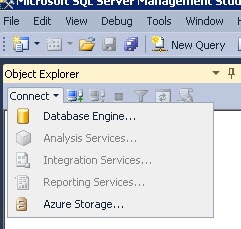
This blog is an outcome of one of internal email thread where SQL Server Management Studio was allowing to connect only “Database Services” and “SQL Azure”. A picture is worth a thousand words, so here it is:
01_Disabled

Analysis Services, Integration Services, Reporting Services are grayed out/disabled. I thought that this might be due to SSMS Express but looking at “Help” > “about” in Management Studio showed that it was full version.

05_HelpAbout

“Copy Info” gives you this information.

Microsoft SQL Server Management Studio                        11.0.2100.60
Microsoft Analysis Services Client Tools                        11.0.2100.60
Microsoft Data Access Components (MDAC)                        6.1.7601.17514
Microsoft MSXML                        3.0 6.0
Microsoft Internet Explorer                        8.0.7601.17514
Microsoft .NET Framework                        4.0.30319.237
Operating System                        6.1.7601


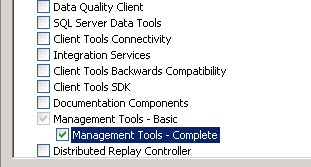
While doing some more research, I remember setup screen had option for Management Tools – Basic and Complete. here is the screenshot of setup screen with both features highlighted.

02_Basic

03_Complete

I guess the feature description explains the behavior. If you want to find what was the option you selected, then SQL setup logs are your friend! [One more trick at the end of the blog]

C:\Program Files\Microsoft SQL Server\110\Setup Bootstrap\Log\DateTimeStamp\ConfigurationFile.ini

To repro the issue, I selected only Basic and this is what you would see in ConfigurationFile

FEATURES=SQLENGINE,REPLICATION,SSMS

Once setup completes, you would see same behavior which for which I am writing the blog. Now, to fix the issue we need to add “Management Tools – Complete”. Launch “SQL Server Installation Center” > Installation > “New SQL Server stand-alone installation or add features to an existing installation” . Go through the Wizard and choose as below:

06_AddFeature

and then

07_ChooseComplete

Now you should see FEATURES=ADV_SSMS in ConfigurationFile.ini and once you finish the setup, you should be able to select any option.
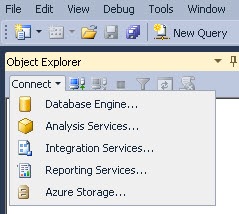
04_Enabled

If you are not comfortable looking at Setup Logs, you can also use “Installed SQL Server features discovery Report” from “SQL Server Installation Center” > “Tools” Menu

Once you click on hyperlink and launch the report, it would show something like below.

08_Discovery Report

So after Adding Management Tools Complete, I could see that in report.

Hope this would help someone in the world!

Cheers,
Balmukund Lakhani
Twitter @blakhani
Posted in Denali, disabled, grayed out, Images, Management Tools Basic, Management Tools Complete, Screenshot, SQL Server 2012, SQL Server Management Studio, SSMS | 9 Comments »

Step by Step – Configuring SQL Server 2012 AlwaysOn in Windows 7 Virtual Environment (Part 1)

Posted by blakhani on May 3, 2012


I have been demonstrating AlwaysOn feature to various audiences on various forums (TechEd, SQL Saturday, Virtual TechDays etc.). I have been using Windows Server 2008 R2 with Hyper-V to create multiple machine and demonstrate the feature. Someone asked me if he can do the same thing using his Windows 7 laptop? I tried looking at virtualization techniques available on Windows 7 and I found that it should be possible. I have tried to make it as descriptive as possible with step by step screenshots to configure whole setup.This topic would be a multipart series.

  1. Configure Windows 7 to use Virtualization and Configure three machines (One domain controller, two member servers). Also configure networking between them.
  2. Create Domain and configure the machines to make sure they are able to talk to each other.
  3. Install SQL Server 2012 on the servers.
  4. Configure AlwaysOn.

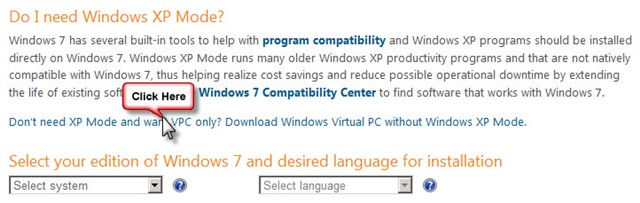
First download Windows Virtual PC on Windows 7 machine. Go to http://www.microsoft.com/windows/virtual-pc/download.aspx and choose below option. I am not going to Install Windows XP mode.

01_VPC

One clicked, choose your platform and language and click on download button.

02_VPC

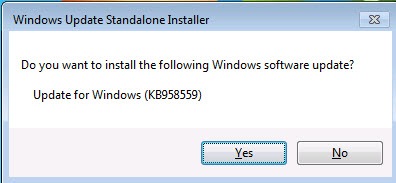
This would install Windows Update to enable Virtual PC

03_Windows Installer


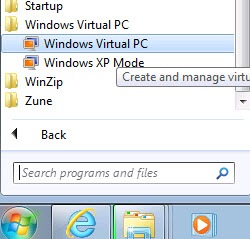
Restart the machine and you should be able to see below under "Start” > “Programs” > “Windows Virtual PC”

04_Windows Virual PC Shortcut

Next step would be to download the Virtual Hard Disk (a.k.a. VHD) file which I can use to configure my machine. Note that You need to use 32 bit images to make this work. Here is the link to download Windows Server 2008 images http://www.microsoft.com/en-us/download/details.aspx?id=14527 (Windows Server 2008 Enterprise Edition x86 (Full Install) VHD)

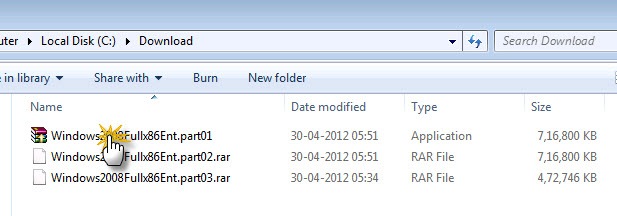
There are three parts which you need to download and then extract to user by Virtual PC. It would look like below.

05_Downloaded VHD

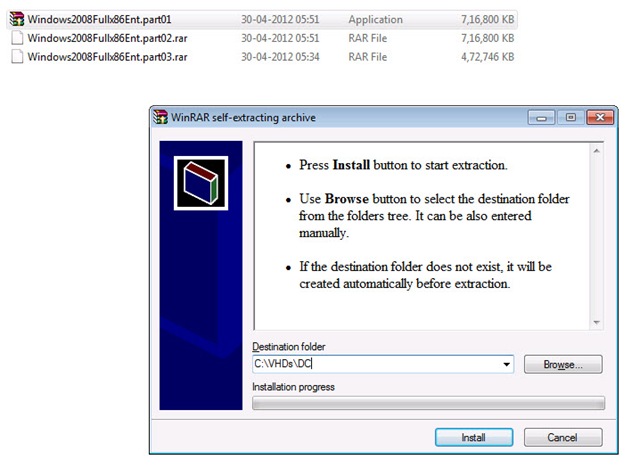
Double Click on the File and Extract the data into “C:\VHDs\DC” folder as shown below:

06_Extract

Once extraction is complete, make three copies of the vhd (Windows2008Fullx86Ent) file and keep them in separate folders as shown below. [I am showing only two, same exists for Srv2 also]

07_Copies

Lets add the machine to Virtual PC. Open the UI from "Start” > “Programs” > “Windows Virtual PC” > “Windows Virtual PC” and choose “Create virtual machine”

08_Create Machine 

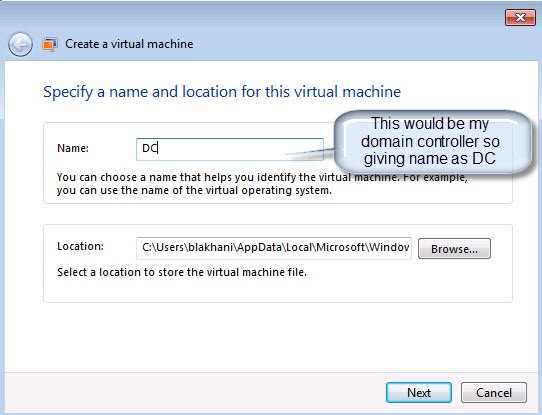
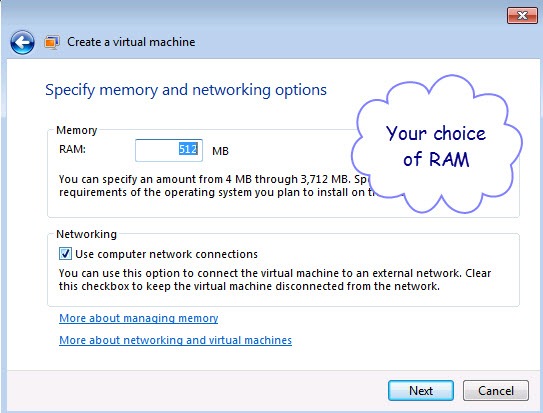
Follow the wizard and create DC

09_Create Machine1 

10_Create Machine_Mem

11_Create Machine_Disk

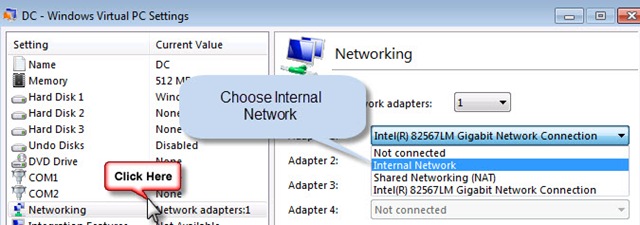
One done, lets go to network setting and choose “Internal Network” This is because I don’t want to create domain controller in my office domain network.

Right Click on DC and choose “Settings”

12_Setting

Go to Networking option and choose “Internal Network”

13_Setting_Network

Now start the first machine and make sure we are able to log in.

14_DC_Startup

You need to follow few steps which are pretty self-explanatory. It would also as you to set machine name (I have given name as DC) new password for Administrator. Once you are done with that, this is what you should see 🙂

15_DC_LoggedIn

As homework, before moving to second part, you need to do the same thing with two more machines and here is what you should see in Windows Virtual PC.

16_Three Machines

See you at next part of Series!

Hope this would help someone in the world!

Cheers,
Balmukund Lakhani
Twitter @blakhani

Posted in AlwaysOn, Denali, Images, Installation, Installation Guide, Introduction, screen shot, Screenshot, SQL Server 2012, Step by Step | 4 Comments »

“Keep Databases Always Available–AlwaysOn”–TechEd 2012 India

Posted by blakhani on March 20, 2012


image

Title: Keep Databases Always Available–AlwaysOn

Date and Time: 23 March 2012, 14:15 to 15:15

Track – Know Your Data – A Day in Life of a DBA

If you see someone with black & red bag with SQL Server 2012 written on it at TechEd 2012, stop him and say “Hello” because mostly it would be me (If it’s someone else, he would know me). Yes! Once again I got chance to speak at TechEd India 2012 which is being held at Bangalore from March 21-23, 2012. I am getting ready with RTM build of SQL Server 2012 to demonstrate AlwaysOn feature of SQL Server 2012. While this is not the first time I am presenting AlwaysOn but I always enhance it and keep it up-to-date with the current release of SQL Server. I am super excited to be there along with Pinal Dave [B | T], Vinod Kumar [B | T], Amit Banerjee [B | T] and Jacob Sebastian [B | T]

Abstract: This session will describe how to build practical end-to-end HA and DR solutions for mission critical applications using SQL Server 2012 AlwaysOn technology. For example, how to combine Failover Cluster Instances with Availability Groups to provide a complete HA and DR solution, how to use Availability Groups Multiple Secondaries to replace existing database mirroring + log shipping solutions. Readable Secondaries, backup on secondaries are some of the cool features which will be covered.

Location: Hotel Lalit Ashok – Kumara Krupa High Grounds, Bengaluru – 560001, Karnataka, India.

There are various other posts about TechEd 2012. Pinal and Vinod posted summary of about various sessions [here and here].  Vinod and Amit also posted about their own sessions. I liked Manas post which has link to various blogs

Since myself, Amit, Pinal and Vinod belong to different workgroups, this is a chance to meet all of us at the same place. This is the last and final call for all folks who don’t want to miss the fun and want to “Go Big”!

Come and Join us!

Regards,
Balmukund

Posted in TechEd | 4 Comments »