
For my upcoming internal session on contained database, I decided to install latest version of SQL Server 2012 (earlier known as SQL Server “Denali”) to show the demo. Here are the steps with screenshots to help someone who is doing the same. So, here we go!
I have done this on my Hyper-V machine so that I can always rollback. I have used SQL Server 2012 RC0 (Release Candidate 0) build. While writing this post, RC0 was the latest version available and can be downloaded from here
- Copied the media to local machine, I prefer this to avoid any network hiccups which might cause my setup to fail. Now run Setup.exe

- After clicking you should see “SQL Server Installation Center”. On left menu, click on “Installation” and then click on “New SQL Server stand-alone installation or add features to an existing installation”

- Once you click, you should see “Setup Support Rules” screen.

- Hit OK and you should get “Product Key” Screen. Since I launched setup from Evaluation Media, it doesn’t populate Product Key. Hit Next.

- Next would be License Terms screen. Check the box “I accept the license terms.” and Next.

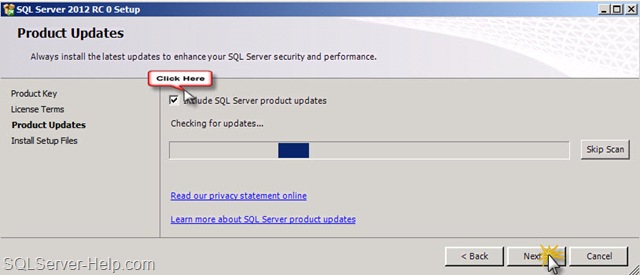
- Next Screen is about auto patching of setup. Since I am using version which is not having any further updates, so I would uncheck the option and move forward. I would cover more about this feature later.
- Hitting Next would install setup support files as shown below.

- Next screen would just show the rules. Hit Next.

- I have selected first option as I don’t play with SharePoint.

- Normally I don’t click “Select All” but to get all screens, i have selected this. Notice the left menu getting changed based on your selection. Hit Next.

- Hit Next

- I am going with default instance. For more details about the impact of that, please refer my earlier blog https://sqlserver-help.com/2011/06/19/help-whats-my-sql-server-name/

- Summary of disk space. Hit Next.

- If you want to change service account, you can provide details and password. You can also specify “Startup Type”. Hit Next.

- In this screen I am going with Mixed mode and given password. Also clicked on “Add Current User” to add logged on user as Sysadmin in SQL Server.

- Please don’t ask question about SSAS. I have just hit next clicking on “Add Current User”.

- In “Reporting Services Configuration” screen, just hit next.

- Next screen should be “Distributed Replay Controller”. I have just hit next clicking on “Add Current User”. I would cover this feature in detail in some later blog.

- In “Distributed Replay Client”. I have entered some name as I don’t know what to enter here. I should be able to change this later (I think so). At this point I am yet to read more about this feature.

- If you want us to provide feedback about setup and some watson failures, you can check the box and in “Error Reporting” screen and then hit next. I always check this because I know this is really useful to make product better.

- Next screen would do validation about installation/system and may block you if one or more rules are failed.

- Finally, the summary of all options selected so far. Very important information is Configuration File Path which can be used if you want to have automation. Remember that we don’t store any password in that file so you are safe!

- “Installation Progress” screen would show the actions being performed.

- And here is the screen which you would all love to see.

That’s all for today. I would love to hear feedback from reader(s).
Hope this would help someone in the world!
Cheers,
Balmukund Lakhani
Twitter @blakhani

 Help: SQL Server